' d='M71 0.33c-25 1 -45.67 12.67 -59.33 33c-4.67 7 -7 12.67 -9.33 21.33c-2.33 8.33 -2 1.33 -2.33 111c0 103.33 0 104 1.33 111.33c1.67 8.33 6.33 19.67 11 26.67c8.33 12.33 22.33 23 36.33 27.67c4.67 1.67 15.33 3.67 20.33 4c6 0.33 227.33 0.33 234 0c10.67 -0.67 23 -4.33 32 -9.33c9 -5 19 -14 24.33 -22c5 -7.67 7.33 -12.67 9.67 -20.33c1.67 -5.67 2.33 -9 2.67 -15.67c0.33 -7.67 0.33 -196 0 -201c-1 -11.33 -3.67 -20 -10.33 -31.33c-3 -5.33 -5 -8 -8.33 -11.33c-11.33 -12 -24.67 -19.67 -40 -22.67c-2.67 -0.67 -6.33 -1 -7.67 -1.33c-4.33 0 -228.33 -0.33 -234.33 0z'/%3E %3Cpath fill='%23FFFFFF' d='M357 33.33c-0.67 0 -2.33 0.67 -3.67 1.33c-1.33 0.33 -3.67 1.33 -5 2c-1.33 0.33 -3.67 1.33 -5 2c-1.67 0.67 -4.67 1.67 -6.67 2.67c-12 4.33 -11.67 4 -19.33 7.33c-1.33 0.67 -3.67 1.33 -5 2c-1.67 0.67 -3.67 1.33 -5.33 2c-1.33 0.67 -4.33 1.67 -6.33 2.67c-10 3.67 -12 4.33 -14.33 5.33c-1.67 0.67 -4.67 1.67 -6.67 2.33c-2 1 -5 2 -6.33 2.67c-1.67 0.67 -6 2.33 -9.67 3.33c-3.67 1.33 -8 3 -9.33 3.67c-3.33 1.33 -8.67 3.33 -16 6c-3 1 -7.33 2.67 -9.67 3.33c-2.33 1 -6.67 2.67 -9.33 3.67c-3 1 -7.33 2.67 -9.33 3.33c-2.33 1 -6 2.33 -8.33 3.33c-2.33 0.67 -7.33 2.33 -11 3.67c-3.67 1.33 -8 3 -9.33 3.67c-1.67 0.67 -6 2.33 -9.67 3.67c-3.67 1.33 -8.67 3 -11 3.67c-2.33 1 -6.67 2.67 -9.33 3.67c-3 1 -7.33 2.67 -9.67 3.33c-2.33 1 -5.67 2.33 -7.67 3c-2 0.67 -4.33 1.67 -5 2c-4.33 2.33 -9 6.33 -11.67 10c-2.67 4 -3 5.33 -5 12.33c-0.67 2.33 -0.67 7.33 -0.33 9.33c1.67 6.33 2.33 7.33 3.67 9.67c2 2.67 8.33 9.33 10.67 11c0.67 0.67 2 1.67 2.67 2.33c0.67 0.33 2 1.67 3 2.33c3.33 2.33 5.33 4 7.67 5.67c1.33 1 3 2.33 4 3c3.33 2.33 8.33 8 9.67 10.67l1.33 2.33l0 5c0 6.67 -1.33 10 -6 14.67c-2.33 2 -8 5.33 -11.33 6.33c-1 0.33 -2.33 1 -3.67 1.33c-1.33 0.67 -2.67 1.33 -3.33 1.67c-1 0.33 -2.33 1 -3.33 1.33c-1 0.67 -3 1.33 -4.33 2c-1 0.33 -3 1 -4.33 1.33c-1 0.67 -2.67 1.33 -3.67 1.67c-1 0.67 -2.67 1.33 -4 2c-1 0.33 -3 1 -4.33 1.67c-1 0.33 -3 1 -4 1.67c-1 0.33 -2.33 1 -3 1.33c-1 0.33 -2.33 1 -3.67 1.33c-1.33 0.67 -2.67 1.33 -3.33 1.67c-1 0.33 -2.33 1 -3.33 1.33c-1 0.67 -3 1.33 -4 1.67c-1.33 0.67 -3.33 1.33 -4.67 2c-5.67 2.33 -8 3 -10 4c-1 0.33 -3 1 -4 1.67c-1 0.33 -2.33 1 -3 1.33c-1 0.33 -2.33 1 -3.33 1.33c-1 0.67 -3 1.33 -4 1.67c-1.33 0.67 -3.33 1.33 -4.67 2c-1.67 0.67 -3.67 1.33 -5 2c-1 0.33 -2.67 1 -3.67 1.67c-1 0.33 -2.67 1 -3.67 1.33c-1.33 0.67 -3.33 1.33 -4.67 2c-5.67 2.33 -8 3 -10 4c-1 0.33 -3 1 -4 1.67c-1 0.33 -2.33 1 -3 1.33c-1 0.33 -2.33 1 -3.33 1.33c-1.33 0.67 -3 1.33 -3.67 1.67c-3.33 1 -7 2.67 -7.33 3.33c-1 1 0 4.33 3.33 12c1.33 2.33 2.67 5.33 3.33 6.33c1.67 2.33 2.67 2.67 6 1c1 -0.67 2.67 -1.33 3.67 -1.67c0.67 -0.33 2 -1 3 -1.33c1.33 -0.67 3.67 -1.67 5.67 -2.33c2 -0.67 4.67 -1.67 6.33 -2.33c1.33 -0.67 3.67 -1.33 5 -2c1.33 -0.67 3.33 -1.33 4.67 -2c1.33 -0.67 3.67 -1.33 5.33 -2c1.33 -0.67 4.33 -1.67 6.33 -2.67c3.67 -1 5.33 -1.67 11.67 -4.33c3 -1.33 9 -3.67 14 -5.33c2 -0.67 4.33 -1.67 5.33 -2c1 -0.67 3.33 -1.67 5.33 -2.33c2 -0.67 5.33 -2 7.67 -3c2.33 -0.67 6.67 -2.33 9.67 -3.33c3 -1 7.67 -3 10.67 -4c3 -1 7.33 -2.67 9.67 -3.33c2 -1 5.67 -2.33 8 -3.33c5.33 -1.67 15.33 -5.33 28 -9.67c5.33 -2 11.67 -4.33 14 -5c2.33 -1 8 -3 12.67 -4.67c19 -6.67 25.33 -9 29 -10.33c4.33 -1.67 10.33 -4.67 12.33 -6c0.67 -0.67 2.33 -1.67 3 -2.33c2.67 -2 7.33 -9.67 8.67 -14.33c0.33 -0.67 0.67 -2 1 -3c0.33 -2 0.33 -8 0 -10c-2 -7 -2 -7 -5 -11.67c-1.67 -2.33 -3.33 -4.67 -4 -5c-1.67 -1.67 -3.67 -3 -5.67 -4.33c-1 -0.67 -2 -1.67 -2.33 -2c-0.67 -0.33 -1.67 -1.33 -2.67 -2c-1 -0.67 -2.33 -1.67 -3 -2.67c-0.67 -0.67 -2 -1.67 -3 -2.33c-3 -2.33 -5.67 -4 -7 -5.33c-1 -0.67 -2.33 -1.67 -3 -2.33c-2.67 -2 -6 -8 -6 -10.67c0 -0.67 -0.33 -2 -0.67 -3c-0.33 -1.67 -0.33 -1.67 0 -3.33c0.33 -1 0.67 -2.33 0.67 -2.67c0 -0.67 3 -7 4 -8.33c2 -2 8 -5.67 12.67 -7.33c1.33 -0.67 3.33 -1.33 4.33 -1.67c1.33 -0.67 3.67 -1.67 5 -2.33c1.33 -0.67 3.67 -1.67 4.67 -2c1.33 -0.67 3.33 -1.33 5 -2c1.33 -0.67 3.33 -1.33 4.67 -2c1 -0.33 3 -1 4 -1.67c1 -0.33 2.33 -1 3.33 -1.33c0.67 -0.33 2 -1 3.33 -1.33c1.33 -0.67 3.33 -1.67 5 -2.33c1.67 -0.33 3.67 -1.33 5 -2c1.33 -0.33 2.67 -1 3.67 -1.33c0.67 -0.33 2 -1 3 -1.33c1 -0.67 3 -1.33 4 -1.67c2 -1 4.33 -1.67 10 -4c1.33 -0.67 3.33 -1.33 4.67 -2c1 -0.33 3 -1 4 -1.67c1 -0.33 3 -1.33 4.67 -2c1.67 -0.33 3.67 -1.33 4.67 -1.67c1 -0.67 3 -1.33 4 -1.67c1.33 -0.67 3.33 -1.33 4.67 -2c5.67 -2.33 8 -3 10 -4c1 -0.33 2.67 -1 3.67 -1.67c1 -0.33 3.33 -1.33 5.33 -2c2 -0.67 4.67 -1.67 6.33 -2.33c1.33 -0.67 3.33 -1.33 4.67 -2c1 -0.33 2.67 -1 3.67 -1.33c1 -0.67 2.67 -1.33 3.67 -1.67c1.33 -0.67 3.33 -1.33 4.67 -2c1.67 -0.67 3.67 -1.33 5.33 -2c1.33 -0.67 3.33 -1.33 4.67 -2c4.33 -1.67 4.33 -2.33 0.67 -10.67c-1 -2.33 -2.67 -5.33 -3.67 -7.33c-2.33 -3.67 -3 -4.33 -5 -3.33z'/%3E %3Cg clip-path='url(%23rimb)'%3E %3Cpath d='M357 33.33c-0.67 0 -2.33 0.67 -3.67 1.33c-1.33 0.33 -3.67 1.33 -5 2c-1.33 0.33 -3.67 1.33 -5 2c-1.67 0.67 -4.67 1.67 -6.67 2.67c-12 4.33 -11.67 4 -19.33 7.33c-1.33 0.67 -3.67 1.33 -5 2c-1.67 0.67 -3.67 1.33 -5.33 2c-1.33 0.67 -4.33 1.67 -6.33 2.67c-10 3.67 -12 4.33 -14.33 5.33c-1.67 0.67 -4.67 1.67 -6.67 2.33c-2 1 -5 2 -6.33 2.67c-1.67 0.67 -6 2.33 -9.67 3.33c-3.67 1.33 -8 3 -9.33 3.67c-3.33 1.33 -8.67 3.33 -16 6c-3 1 -7.33 2.67 -9.67 3.33c-2.33 1 -6.67 2.67 -9.33 3.67c-3 1 -7.33 2.67 -9.33 3.33c-2.33 1 -6 2.33 -8.33 3.33c-2.33 0.67 -7.33 2.33 -11 3.67c-3.67 1.33 -8 3 -9.33 3.67c-1.67 0.67 -6 2.33 -9.67 3.67c-3.67 1.33 -8.67 3 -11 3.67c-2.33 1 -6.67 2.67 -9.33 3.67c-3 1 -7.33 2.67 -9.67 3.33c-2.33 1 -5.67 2.33 -7.67 3c-2 0.67 -4.33 1.67 -5 2c-4.33 2.33 -9 6.33 -11.67 10c-2.67 4 -3 5.33 -5 12.33c-0.67 2.33 -0.67 7.33 -0.33 9.33c1.67 6.33 2.33 7.33 3.67 9.67c2 2.67 8.33 9.33 10.67 11c0.67 0.67 2 1.67 2.67 2.33c0.67 0.33 2 1.67 3 2.33c3.33 2.33 5.33 4 7.67 5.67c1.33 1 3 2.33 4 3c3.33 2.33 8.33 8 9.67 10.67l1.33 2.33l0 5c0 6.67 -1.33 10 -6 14.67c-2.33 2 -8 5.33 -11.33 6.33c-1 0.33 -2.33 1 -3.67 1.33c-1.33 0.67 -2.67 1.33 -3.33 1.67c-1 0.33 -2.33 1 -3.33 1.33c-1 0.67 -3 1.33 -4.33 2c-1 0.33 -3 1 -4.33 1.33c-1 0.67 -2.67 1.33 -3.67 1.67c-1 0.67 -2.67 1.33 -4 2c-1 0.33 -3 1 -4.33 1.67c-1 0.33 -3 1 -4 1.67c-1 0.33 -2.33 1 -3 1.33c-1 0.33 -2.33 1 -3.67 1.33c-1.33 0.67 -2.67 1.33 -3.33 1.67c-1 0.33 -2.33 1 -3.33 1.33c-1 0.67 -3 1.33 -4 1.67c-1.33 0.67 -3.33 1.33 -4.67 2c-5.67 2.33 -8 3 -10 4c-1 0.33 -3 1 -4 1.67c-1 0.33 -2.33 1 -3 1.33c-1 0.33 -2.33 1 -3.33 1.33c-1 0.67 -3 1.33 -4 1.67c-1.33 0.67 -3.33 1.33 -4.67 2c-1.67 0.67 -3.67 1.33 -5 2c-1 0.33 -2.67 1 -3.67 1.67c-1 0.33 -2.67 1 -3.67 1.33c-1.33 0.67 -3.33 1.33 -4.67 2c-5.67 2.33 -8 3 -10 4c-1 0.33 -3 1 -4 1.67c-1 0.33 -2.33 1 -3 1.33c-1 0.33 -2.33 1 -3.33 1.33c-1.33 0.67 -3 1.33 -3.67 1.67c-3.33 1 -7 2.67 -7.33 3.33c-1 1 0 4.33 3.33 12c1.33 2.33 2.67 5.33 3.33 6.33c1.67 2.33 2.67 2.67 6 1c1 -0.67 2.67 -1.33 3.67 -1.67c0.67 -0.33 2 -1 3 -1.33c1.33 -0.67 3.67 -1.67 5.67 -2.33c2 -0.67 4.67 -1.67 6.33 -2.33c1.33 -0.67 3.67 -1.33 5 -2c1.33 -0.67 3.33 -1.33 4.67 -2c1.33 -0.67 3.67 -1.33 5.33 -2c1.33 -0.67 4.33 -1.67 6.33 -2.67c3.67 -1 5.33 -1.67 11.67 -4.33c3 -1.33 9 -3.67 14 -5.33c2 -0.67 4.33 -1.67 5.33 -2c1 -0.67 3.33 -1.67 5.33 -2.33c2 -0.67 5.33 -2 7.67 -3c2.33 -0.67 6.67 -2.33 9.67 -3.33c3 -1 7.67 -3 10.67 -4c3 -1 7.33 -2.67 9.67 -3.33c2 -1 5.67 -2.33 8 -3.33c5.33 -1.67 15.33 -5.33 28 -9.67c5.33 -2 11.67 -4.33 14 -5c2.33 -1 8 -3 12.67 -4.67c19 -6.67 25.33 -9 29 -10.33c4.33 -1.67 10.33 -4.67 12.33 -6c0.67 -0.67 2.33 -1.67 3 -2.33c2.67 -2 7.33 -9.67 8.67 -14.33c0.33 -0.67 0.67 -2 1 -3c0.33 -2 0.33 -8 0 -10c-2 -7 -2 -7 -5 -11.67c-1.67 -2.33 -3.33 -4.67 -4 -5c-1.67 -1.67 -3.67 -3 -5.67 -4.33c-1 -0.67 -2 -1.67 -2.33 -2c-0.67 -0.33 -1.67 -1.33 -2.67 -2c-1 -0.67 -2.33 -1.67 -3 -2.67c-0.67 -0.67 -2 -1.67 -3 -2.33c-3 -2.33 -5.67 -4 -7 -5.33c-1 -0.67 -2.33 -1.67 -3 -2.33c-2.67 -2 -6 -8 -6 -10.67c0 -0.67 -0.33 -2 -0.67 -3c-0.33 -1.67 -0.33 -1.67 0 -3.33c0.33 -1 0.67 -2.33 0.67 -2.67c0 -0.67 3 -7 4 -8.33c2 -2 8 -5.67 12.67 -7.33c1.33 -0.67 3.33 -1.33 4.33 -1.67c1.33 -0.67 3.67 -1.67 5 -2.33c1.33 -0.67 3.67 -1.67 4.67 -2c1.33 -0.67 3.33 -1.33 5 -2c1.33 -0.67 3.33 -1.33 4.67 -2c1 -0.33 3 -1 4 -1.67c1 -0.33 2.33 -1 3.33 -1.33c0.67 -0.33 2 -1 3.33 -1.33c1.33 -0.67 3.33 -1.67 5 -2.33c1.67 -0.33 3.67 -1.33 5 -2c1.33 -0.33 2.67 -1 3.67 -1.33c0.67 -0.33 2 -1 3 -1.33c1 -0.67 3 -1.33 4 -1.67c2 -1 4.33 -1.67 10 -4c1.33 -0.67 3.33 -1.33 4.67 -2c1 -0.33 3 -1 4 -1.67c1 -0.33 3 -1.33 4.67 -2c1.67 -0.33 3.67 -1.33 4.67 -1.67c1 -0.67 3 -1.33 4 -1.67c1.33 -0.67 3.33 -1.33 4.67 -2c5.67 -2.33 8 -3 10 -4c1 -0.33 2.67 -1 3.67 -1.67c1 -0.33 3.33 -1.33 5.33 -2c2 -0.67 4.67 -1.67 6.33 -2.33c1.33 -0.67 3.33 -1.33 4.67 -2c1 -0.33 2.67 -1 3.67 -1.33c1 -0.67 2.67 -1.33 3.67 -1.67c1.33 -0.67 3.33 -1.33 4.67 -2c1.67 -0.67 3.67 -1.33 5.33 -2c1.33 -0.67 3.33 -1.33 4.67 -2c4.33 -1.67 4.33 -2.33 0.67 -10.67c-1 -2.33 -2.67 -5.33 -3.67 -7.33c-2.33 -3.67 -3 -4.33 -5 -3.33z' fill='none' stroke='url(%23fileteInv)' stroke-width='3.65'/%3E %3C/g%3E %3Cg clip-path='url(%23rim)'%3E %3Cpath d='M71 0.33c-25 1 -45.67 12.67 -59.33 33c-4.67 7 -7 12.67 -9.33 21.33c-2.33 8.33 -2 1.33 -2.33 111c0 103.33 0 104 1.33 111.33c1.67 8.33 6.33 19.67 11 26.67c8.33 12.33 22.33 23 36.33 27.67c4.67 1.67 15.33 3.67 20.33 4c6 0.33 227.33 0.33 234 0c10.67 -0.67 23 -4.33 32 -9.33c9 -5 19 -14 24.33 -22c5 -7.67 7.33 -12.67 9.67 -20.33c1.67 -5.67 2.33 -9 2.67 -15.67c0.33 -7.67 0.33 -196 0 -201c-1 -11.33 -3.67 -20 -10.33 -31.33c-3 -5.33 -5 -8 -8.33 -11.33c-11.33 -12 -24.67 -19.67 -40 -22.67c-2.67 -0.67 -6.33 -1 -7.67 -1.33c-4.33 0 -228.33 -0.33 -234.33 0z' fill='none' stroke='url(%23filete)' stroke-width='8.64'/%3E %3C/g%3E %3Cpath d='M1269 56l-0.67 0.67l-0.33 35c0 19 -0.33 35 -0.33 35.33c-0.67 1 -1.33 0.67 -4 -0.67c-6 -4 -14.67 -7.33 -23.67 -9c-4.33 -0.67 -15.33 -0.67 -20.67 0c-17.33 2.33 -33.33 11.67 -44.67 25.67c-10.33 13 -14.67 26.33 -14.67 44.67c-0.33 13.33 1.67 21.67 7.33 33c3.67 7 7 11.67 14.33 19c5.33 5.67 16.33 12 26.33 15.33c19.67 6.67 42.33 4 60 -6.67c10.33 -6 20 -16.33 25 -26c5 -9.67 7.33 -18.67 8 -28.33c0.33 -7 0.33 -135 0 -136.67c-0.33 -1 -0.67 -1.33 -1.33 -1.67c-0.33 -0.33 -6.67 -0.33 -15.33 -0.33c-14 0 -14.67 0 -15.33 0.67zm-31 91.33c7 1 15.33 5.33 20 10c3.67 4 8.33 11 10 15.33c2.67 8 3 20 0 28.67c-5.33 16.33 -20.33 27.33 -36.67 27.33c-11 0 -20.33 -3.67 -28.67 -11.67c-7 -6.67 -11.67 -18.33 -11.67 -29.33c0 -16 8.33 -30.33 22.67 -37.33c6.33 -3.33 16.33 -4.67 24.33 -3zM1319.33 55.67c-0.33 0 -0.67 0.67 -1 1c-0.33 1 -0.33 133.33 0 138c1 11.67 5.33 24 11 32.67c4.33 6.67 13 15.33 18.67 19c3 2 11 6 15.67 7.67c13 5.33 30.67 6 45.33 2c6 -1.67 16.33 -6.67 22.33 -10.67c4.33 -3 13 -12 16.67 -17.67c2.67 -4 4.67 -8.33 7.33 -14.33c5.33 -14.67 6 -28.67 2 -44c-3.33 -14 -8.67 -23.33 -18.67 -33.33c-13.33 -12.67 -29.67 -19 -49.33 -19c-13 0 -24.67 3.33 -34 9.33c-3.67 2.67 -4.33 2.67 -4.67 0c-0.33 -0.67 -0.33 -17 -0.33 -35.67l0.33 -34l-1 -0.67c-0.67 -0.67 -1.33 -0.67 -15 -0.67c-8 0 -14.67 0.33 -15.33 0.33zm76.33 91.67c5.67 0.67 10 2.67 15.67 6.33c5.33 3.67 8.33 7 12.33 14c3.67 6.33 4.67 10.33 5 18.33c0.33 9.67 -1.67 16.67 -7.67 25.67c-3.33 5.33 -9.67 10.33 -16.33 13.67c-8 3.67 -18.67 4.33 -27.67 1.67c-6.33 -2 -15.33 -8.33 -19 -13c-2.33 -3 -6.67 -12.33 -7.67 -16.67c-2.33 -8.33 -1 -19.33 2.67 -27.33c5.33 -11 12.33 -17.33 23 -21.33c5.33 -2 13.33 -2.67 19.67 -1.33zM1696 67.33c-8.67 2.67 -14.33 9.67 -14.33 18c0 8.67 5.67 16 13.67 18.33c2.33 0.67 7.67 0.67 10 0.33c9.67 -2.67 15.33 -12 13 -22.33c-1 -5 -4.67 -10 -9 -12.33c-4 -2 -9.67 -3 -13.33 -2zM1080.33 117.33c-7.33 1 -16.33 3.33 -22.33 6.33c-8 3.67 -19.33 13.67 -23 20c-4.33 6.67 -6.67 12.33 -8 18.33c-2.33 8.67 -2 7.33 -2.33 46.33c0 39.67 0 45.33 1 46.33l0.67 0.67l14.33 0.33c13.67 0 14.33 0 15 -0.67l1 -0.67l0 -38.67c0 -25.67 0 -39.67 0.33 -41.67c1 -7 4 -12.67 9.33 -18.33c5.33 -5.67 12.33 -8 21.67 -8c6 0 8 0.33 12.67 2.67c8.33 4.33 12 8 15.33 16c3 6.67 2.67 2.67 3 48c0 39.33 0.33 40.33 0.67 41c0.67 0.33 3.33 0.33 15 0.33c13.33 0 14 0 14.67 -0.67l1 -0.67l0 -38c0 -40 0 -43.67 -1.33 -51.33c-2.33 -12 -6.67 -20.33 -15 -29c-9.67 -9.67 -20.33 -15.33 -34 -18c-4.33 -1 -15 -1.33 -19.67 -0.67zM531.33 117.67c-16 1 -28.33 6.67 -37.67 17.33c-4.33 4.67 -6.33 9.33 -7.67 17.33c-1.67 11 1.67 21.67 8.67 29c3.33 3.33 10 8 14.33 10c5.33 2.33 16.67 6 27.67 8.33c11 2.67 16 4.67 19 7.67c5.67 5.67 3 14 -5.33 18c-7.67 4 -20 3.67 -28 -0.33c-4.67 -2.33 -9 -6.67 -12.67 -11.67c-1.33 -2.33 -2.33 -3.33 -3 -3.67c-0.33 0 -2 0.67 -6 2.33c-18.33 9.33 -19.33 9.67 -19.33 11.33c0 0.67 0.67 2.33 1.67 4.33c7.67 15 20.67 24.33 40 28.67c3.33 0.67 4.33 0.67 13.67 0.67c11.33 0 15 -0.33 23 -3c9 -3 19 -9.67 23.33 -16c8.67 -12 10.33 -26 4.67 -39c-3.67 -8.33 -7 -12 -17 -17.67c-6.33 -3.33 -15.67 -6.67 -25.67 -9c-7.33 -1.67 -17.33 -4.67 -20 -6c-4.67 -2.33 -7 -5 -7 -8.67c0 -5.33 4 -9.67 11 -11.67c3 -0.67 10.67 -0.67 13.67 0c6.67 2 11.67 5.33 15 10c1.67 2.67 2.33 3 3.33 3c1 0 20.33 -9.67 22.67 -11.67c1.33 -1 1.33 -2.33 -0.33 -5.33c-3.67 -7 -14 -16 -22.67 -19.33c-10.67 -4.33 -19.33 -5.67 -29.33 -5zM663.67 117.67c-14 1 -24.33 5 -34.33 12.33c-8 6 -10 8.33 -14.67 14.33c-10.67 14.33 -15.33 30 -14 48.67c1.67 24 16.33 46.67 37.33 57c7.33 3.67 12.33 5.33 19.33 6.33c7 1.33 18 1 25.33 -0.33c9 -1.67 20.33 -7 27.67 -12.33c5 -3.67 13.33 -13 15 -16.67c1 -2 1 -2 0.67 -3c-0.33 -0.33 -1.33 -1 -2 -1.67c-16 -9.33 -22.33 -12.67 -23.33 -12.67c-1 0 -2.33 1.33 -4 3.67c-3.33 5 -12 10.67 -19.33 12.67c-3.67 1 -14 1 -17.33 0.33c-9.67 -2.67 -18 -9 -22.67 -17.33c-1.67 -3 -3 -7 -3 -8.67c0 -2 -3.33 -1.67 49.33 -2c38.33 0 48.67 -0.33 49.33 -0.67c1.33 -0.67 1.33 -2.67 1.33 -11.33c0.33 -9.33 -0.33 -12.67 -2.67 -20.67c-3.33 -12.67 -8 -21 -16.67 -29.33c-8.33 -8.33 -19 -14.33 -29.67 -16.67c-6.67 -1.67 -15.67 -2.33 -21.67 -2zm14.33 30.67c3 0.67 9 3.67 11.67 5.67c4.33 3 8 7.33 10.33 13.33c1.33 3.67 1.67 4.33 0.67 5c-0.67 0.67 -64 1 -65 0.33c-1 -0.67 -1 -2 0.33 -5c4 -9.33 12.67 -16.67 22.67 -19.33c3.67 -1 3.67 -1 10.67 -1c5.33 0.33 7 0.33 8.67 1zM807 118c-9 1 -18.33 4 -25 7.67c-5 3 -15.67 11.33 -19 15.33c-2.67 3.33 -7.33 10.67 -9.67 14.67c-2 5 -5.33 14 -6 18.67c-1 4.67 -1.33 16 -0.67 21c1.67 14.67 6.67 26 16.67 38.33c9.33 11.33 25 20.33 39.67 22.67c14 2 28.33 1 38.33 -3c5 -2 13 -6 15.67 -8c8 -6 17.67 -17.33 17.67 -20.67c0 -1.33 -1.33 -2.33 -8.33 -6.33c-3 -1.67 -7 -4 -9 -5.33c-8 -5 -7.67 -5 -10.67 -1c-8.67 10.67 -18 15.33 -29.67 15.33c-11 0 -20.33 -4 -28.33 -11.67c-9.67 -9.67 -13.33 -24.67 -9.33 -39c3 -13 13 -23.67 25 -27.33c7 -2.33 16 -2.67 22.33 -1c7 2.33 11 4.67 16.67 10.33c3 2.67 4 3.67 4.67 3.67c1 0 7.33 -4 11 -6.67c1 -1 3.33 -2.67 5.33 -4c6.33 -3.67 7.67 -5 7.67 -6c0 -3.67 -12.33 -15 -21.33 -20c-13 -6.67 -29 -9.67 -43.67 -7.67zM938 118c-16.67 2.33 -25.67 6.33 -39 17.67c-4.33 3.67 -6.67 6.67 -11 13.33c-3.67 5.67 -5 9 -7.33 15.67c-3.33 9.33 -4 14 -3.67 24.67c0.33 12.33 2.67 20.67 9 32.33c3.33 6.33 5 9 9.33 13.33c15.67 18 40.67 25.67 65.33 20.67c7 -1.33 14.67 -4.33 22 -8.67c10.33 -6.33 21 -18.67 25.67 -30.33c3.67 -9 5.33 -16 6 -25.67c1 -14.33 -2 -27 -9 -39.33c-5.67 -9.67 -11 -15.67 -21 -23c-6.33 -4.33 -18.67 -9 -28 -10.67c-4.67 -0.67 -14 -0.67 -18.33 0zm11.67 29.67c8 1 16.33 5 21.67 10.33c6 6.33 9.67 13.33 11.33 21.67c0.67 4 0.33 14.33 -0.33 17.33c-2.67 10 -8.33 18 -16 23.33c-6 4.33 -10.67 5.67 -19.67 6.67c-11 0.67 -24.67 -6.33 -31.33 -16.33c-2.67 -4 -5.33 -10.33 -6.33 -15c-1.67 -7.33 -0.33 -18 2.33 -25c3.33 -7.67 10.33 -15.33 17.33 -19c7.33 -3.67 13.67 -5 21 -4zM1531.33 117.67c-17.33 1 -29.67 4.67 -39 12.33c-7.33 6 -11.67 11.67 -15.67 20c-2.67 5.33 -3.33 7.67 -4.33 12.67c-1.33 7.33 -1.33 10 -1.33 51.67l0.33 40.33l0.67 0.67c0.67 0.67 1.33 0.67 15 0.67c13.33 0 14.33 -0.33 15 -0.67c0.67 -0.67 0.67 -0.67 0.67 -40.67c0.33 -43.67 0 -41 2 -47c2.33 -6.33 6.33 -11.33 12 -15.33c5.33 -3.67 10 -4.67 21.33 -5.33c4.33 -0.33 5 -0.33 5.67 -0.67c0.33 -0.67 0.33 -3.33 0.33 -14c0 -16 0.33 -14.67 -4.67 -14.67c-2 -0.33 -5.67 0 -8 0zM1797 117.67c-9.67 0.33 -16 1.67 -23.67 4.67c-8.67 3.67 -12 5.67 -21.67 15c-6.33 5.67 -12.33 17 -15 26.67c-1.67 7.67 -1.67 7.67 -1.67 50.33c0 21.67 0 39.67 0 40.33c0.33 0.33 0.67 0.67 1.33 1c1.33 0.33 28 0.33 29 0c0.67 0 1 -0.67 1.33 -1c0 -0.33 0.33 -18.67 0.33 -40.33l0 -39.33l0.67 -2.67c2 -7.67 7.33 -15.33 12.67 -19c11 -7 22.33 -7.67 34.33 -1.67c5.67 3 9.67 7.33 13.33 14.33c3.33 7 3 3 3.33 48.67l0.33 40l0.67 0.67c0.67 0.67 1.33 0.67 15 0.67c13.33 0 14.33 -0.33 15 -0.67c0.33 -0.67 0.67 -2.67 0.67 -38.33c0 -39.33 0 -43 -1.33 -49.33c-2 -9.67 -6.33 -19.67 -12.67 -27c-2.33 -3.33 -9.33 -9.33 -13 -12c-3.33 -2 -9.33 -5.33 -14 -7c-6.33 -2.67 -17.67 -4.67 -25 -4zM1602.67 118c-11 1.67 -16.67 3.33 -23.67 7c-6.67 3.33 -10 5.67 -15.33 11c-6.67 6.67 -8.67 9.33 -7.33 11c0.67 0.67 5.33 4.33 11.33 8.33c2.33 1.67 5.33 3.67 6.67 4.67c2.67 1.67 3 1.67 6 -0.67c6.33 -5.33 9 -7.33 14 -9.33c7 -2.67 13.67 -3.67 20.67 -2.67c9.33 1.67 16 6 19.33 12.67c2.33 4.67 3 9.67 1.67 10.67c-1 1 -1.33 1 -21.67 1c-23.67 0.33 -25.67 0.67 -34.33 3c-3.33 1 -9.67 3.33 -11.33 4.33c-5.33 3.33 -10.67 8 -13.67 12.67c-7 10.33 -7.33 27.33 -1.33 39.67c3 6 9 12.67 14.33 16.33c10 7 21.33 10 36 9.67c12.33 -0.33 20 -2.67 29 -9c3.33 -2.33 4.33 -2.67 5 -1.67c0 0.33 0.33 2.33 0.33 4.33c0 3 0.33 3.67 0.67 4c1 0.67 11 1 21 1c9.67 -0.33 9 0.33 9 -7c0.33 -10.67 0 -79.67 -0.33 -83c-1 -6.67 -3.33 -15.67 -6 -21c-5.33 -10 -17 -19.67 -29.33 -23.67c-4 -1.33 -10 -2.67 -15 -3.33c-3.67 -0.33 -13.67 -0.33 -15.67 0zm33 79c2 1 1.33 8.67 -0.67 14.33c-2 5.33 -6.33 10.67 -10.67 13c-3 1.67 -9.67 4 -13.67 4.33c-7.67 1 -17.67 -1 -22.67 -4.67c-4.67 -3.33 -6.33 -6.33 -6.33 -12.33c0 -3.33 0 -3.67 1 -5.67c2.33 -5 8 -8.33 16.33 -9c4 -0.33 36 -0.33 36.67 0zM1686.33 122l-0.67 0.67l0 65.33c0 36 0 66 0 66.33c0.67 1.67 1.33 1.67 16.33 1.67c13.33 0 13.67 0 14.33 -0.67l1 -0.67l0 -66c0 -62.67 -0.33 -66 -0.67 -66.67c-0.67 -0.33 -1.67 -0.67 -15 -0.67c-14 0 -14.67 0 -15.33 0.67z' fill='none' stroke='%23000000' stroke-opacity='0.26' stroke-width='3.72'/%3E %3Cpath fill='%230071FC' d='M1269 56l-0.67 0.67l-0.33 35c0 19 -0.33 35 -0.33 35.33c-0.67 1 -1.33 0.67 -4 -0.67c-6 -4 -14.67 -7.33 -23.67 -9c-4.33 -0.67 -15.33 -0.67 -20.67 0c-17.33 2.33 -33.33 11.67 -44.67 25.67c-10.33 13 -14.67 26.33 -14.67 44.67c-0.33 13.33 1.67 21.67 7.33 33c3.67 7 7 11.67 14.33 19c5.33 5.67 16.33 12 26.33 15.33c19.67 6.67 42.33 4 60 -6.67c10.33 -6 20 -16.33 25 -26c5 -9.67 7.33 -18.67 8 -28.33c0.33 -7 0.33 -135 0 -136.67c-0.33 -1 -0.67 -1.33 -1.33 -1.67c-0.33 -0.33 -6.67 -0.33 -15.33 -0.33c-14 0 -14.67 0 -15.33 0.67zm-31 91.33c7 1 15.33 5.33 20 10c3.67 4 8.33 11 10 15.33c2.67 8 3 20 0 28.67c-5.33 16.33 -20.33 27.33 -36.67 27.33c-11 0 -20.33 -3.67 -28.67 -11.67c-7 -6.67 -11.67 -18.33 -11.67 -29.33c0 -16 8.33 -30.33 22.67 -37.33c6.33 -3.33 16.33 -4.67 24.33 -3zM1319.33 55.67c-0.33 0 -0.67 0.67 -1 1c-0.33 1 -0.33 133.33 0 138c1 11.67 5.33 24 11 32.67c4.33 6.67 13 15.33 18.67 19c3 2 11 6 15.67 7.67c13 5.33 30.67 6 45.33 2c6 -1.67 16.33 -6.67 22.33 -10.67c4.33 -3 13 -12 16.67 -17.67c2.67 -4 4.67 -8.33 7.33 -14.33c5.33 -14.67 6 -28.67 2 -44c-3.33 -14 -8.67 -23.33 -18.67 -33.33c-13.33 -12.67 -29.67 -19 -49.33 -19c-13 0 -24.67 3.33 -34 9.33c-3.67 2.67 -4.33 2.67 -4.67 0c-0.33 -0.67 -0.33 -17 -0.33 -35.67l0.33 -34l-1 -0.67c-0.67 -0.67 -1.33 -0.67 -15 -0.67c-8 0 -14.67 0.33 -15.33 0.33zm76.33 91.67c5.67 0.67 10 2.67 15.67 6.33c5.33 3.67 8.33 7 12.33 14c3.67 6.33 4.67 10.33 5 18.33c0.33 9.67 -1.67 16.67 -7.67 25.67c-3.33 5.33 -9.67 10.33 -16.33 13.67c-8 3.67 -18.67 4.33 -27.67 1.67c-6.33 -2 -15.33 -8.33 -19 -13c-2.33 -3 -6.67 -12.33 -7.67 -16.67c-2.33 -8.33 -1 -19.33 2.67 -27.33c5.33 -11 12.33 -17.33 23 -21.33c5.33 -2 13.33 -2.67 19.67 -1.33zM1696 67.33c-8.67 2.67 -14.33 9.67 -14.33 18c0 8.67 5.67 16 13.67 18.33c2.33 0.67 7.67 0.67 10 0.33c9.67 -2.67 15.33 -12 13 -22.33c-1 -5 -4.67 -10 -9 -12.33c-4 -2 -9.67 -3 -13.33 -2zM1080.33 117.33c-7.33 1 -16.33 3.33 -22.33 6.33c-8 3.67 -19.33 13.67 -23 20c-4.33 6.67 -6.67 12.33 -8 18.33c-2.33 8.67 -2 7.33 -2.33 46.33c0 39.67 0 45.33 1 46.33l0.67 0.67l14.33 0.33c13.67 0 14.33 0 15 -0.67l1 -0.67l0 -38.67c0 -25.67 0 -39.67 0.33 -41.67c1 -7 4 -12.67 9.33 -18.33c5.33 -5.67 12.33 -8 21.67 -8c6 0 8 0.33 12.67 2.67c8.33 4.33 12 8 15.33 16c3 6.67 2.67 2.67 3 48c0 39.33 0.33 40.33 0.67 41c0.67 0.33 3.33 0.33 15 0.33c13.33 0 14 0 14.67 -0.67l1 -0.67l0 -38c0 -40 0 -43.67 -1.33 -51.33c-2.33 -12 -6.67 -20.33 -15 -29c-9.67 -9.67 -20.33 -15.33 -34 -18c-4.33 -1 -15 -1.33 -19.67 -0.67zM531.33 117.67c-16 1 -28.33 6.67 -37.67 17.33c-4.33 4.67 -6.33 9.33 -7.67 17.33c-1.67 11 1.67 21.67 8.67 29c3.33 3.33 10 8 14.33 10c5.33 2.33 16.67 6 27.67 8.33c11 2.67 16 4.67 19 7.67c5.67 5.67 3 14 -5.33 18c-7.67 4 -20 3.67 -28 -0.33c-4.67 -2.33 -9 -6.67 -12.67 -11.67c-1.33 -2.33 -2.33 -3.33 -3 -3.67c-0.33 0 -2 0.67 -6 2.33c-18.33 9.33 -19.33 9.67 -19.33 11.33c0 0.67 0.67 2.33 1.67 4.33c7.67 15 20.67 24.33 40 28.67c3.33 0.67 4.33 0.67 13.67 0.67c11.33 0 15 -0.33 23 -3c9 -3 19 -9.67 23.33 -16c8.67 -12 10.33 -26 4.67 -39c-3.67 -8.33 -7 -12 -17 -17.67c-6.33 -3.33 -15.67 -6.67 -25.67 -9c-7.33 -1.67 -17.33 -4.67 -20 -6c-4.67 -2.33 -7 -5 -7 -8.67c0 -5.33 4 -9.67 11 -11.67c3 -0.67 10.67 -0.67 13.67 0c6.67 2 11.67 5.33 15 10c1.67 2.67 2.33 3 3.33 3c1 0 20.33 -9.67 22.67 -11.67c1.33 -1 1.33 -2.33 -0.33 -5.33c-3.67 -7 -14 -16 -22.67 -19.33c-10.67 -4.33 -19.33 -5.67 -29.33 -5zM663.67 117.67c-14 1 -24.33 5 -34.33 12.33c-8 6 -10 8.33 -14.67 14.33c-10.67 14.33 -15.33 30 -14 48.67c1.67 24 16.33 46.67 37.33 57c7.33 3.67 12.33 5.33 19.33 6.33c7 1.33 18 1 25.33 -0.33c9 -1.67 20.33 -7 27.67 -12.33c5 -3.67 13.33 -13 15 -16.67c1 -2 1 -2 0.67 -3c-0.33 -0.33 -1.33 -1 -2 -1.67c-16 -9.33 -22.33 -12.67 -23.33 -12.67c-1 0 -2.33 1.33 -4 3.67c-3.33 5 -12 10.67 -19.33 12.67c-3.67 1 -14 1 -17.33 0.33c-9.67 -2.67 -18 -9 -22.67 -17.33c-1.67 -3 -3 -7 -3 -8.67c0 -2 -3.33 -1.67 49.33 -2c38.33 0 48.67 -0.33 49.33 -0.67c1.33 -0.67 1.33 -2.67 1.33 -11.33c0.33 -9.33 -0.33 -12.67 -2.67 -20.67c-3.33 -12.67 -8 -21 -16.67 -29.33c-8.33 -8.33 -19 -14.33 -29.67 -16.67c-6.67 -1.67 -15.67 -2.33 -21.67 -2zm14.33 30.67c3 0.67 9 3.67 11.67 5.67c4.33 3 8 7.33 10.33 13.33c1.33 3.67 1.67 4.33 0.67 5c-0.67 0.67 -64 1 -65 0.33c-1 -0.67 -1 -2 0.33 -5c4 -9.33 12.67 -16.67 22.67 -19.33c3.67 -1 3.67 -1 10.67 -1c5.33 0.33 7 0.33 8.67 1zM807 118c-9 1 -18.33 4 -25 7.67c-5 3 -15.67 11.33 -19 15.33c-2.67 3.33 -7.33 10.67 -9.67 14.67c-2 5 -5.33 14 -6 18.67c-1 4.67 -1.33 16 -0.67 21c1.67 14.67 6.67 26 16.67 38.33c9.33 11.33 25 20.33 39.67 22.67c14 2 28.33 1 38.33 -3c5 -2 13 -6 15.67 -8c8 -6 17.67 -17.33 17.67 -20.67c0 -1.33 -1.33 -2.33 -8.33 -6.33c-3 -1.67 -7 -4 -9 -5.33c-8 -5 -7.67 -5 -10.67 -1c-8.67 10.67 -18 15.33 -29.67 15.33c-11 0 -20.33 -4 -28.33 -11.67c-9.67 -9.67 -13.33 -24.67 -9.33 -39c3 -13 13 -23.67 25 -27.33c7 -2.33 16 -2.67 22.33 -1c7 2.33 11 4.67 16.67 10.33c3 2.67 4 3.67 4.67 3.67c1 0 7.33 -4 11 -6.67c1 -1 3.33 -2.67 5.33 -4c6.33 -3.67 7.67 -5 7.67 -6c0 -3.67 -12.33 -15 -21.33 -20c-13 -6.67 -29 -9.67 -43.67 -7.67zM938 118c-16.67 2.33 -25.67 6.33 -39 17.67c-4.33 3.67 -6.67 6.67 -11 13.33c-3.67 5.67 -5 9 -7.33 15.67c-3.33 9.33 -4 14 -3.67 24.67c0.33 12.33 2.67 20.67 9 32.33c3.33 6.33 5 9 9.33 13.33c15.67 18 40.67 25.67 65.33 20.67c7 -1.33 14.67 -4.33 22 -8.67c10.33 -6.33 21 -18.67 25.67 -30.33c3.67 -9 5.33 -16 6 -25.67c1 -14.33 -2 -27 -9 -39.33c-5.67 -9.67 -11 -15.67 -21 -23c-6.33 -4.33 -18.67 -9 -28 -10.67c-4.67 -0.67 -14 -0.67 -18.33 0zm11.67 29.67c8 1 16.33 5 21.67 10.33c6 6.33 9.67 13.33 11.33 21.67c0.67 4 0.33 14.33 -0.33 17.33c-2.67 10 -8.33 18 -16 23.33c-6 4.33 -10.67 5.67 -19.67 6.67c-11 0.67 -24.67 -6.33 -31.33 -16.33c-2.67 -4 -5.33 -10.33 -6.33 -15c-1.67 -7.33 -0.33 -18 2.33 -25c3.33 -7.67 10.33 -15.33 17.33 -19c7.33 -3.67 13.67 -5 21 -4zM1531.33 117.67c-17.33 1 -29.67 4.67 -39 12.33c-7.33 6 -11.67 11.67 -15.67 20c-2.67 5.33 -3.33 7.67 -4.33 12.67c-1.33 7.33 -1.33 10 -1.33 51.67l0.33 40.33l0.67 0.67c0.67 0.67 1.33 0.67 15 0.67c13.33 0 14.33 -0.33 15 -0.67c0.67 -0.67 0.67 -0.67 0.67 -40.67c0.33 -43.67 0 -41 2 -47c2.33 -6.33 6.33 -11.33 12 -15.33c5.33 -3.67 10 -4.67 21.33 -5.33c4.33 -0.33 5 -0.33 5.67 -0.67c0.33 -0.67 0.33 -3.33 0.33 -14c0 -16 0.33 -14.67 -4.67 -14.67c-2 -0.33 -5.67 0 -8 0zM1797 117.67c-9.67 0.33 -16 1.67 -23.67 4.67c-8.67 3.67 -12 5.67 -21.67 15c-6.33 5.67 -12.33 17 -15 26.67c-1.67 7.67 -1.67 7.67 -1.67 50.33c0 21.67 0 39.67 0 40.33c0.33 0.33 0.67 0.67 1.33 1c1.33 0.33 28 0.33 29 0c0.67 0 1 -0.67 1.33 -1c0 -0.33 0.33 -18.67 0.33 -40.33l0 -39.33l0.67 -2.67c2 -7.67 7.33 -15.33 12.67 -19c11 -7 22.33 -7.67 34.33 -1.67c5.67 3 9.67 7.33 13.33 14.33c3.33 7 3 3 3.33 48.67l0.33 40l0.67 0.67c0.67 0.67 1.33 0.67 15 0.67c13.33 0 14.33 -0.33 15 -0.67c0.33 -0.67 0.67 -2.67 0.67 -38.33c0 -39.33 0 -43 -1.33 -49.33c-2 -9.67 -6.33 -19.67 -12.67 -27c-2.33 -3.33 -9.33 -9.33 -13 -12c-3.33 -2 -9.33 -5.33 -14 -7c-6.33 -2.67 -17.67 -4.67 -25 -4zM1602.67 118c-11 1.67 -16.67 3.33 -23.67 7c-6.67 3.33 -10 5.67 -15.33 11c-6.67 6.67 -8.67 9.33 -7.33 11c0.67 0.67 5.33 4.33 11.33 8.33c2.33 1.67 5.33 3.67 6.67 4.67c2.67 1.67 3 1.67 6 -0.67c6.33 -5.33 9 -7.33 14 -9.33c7 -2.67 13.67 -3.67 20.67 -2.67c9.33 1.67 16 6 19.33 12.67c2.33 4.67 3 9.67 1.67 10.67c-1 1 -1.33 1 -21.67 1c-23.67 0.33 -25.67 0.67 -34.33 3c-3.33 1 -9.67 3.33 -11.33 4.33c-5.33 3.33 -10.67 8 -13.67 12.67c-7 10.33 -7.33 27.33 -1.33 39.67c3 6 9 12.67 14.33 16.33c10 7 21.33 10 36 9.67c12.33 -0.33 20 -2.67 29 -9c3.33 -2.33 4.33 -2.67 5 -1.67c0 0.33 0.33 2.33 0.33 4.33c0 3 0.33 3.67 0.67 4c1 0.67 11 1 21 1c9.67 -0.33 9 0.33 9 -7c0.33 -10.67 0 -79.67 -0.33 -83c-1 -6.67 -3.33 -15.67 -6 -21c-5.33 -10 -17 -19.67 -29.33 -23.67c-4 -1.33 -10 -2.67 -15 -3.33c-3.67 -0.33 -13.67 -0.33 -15.67 0zm33 79c2 1 1.33 8.67 -0.67 14.33c-2 5.33 -6.33 10.67 -10.67 13c-3 1.67 -9.67 4 -13.67 4.33c-7.67 1 -17.67 -1 -22.67 -4.67c-4.67 -3.33 -6.33 -6.33 -6.33 -12.33c0 -3.33 0 -3.67 1 -5.67c2.33 -5 8 -8.33 16.33 -9c4 -0.33 36 -0.33 36.67 0zM1686.33 122l-0.67 0.67l0 65.33c0 36 0 66 0 66.33c0.67 1.67 1.33 1.67 16.33 1.67c13.33 0 13.67 0 14.33 -0.67l1 -0.67l0 -66c0 -62.67 -0.33 -66 -0.67 -66.67c-0.67 -0.33 -1.67 -0.67 -15 -0.67c-14 0 -14.67 0 -15.33 0.67z'/%3E %3Cg clip-path='url(%23rimw)'%3E %3Cpath d='M1269 56l-0.67 0.67l-0.33 35c0 19 -0.33 35 -0.33 35.33c-0.67 1 -1.33 0.67 -4 -0.67c-6 -4 -14.67 -7.33 -23.67 -9c-4.33 -0.67 -15.33 -0.67 -20.67 0c-17.33 2.33 -33.33 11.67 -44.67 25.67c-10.33 13 -14.67 26.33 -14.67 44.67c-0.33 13.33 1.67 21.67 7.33 33c3.67 7 7 11.67 14.33 19c5.33 5.67 16.33 12 26.33 15.33c19.67 6.67 42.33 4 60 -6.67c10.33 -6 20 -16.33 25 -26c5 -9.67 7.33 -18.67 8 -28.33c0.33 -7 0.33 -135 0 -136.67c-0.33 -1 -0.67 -1.33 -1.33 -1.67c-0.33 -0.33 -6.67 -0.33 -15.33 -0.33c-14 0 -14.67 0 -15.33 0.67zm-31 91.33c7 1 15.33 5.33 20 10c3.67 4 8.33 11 10 15.33c2.67 8 3 20 0 28.67c-5.33 16.33 -20.33 27.33 -36.67 27.33c-11 0 -20.33 -3.67 -28.67 -11.67c-7 -6.67 -11.67 -18.33 -11.67 -29.33c0 -16 8.33 -30.33 22.67 -37.33c6.33 -3.33 16.33 -4.67 24.33 -3zM1319.33 55.67c-0.33 0 -0.67 0.67 -1 1c-0.33 1 -0.33 133.33 0 138c1 11.67 5.33 24 11 32.67c4.33 6.67 13 15.33 18.67 19c3 2 11 6 15.67 7.67c13 5.33 30.67 6 45.33 2c6 -1.67 16.33 -6.67 22.33 -10.67c4.33 -3 13 -12 16.67 -17.67c2.67 -4 4.67 -8.33 7.33 -14.33c5.33 -14.67 6 -28.67 2 -44c-3.33 -14 -8.67 -23.33 -18.67 -33.33c-13.33 -12.67 -29.67 -19 -49.33 -19c-13 0 -24.67 3.33 -34 9.33c-3.67 2.67 -4.33 2.67 -4.67 0c-0.33 -0.67 -0.33 -17 -0.33 -35.67l0.33 -34l-1 -0.67c-0.67 -0.67 -1.33 -0.67 -15 -0.67c-8 0 -14.67 0.33 -15.33 0.33zm76.33 91.67c5.67 0.67 10 2.67 15.67 6.33c5.33 3.67 8.33 7 12.33 14c3.67 6.33 4.67 10.33 5 18.33c0.33 9.67 -1.67 16.67 -7.67 25.67c-3.33 5.33 -9.67 10.33 -16.33 13.67c-8 3.67 -18.67 4.33 -27.67 1.67c-6.33 -2 -15.33 -8.33 -19 -13c-2.33 -3 -6.67 -12.33 -7.67 -16.67c-2.33 -8.33 -1 -19.33 2.67 -27.33c5.33 -11 12.33 -17.33 23 -21.33c5.33 -2 13.33 -2.67 19.67 -1.33zM1696 67.33c-8.67 2.67 -14.33 9.67 -14.33 18c0 8.67 5.67 16 13.67 18.33c2.33 0.67 7.67 0.67 10 0.33c9.67 -2.67 15.33 -12 13 -22.33c-1 -5 -4.67 -10 -9 -12.33c-4 -2 -9.67 -3 -13.33 -2zM1080.33 117.33c-7.33 1 -16.33 3.33 -22.33 6.33c-8 3.67 -19.33 13.67 -23 20c-4.33 6.67 -6.67 12.33 -8 18.33c-2.33 8.67 -2 7.33 -2.33 46.33c0 39.67 0 45.33 1 46.33l0.67 0.67l14.33 0.33c13.67 0 14.33 0 15 -0.67l1 -0.67l0 -38.67c0 -25.67 0 -39.67 0.33 -41.67c1 -7 4 -12.67 9.33 -18.33c5.33 -5.67 12.33 -8 21.67 -8c6 0 8 0.33 12.67 2.67c8.33 4.33 12 8 15.33 16c3 6.67 2.67 2.67 3 48c0 39.33 0.33 40.33 0.67 41c0.67 0.33 3.33 0.33 15 0.33c13.33 0 14 0 14.67 -0.67l1 -0.67l0 -38c0 -40 0 -43.67 -1.33 -51.33c-2.33 -12 -6.67 -20.33 -15 -29c-9.67 -9.67 -20.33 -15.33 -34 -18c-4.33 -1 -15 -1.33 -19.67 -0.67zM531.33 117.67c-16 1 -28.33 6.67 -37.67 17.33c-4.33 4.67 -6.33 9.33 -7.67 17.33c-1.67 11 1.67 21.67 8.67 29c3.33 3.33 10 8 14.33 10c5.33 2.33 16.67 6 27.67 8.33c11 2.67 16 4.67 19 7.67c5.67 5.67 3 14 -5.33 18c-7.67 4 -20 3.67 -28 -0.33c-4.67 -2.33 -9 -6.67 -12.67 -11.67c-1.33 -2.33 -2.33 -3.33 -3 -3.67c-0.33 0 -2 0.67 -6 2.33c-18.33 9.33 -19.33 9.67 -19.33 11.33c0 0.67 0.67 2.33 1.67 4.33c7.67 15 20.67 24.33 40 28.67c3.33 0.67 4.33 0.67 13.67 0.67c11.33 0 15 -0.33 23 -3c9 -3 19 -9.67 23.33 -16c8.67 -12 10.33 -26 4.67 -39c-3.67 -8.33 -7 -12 -17 -17.67c-6.33 -3.33 -15.67 -6.67 -25.67 -9c-7.33 -1.67 -17.33 -4.67 -20 -6c-4.67 -2.33 -7 -5 -7 -8.67c0 -5.33 4 -9.67 11 -11.67c3 -0.67 10.67 -0.67 13.67 0c6.67 2 11.67 5.33 15 10c1.67 2.67 2.33 3 3.33 3c1 0 20.33 -9.67 22.67 -11.67c1.33 -1 1.33 -2.33 -0.33 -5.33c-3.67 -7 -14 -16 -22.67 -19.33c-10.67 -4.33 -19.33 -5.67 -29.33 -5zM663.67 117.67c-14 1 -24.33 5 -34.33 12.33c-8 6 -10 8.33 -14.67 14.33c-10.67 14.33 -15.33 30 -14 48.67c1.67 24 16.33 46.67 37.33 57c7.33 3.67 12.33 5.33 19.33 6.33c7 1.33 18 1 25.33 -0.33c9 -1.67 20.33 -7 27.67 -12.33c5 -3.67 13.33 -13 15 -16.67c1 -2 1 -2 0.67 -3c-0.33 -0.33 -1.33 -1 -2 -1.67c-16 -9.33 -22.33 -12.67 -23.33 -12.67c-1 0 -2.33 1.33 -4 3.67c-3.33 5 -12 10.67 -19.33 12.67c-3.67 1 -14 1 -17.33 0.33c-9.67 -2.67 -18 -9 -22.67 -17.33c-1.67 -3 -3 -7 -3 -8.67c0 -2 -3.33 -1.67 49.33 -2c38.33 0 48.67 -0.33 49.33 -0.67c1.33 -0.67 1.33 -2.67 1.33 -11.33c0.33 -9.33 -0.33 -12.67 -2.67 -20.67c-3.33 -12.67 -8 -21 -16.67 -29.33c-8.33 -8.33 -19 -14.33 -29.67 -16.67c-6.67 -1.67 -15.67 -2.33 -21.67 -2zm14.33 30.67c3 0.67 9 3.67 11.67 5.67c4.33 3 8 7.33 10.33 13.33c1.33 3.67 1.67 4.33 0.67 5c-0.67 0.67 -64 1 -65 0.33c-1 -0.67 -1 -2 0.33 -5c4 -9.33 12.67 -16.67 22.67 -19.33c3.67 -1 3.67 -1 10.67 -1c5.33 0.33 7 0.33 8.67 1zM807 118c-9 1 -18.33 4 -25 7.67c-5 3 -15.67 11.33 -19 15.33c-2.67 3.33 -7.33 10.67 -9.67 14.67c-2 5 -5.33 14 -6 18.67c-1 4.67 -1.33 16 -0.67 21c1.67 14.67 6.67 26 16.67 38.33c9.33 11.33 25 20.33 39.67 22.67c14 2 28.33 1 38.33 -3c5 -2 13 -6 15.67 -8c8 -6 17.67 -17.33 17.67 -20.67c0 -1.33 -1.33 -2.33 -8.33 -6.33c-3 -1.67 -7 -4 -9 -5.33c-8 -5 -7.67 -5 -10.67 -1c-8.67 10.67 -18 15.33 -29.67 15.33c-11 0 -20.33 -4 -28.33 -11.67c-9.67 -9.67 -13.33 -24.67 -9.33 -39c3 -13 13 -23.67 25 -27.33c7 -2.33 16 -2.67 22.33 -1c7 2.33 11 4.67 16.67 10.33c3 2.67 4 3.67 4.67 3.67c1 0 7.33 -4 11 -6.67c1 -1 3.33 -2.67 5.33 -4c6.33 -3.67 7.67 -5 7.67 -6c0 -3.67 -12.33 -15 -21.33 -20c-13 -6.67 -29 -9.67 -43.67 -7.67zM938 118c-16.67 2.33 -25.67 6.33 -39 17.67c-4.33 3.67 -6.67 6.67 -11 13.33c-3.67 5.67 -5 9 -7.33 15.67c-3.33 9.33 -4 14 -3.67 24.67c0.33 12.33 2.67 20.67 9 32.33c3.33 6.33 5 9 9.33 13.33c15.67 18 40.67 25.67 65.33 20.67c7 -1.33 14.67 -4.33 22 -8.67c10.33 -6.33 21 -18.67 25.67 -30.33c3.67 -9 5.33 -16 6 -25.67c1 -14.33 -2 -27 -9 -39.33c-5.67 -9.67 -11 -15.67 -21 -23c-6.33 -4.33 -18.67 -9 -28 -10.67c-4.67 -0.67 -14 -0.67 -18.33 0zm11.67 29.67c8 1 16.33 5 21.67 10.33c6 6.33 9.67 13.33 11.33 21.67c0.67 4 0.33 14.33 -0.33 17.33c-2.67 10 -8.33 18 -16 23.33c-6 4.33 -10.67 5.67 -19.67 6.67c-11 0.67 -24.67 -6.33 -31.33 -16.33c-2.67 -4 -5.33 -10.33 -6.33 -15c-1.67 -7.33 -0.33 -18 2.33 -25c3.33 -7.67 10.33 -15.33 17.33 -19c7.33 -3.67 13.67 -5 21 -4zM1531.33 117.67c-17.33 1 -29.67 4.67 -39 12.33c-7.33 6 -11.67 11.67 -15.67 20c-2.67 5.33 -3.33 7.67 -4.33 12.67c-1.33 7.33 -1.33 10 -1.33 51.67l0.33 40.33l0.67 0.67c0.67 0.67 1.33 0.67 15 0.67c13.33 0 14.33 -0.33 15 -0.67c0.67 -0.67 0.67 -0.67 0.67 -40.67c0.33 -43.67 0 -41 2 -47c2.33 -6.33 6.33 -11.33 12 -15.33c5.33 -3.67 10 -4.67 21.33 -5.33c4.33 -0.33 5 -0.33 5.67 -0.67c0.33 -0.67 0.33 -3.33 0.33 -14c0 -16 0.33 -14.67 -4.67 -14.67c-2 -0.33 -5.67 0 -8 0zM1797 117.67c-9.67 0.33 -16 1.67 -23.67 4.67c-8.67 3.67 -12 5.67 -21.67 15c-6.33 5.67 -12.33 17 -15 26.67c-1.67 7.67 -1.67 7.67 -1.67 50.33c0 21.67 0 39.67 0 40.33c0.33 0.33 0.67 0.67 1.33 1c1.33 0.33 28 0.33 29 0c0.67 0 1 -0.67 1.33 -1c0 -0.33 0.33 -18.67 0.33 -40.33l0 -39.33l0.67 -2.67c2 -7.67 7.33 -15.33 12.67 -19c11 -7 22.33 -7.67 34.33 -1.67c5.67 3 9.67 7.33 13.33 14.33c3.33 7 3 3 3.33 48.67l0.33 40l0.67 0.67c0.67 0.67 1.33 0.67 15 0.67c13.33 0 14.33 -0.33 15 -0.67c0.33 -0.67 0.67 -2.67 0.67 -38.33c0 -39.33 0 -43 -1.33 -49.33c-2 -9.67 -6.33 -19.67 -12.67 -27c-2.33 -3.33 -9.33 -9.33 -13 -12c-3.33 -2 -9.33 -5.33 -14 -7c-6.33 -2.67 -17.67 -4.67 -25 -4zM1602.67 118c-11 1.67 -16.67 3.33 -23.67 7c-6.67 3.33 -10 5.67 -15.33 11c-6.67 6.67 -8.67 9.33 -7.33 11c0.67 0.67 5.33 4.33 11.33 8.33c2.33 1.67 5.33 3.67 6.67 4.67c2.67 1.67 3 1.67 6 -0.67c6.33 -5.33 9 -7.33 14 -9.33c7 -2.67 13.67 -3.67 20.67 -2.67c9.33 1.67 16 6 19.33 12.67c2.33 4.67 3 9.67 1.67 10.67c-1 1 -1.33 1 -21.67 1c-23.67 0.33 -25.67 0.67 -34.33 3c-3.33 1 -9.67 3.33 -11.33 4.33c-5.33 3.33 -10.67 8 -13.67 12.67c-7 10.33 -7.33 27.33 -1.33 39.67c3 6 9 12.67 14.33 16.33c10 7 21.33 10 36 9.67c12.33 -0.33 20 -2.67 29 -9c3.33 -2.33 4.33 -2.67 5 -1.67c0 0.33 0.33 2.33 0.33 4.33c0 3 0.33 3.67 0.67 4c1 0.67 11 1 21 1c9.67 -0.33 9 0.33 9 -7c0.33 -10.67 0 -79.67 -0.33 -83c-1 -6.67 -3.33 -15.67 -6 -21c-5.33 -10 -17 -19.67 -29.33 -23.67c-4 -1.33 -10 -2.67 -15 -3.33c-3.67 -0.33 -13.67 -0.33 -15.67 0zm33 79c2 1 1.33 8.67 -0.67 14.33c-2 5.33 -6.33 10.67 -10.67 13c-3 1.67 -9.67 4 -13.67 4.33c-7.67 1 -17.67 -1 -22.67 -4.67c-4.67 -3.33 -6.33 -6.33 -6.33 -12.33c0 -3.33 0 -3.67 1 -5.67c2.33 -5 8 -8.33 16.33 -9c4 -0.33 36 -0.33 36.67 0zM1686.33 122l-0.67 0.67l0 65.33c0 36 0 66 0 66.33c0.67 1.67 1.33 1.67 16.33 1.67c13.33 0 13.67 0 14.33 -0.67l1 -0.67l0 -66c0 -62.67 -0.33 -66 -0.67 -66.67c-0.67 -0.33 -1.67 -0.67 -15 -0.67c-14 0 -14.67 0 -15.33 0.67z' fill='none' stroke='url(%23filete)' stroke-width='6.91'/%3E %3C/g%3E %3C/svg%3E)
Plan by your energy, not by the gaps in your calendar.
An ordinary calendar shows you where there is room. That is not enough: at four in the afternoon there is room and you are not performing. The secondbrain planner lays your week out over the real curve of your day — your peak, your lunch, the dip that follows — and forces you to choose with a quota instead of handing you an endless list.
The calendar
Month, week and drag
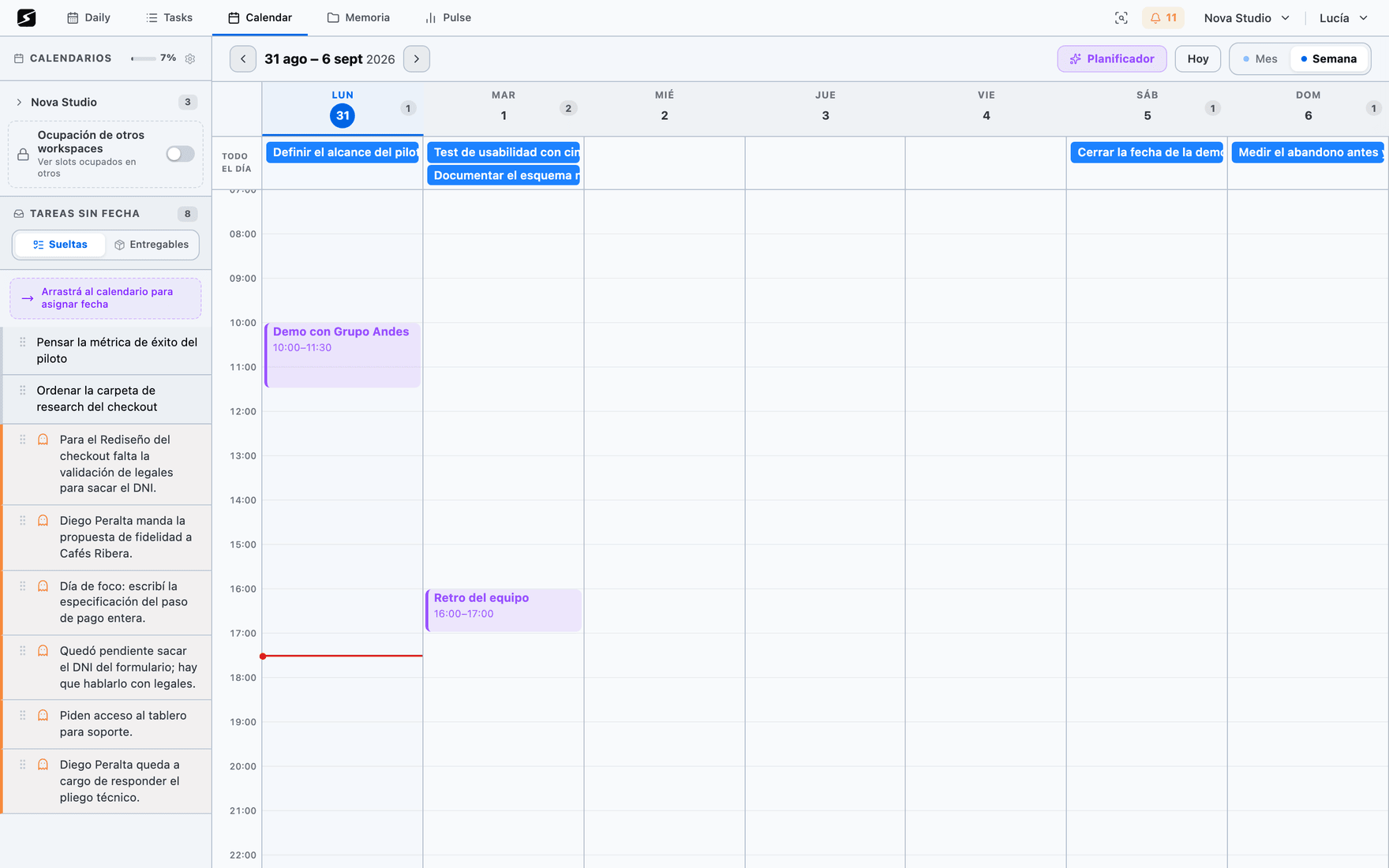
Your events and your tasks live on the same grid. Month view to read the shape of the period, week view to work.
- Drag a task onto a day to plan it; drag it onto an hour to reserve the block.
- Drag a whole deliverable and it is scheduled as a single block with all of its tasks nested inside.
- Events from your connected calendars show up alongside, and the planner respects them: it will not propose working on top of a meeting.
- An event can be linked to a task, so what you booked and what you have to do are not two separate objects.
- In week view an event stretches from its top or bottom edge to change its time; you confirm before it is saved.
- You record the meeting from the event itself, and the recap is born tied to that event.
- An event with a time alerts you ten minutes before, on your phone and even with the app closed. From the event you pick another moment, several or none; the Calendar events alert, in your settings, changes it or turns it off for all of them.
- What someone else organizes, or lives in a read-only calendar, shows striped and cannot be edited: someone else's invitation can only be declined. A cancelled meeting stays grey and struck through, and does not alert.
- Busy time from other workspaces paints in grey what you already have scheduled in your other spaces. And when you save an event that overlaps something —here or in another workspace— it tells you, without stopping you from saving it.
The same calendar on your phone
The calendar is one of the five tabs in the mobile app, and it shows the same things as here: your events, the ones from your connected calendars, the tasks that come due, the recaps you recorded and the days you closed.
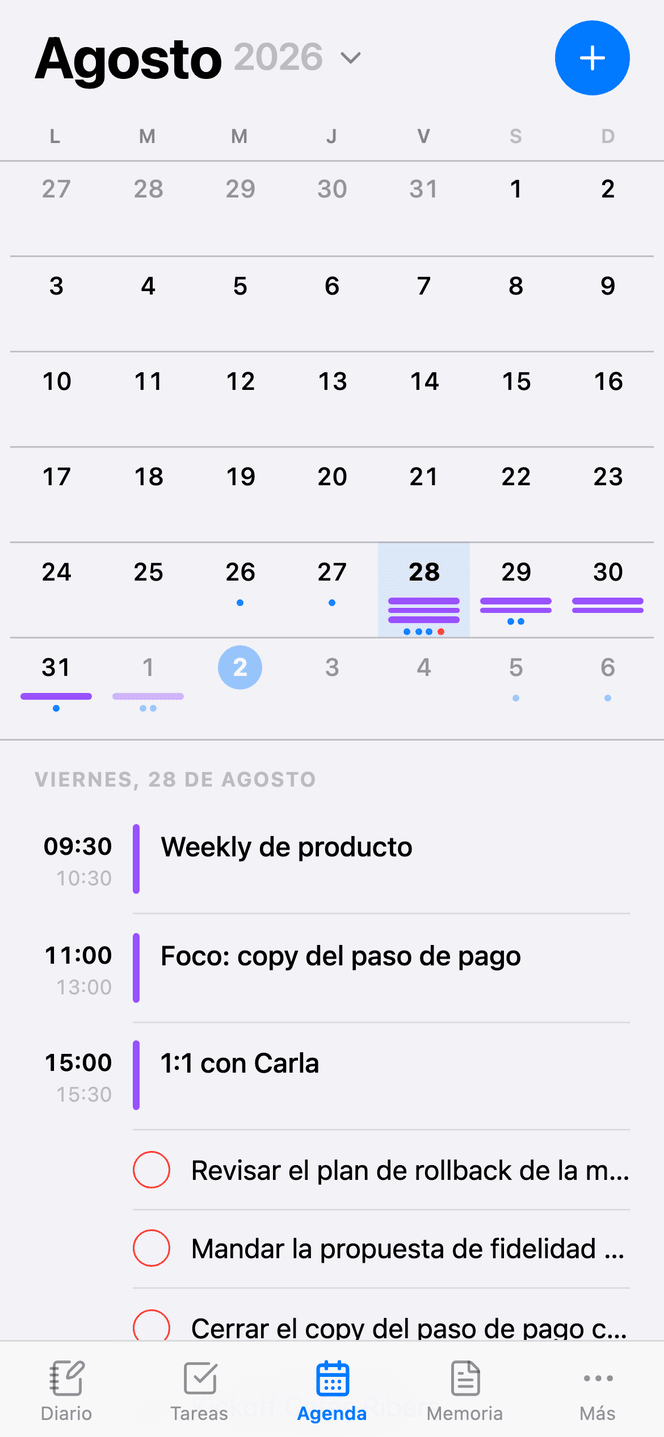
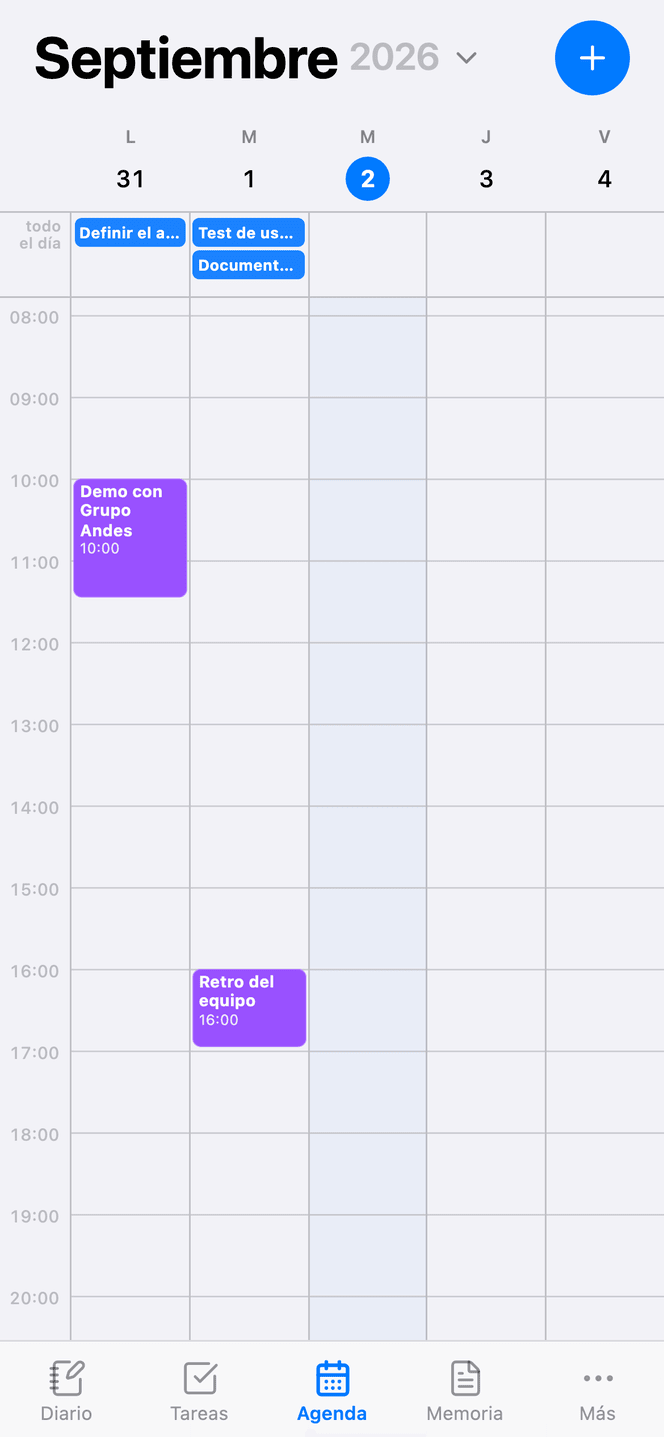
- Four views —day, 3 days, week and month— and you move between dates by swiping.
- In day and 3-day views you press and hold an event to move it to another hour or day; on an empty spot you mark the slot with your finger and the event is created there.
- Creating and editing is a full-screen form, with the native date and time pickers.
- The planner is not on the phone: laying a week out takes a grid that needs a big screen.
The detail is in the mobile app.
Planning by energy
The theory: a day is not an even grid
Most tools hand you a flat day: eight identical one-hour slots. Your head does not work like that, and planning as if it did is why Monday's plan does not survive Tuesday.
We did not invent the shape of the day: it comes from circadian research applied to work and from the idea of a chronotype — the trait measured since 1976 with Horne and Östberg's questionnaire, and today with Roenneberg's MCTQ; Daniel Pink popularized it in When. The peak, the trough and the rebound exist for everyone, but each person has them at a different hour. See Plan, in the framework.
A real day has this shape, and the planner uses all of it:
- 1The peakA single window of about three hours where your head is at its best. It is the only stretch reserved for hard work, and the first thing protected. Three hours is what you can hold in a row without burning out.
- 2LunchNot a gap: a cut. Nothing is scheduled there.
- 3The dipThe three quarters of an hour after eating. Digestion does not negotiate. The planner only goes there when it has no choice, and it tells you.
- 4The second waveAfter the dip there is energy again, with less edge than the peak. That is where light work goes: coordination, follow-up, maintenance.
- 5The bufferThe last thirty minutes of the day are never planned. They absorb everything that ran long. A plan without a buffer breaks the first time something takes longer — which is to say, always.
The peak is yours, not your schedule's
The window where you perform is not clipped by your working hours. If you peak from 8 to 11 and start work at 10, you still peak at 8: the only consequence is that nothing can be scheduled there. That distinction matters, because it is what stops the planner from "correcting" your peak so it fits the calendar.
Choosing your peak
Picking your peak is picking your chronotype, and here it takes three clicks instead of a questionnaire. You configure it once: three templates — the same three-hour window with a different start, one per chronotype — and a manual option for people who already know exactly when they perform.
Morning — from 8
The early chronotype: you are at your best right as you start. It is the one that fights least with meetings, which tend to land later.
Midday — from 10
The middle one, the most frequent of the three: you ramp up toward the end of the morning, once the day has started but before you eat.
Afternoon — from 15
The late chronotype, which runs the day in reverse: you are at your best on the second wave. Also the pattern for anyone whose morning belongs to other people.
Manual
You pick the exact window, start and end. For peaks that fit no template, or for split days.
You also configure your working day: start and end, lunch window, how long your dip lasts (0, 30, 45, 60 or 90 minutes) and which days of the week you work. With that, the planner knows where it can and cannot go. It is the same setting as Your energy, in Settings → Profile and on your phone: change it in one place and it holds in both.
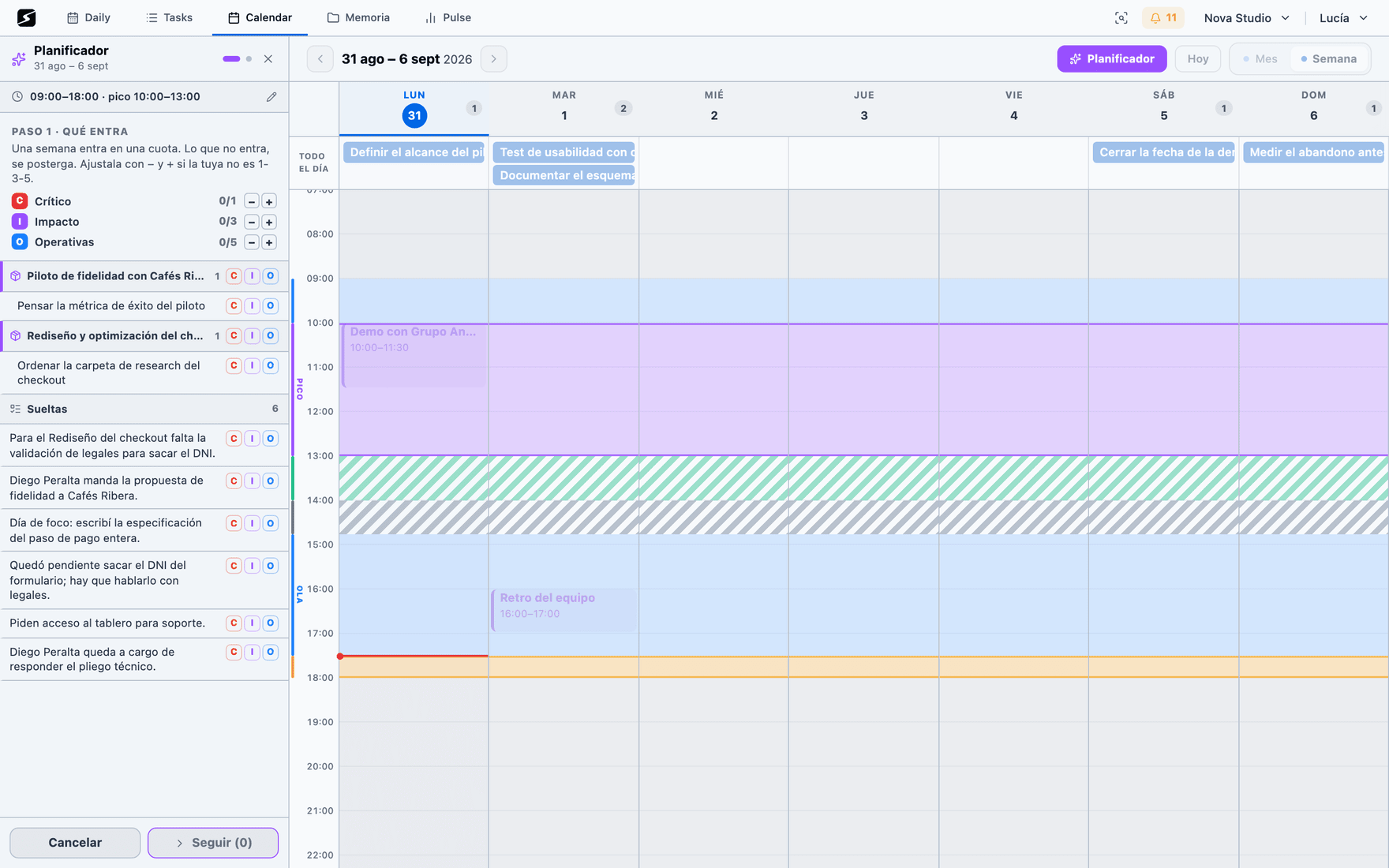
The 1-3-5 quota · Hobby: the week fits in a size
The planner will not let you put everything in. It starts from a quota, and that is the deliberately uncomfortable part:
- 1 critical — the deliverable that defines the week. If only this happens, the week was worth it.
- 3 impact — the projects that move the needle.
- 5 operational — coordination, follow-up, maintenance. What does not move the needle, but hurts if it is not done.
What does not fit gets postponed. And postponing is exactly the decision the planner forces you to make on Monday, instead of leaving you a list of thirty items you already know you won't do and that will make you feel bad every time you look at it.
The quota is a starting point, not dogma: everyone adjusts their own — up to nine per level — and the planner remembers.
The 1-3-5 numbers come from blog productivity, but what holds the idea up is not the number: it is that limiting how much work is started at once shortens how long each piece takes to finish. It is explained in Plan, in the framework.
How what you picked gets laid out
Once you have chosen what goes in, placement is automatic and follows explicit rules:
- Deep work goes to the peak. Critical and impact are only placed in the part of your peak window that also falls inside your working day.
- Light work goes to what is left. Operational items are spread across the rest of the workable time, outside the peak.
- Blocks are 30, 60 or 90 minutes. More than ninety minutes in a row is not one block, it is two: the method says split it.
- The dip is used last. Only if nothing else is left, and it is marked as such.
- Outside working hours is the last resort. If the working week no longer fits, it proposes between 7 and 22 — and says so — because proposing Tuesday at seven in the evening beats leaving the task unplaced and undecided.
Who executes changes how much room it takes
Planning without knowing who executes is useless. A task of yours eats a stretch of work; one someone else executes eats ten minutes of follow-up. They are two different things and the calendar has to say so.
Mine
I do it. Reserves a real block of work: 60 minutes by default if it is deep, 30 if it is light.
Waiting on
Someone else executes and I check. Reserves 15 or 30 minutes of follow-up, not a stretch of work. It is what makes the week fit.
Tasks that reached you through a linked person in the Atlas are assumed to belong to someone else; everything else is yours. One click corrects it.
A deliverable of your own reserves half an hour per task, capped at three hours: a fifteen-task deliverable cannot eat the whole day in one go. If someone else executes it, it reserves the same as any follow-up.
Your other calendars
Connecting your calendar
All three are optional and only connect when you authorize them. None is required to use the planner. Task sync with ClickUp and Jira lives in Tasks and detection.
On a computer they all connect in the same place: the workspace switcher, top right → Edit workspace → the Calendar tab. You can also get there from the gear next to the calendar title. You have to be the owner or an admin of the space. On your phone, from the Calendar tab menu → Connect a calendar: Google and Microsoft are authorized in the phone's browser, which is what they require.
Which calendar are you connecting?
The most complete connection: events come in, and the ones you create here can go out to Google.
- 1Open the tabWorkspace switcher → Edit workspace → Calendar, and hit Connect Google.
- 2Pick the account and authorizeA Google window opens — in the desktop app, your usual browser, because Google does not accept embedded windows. You pick the account and accept.
- 3Come back to the appThe window tells you it is done and closes itself. Back in secondbrain the account shows up in the list and the first sync starts right there.
- Every calendar in that account comes in: there is no step to pick which ones. Afterwards you tick the ones that belong to this workspace —in the left column of the calendar, where you also pick the color, or in the same Calendar tab—: an unticked one is not shown and does not alert you.
- For an event you create here to go out to Google, pick the Google calendar under In which calendar?. It defaults to Secondbrain (local), which goes nowhere.
- Guests and the video call link need a Google or Microsoft calendar: a local event invites nobody.
- Disconnect revokes the permission at Google and deletes the events it had brought in. On a computer it does not ask for confirmation.
The same as Google. It works just as well for a personal Outlook.com account as for a work or school one.
- 1Open the tabWorkspace switcher → Edit workspace → Calendar, and hit Connect Microsoft.
- 2Pick the account and authorizeMicrosoft starts by showing you the account picker, so if you have your personal and your work account in the same browser it will not grab the wrong one.
- 3Come back to the appSame as Google: the account shows up in the list and syncs on its own.
- Every calendar in the account comes in, with the same per-event optional writing as Google.
- Many companies require their IT team to approve secondbrain before anyone can connect. If that happens to you, coming back from Microsoft you get the approval link and an email ready to send them; it is approved once, for the whole company. Meanwhile, Outlook publishes your calendar as an ICS address, and that comes in through Add by URL (iCal), read-only.
- When you decline an invitation, Outlook removes it from the calendar; Google instead leaves it marked as declined. That is not ours: it is how each one works.
- Disconnect deletes that account's events from here. The permission on Microsoft's side is removed from your Microsoft account.
Apple offers no sign-in for its calendar: iCloud connects with your Apple ID and an app-specific password. Once connected it works like Google: events come in, and the ones you create here can go out to iCloud.
- 1Generate an app-specific passwordAt appleid.apple.com → Sign-In and Security → App-Specific Passwords. Your Apple ID password does not work: iCloud rejects it.
- 2Connect iCloudWorkspace switcher → Edit workspace → Calendar → Connect iCloud. Enter your Apple ID (your email), the app-specific password and hit Connect.
- 3Tick the ones that belong to this workspaceEvery calendar in the account comes in, and you choose them the same way as Google's.
Other calendars, by address
For Fastmail, Nextcloud or any published .ics file there is Add by URL (iCal): you paste the address, give it a name if you want, and hit Add. It is checked right away: if it does not answer, or what is there is not a calendar, it tells you instead of saving a broken subscription.
It is read-only end to end: the events show up next to yours, but they cannot be edited or deleted from here. The file is read for title, description and time, and a repeating event shows up once, on its original date.
This brings events here. For your tasks to show up in Apple Calendar, the path is the other one, right below.
What holds for all three
It syncs when you open the workspace, every fifteen minutes with the app open, and every time you come back to the tab: if nobody opens the app, nothing syncs. The window is sixty days back and a hundred and eighty forward.
Accounts are yours and that workspace's: if you work in three spaces, you connect three times, and nobody else sees your calendars. You can connect several accounts from the same provider.
If the permission expires or is revoked, the account is marked as needs reconnecting. For Google and Microsoft a Reconnect button shows up and authorizes it again without losing anything; for iCloud, you Connect iCloud again with a new app-specific password.
Your tasks, inside your calendar
The above brings your events here. This one goes the other way: secondbrain publishes an iCal address with your tasks, and you subscribe to it from the calendar you already look at — phone included, with nothing to install.
You copy the address once: workspace switcher → Edit workspace → Calendar, and open the iCal subscription (read-only) block. It is already generated; you only have to hit Copy.
Where are you subscribing from?
- 1On the MacCalendar → File → New Calendar Subscription, paste the address and hit Subscribe.
- 2On the iPhoneSettings → Calendar → Accounts → Add Account → Other → Add Subscribed Calendar, and paste the address.
If you subscribe on the Mac with the same iCloud account, the calendar comes down to the phone on its own and the second step is unnecessary.
- 1Open Google Calendar in the browserIt cannot be added from the phone: the option only exists on the web.
- 2Add the calendarIn the left panel, the + next to Other calendars → From URL.
- 3Paste the addressAnd hit Add calendar. Once added, it also shows in the phone app.
- 1Open Outlook on the webAnd go to Add calendar → Subscribe from web.
- 2Paste the addressAnd hit Import.
What it carries, and who decides how often it refreshes
The feed carries your tasks and nothing else: no events, no recaps, no pomodoros. Each task comes in as an all-day event, and the ones you already closed show up marked.
A task with no date is not left out: it lands on the day its urgency implies, and if it has none either, today.
How often it refreshes is decided by your calendar app, not by us. Apple tends to keep up; Google can take hours. The feed is not stale: it simply has not been asked for again.
The address is public: whoever has it sees that workspace's tasks. That is why Regenerate URL sits next to it, creating a new one and killing the old — you have to subscribe again everywhere you had put it.
What data each one touches
 Google Calendar
Reads and writes calendar events to show them alongside your tasks and to create or update events when you schedule a task.
 Microsoft / Outlook Calendar
The same two-way calendar sync.
 Apple Calendar
iCal subscription: we read your events to show them inside your workspace, and you can subscribe to your Secondbrain tasks from Apple Calendar.
Shall we try it?
Create your free account and use all of this today.