' d='M71 0.33c-25 1 -45.67 12.67 -59.33 33c-4.67 7 -7 12.67 -9.33 21.33c-2.33 8.33 -2 1.33 -2.33 111c0 103.33 0 104 1.33 111.33c1.67 8.33 6.33 19.67 11 26.67c8.33 12.33 22.33 23 36.33 27.67c4.67 1.67 15.33 3.67 20.33 4c6 0.33 227.33 0.33 234 0c10.67 -0.67 23 -4.33 32 -9.33c9 -5 19 -14 24.33 -22c5 -7.67 7.33 -12.67 9.67 -20.33c1.67 -5.67 2.33 -9 2.67 -15.67c0.33 -7.67 0.33 -196 0 -201c-1 -11.33 -3.67 -20 -10.33 -31.33c-3 -5.33 -5 -8 -8.33 -11.33c-11.33 -12 -24.67 -19.67 -40 -22.67c-2.67 -0.67 -6.33 -1 -7.67 -1.33c-4.33 0 -228.33 -0.33 -234.33 0z'/%3E %3Cpath fill='%23FFFFFF' d='M357 33.33c-0.67 0 -2.33 0.67 -3.67 1.33c-1.33 0.33 -3.67 1.33 -5 2c-1.33 0.33 -3.67 1.33 -5 2c-1.67 0.67 -4.67 1.67 -6.67 2.67c-12 4.33 -11.67 4 -19.33 7.33c-1.33 0.67 -3.67 1.33 -5 2c-1.67 0.67 -3.67 1.33 -5.33 2c-1.33 0.67 -4.33 1.67 -6.33 2.67c-10 3.67 -12 4.33 -14.33 5.33c-1.67 0.67 -4.67 1.67 -6.67 2.33c-2 1 -5 2 -6.33 2.67c-1.67 0.67 -6 2.33 -9.67 3.33c-3.67 1.33 -8 3 -9.33 3.67c-3.33 1.33 -8.67 3.33 -16 6c-3 1 -7.33 2.67 -9.67 3.33c-2.33 1 -6.67 2.67 -9.33 3.67c-3 1 -7.33 2.67 -9.33 3.33c-2.33 1 -6 2.33 -8.33 3.33c-2.33 0.67 -7.33 2.33 -11 3.67c-3.67 1.33 -8 3 -9.33 3.67c-1.67 0.67 -6 2.33 -9.67 3.67c-3.67 1.33 -8.67 3 -11 3.67c-2.33 1 -6.67 2.67 -9.33 3.67c-3 1 -7.33 2.67 -9.67 3.33c-2.33 1 -5.67 2.33 -7.67 3c-2 0.67 -4.33 1.67 -5 2c-4.33 2.33 -9 6.33 -11.67 10c-2.67 4 -3 5.33 -5 12.33c-0.67 2.33 -0.67 7.33 -0.33 9.33c1.67 6.33 2.33 7.33 3.67 9.67c2 2.67 8.33 9.33 10.67 11c0.67 0.67 2 1.67 2.67 2.33c0.67 0.33 2 1.67 3 2.33c3.33 2.33 5.33 4 7.67 5.67c1.33 1 3 2.33 4 3c3.33 2.33 8.33 8 9.67 10.67l1.33 2.33l0 5c0 6.67 -1.33 10 -6 14.67c-2.33 2 -8 5.33 -11.33 6.33c-1 0.33 -2.33 1 -3.67 1.33c-1.33 0.67 -2.67 1.33 -3.33 1.67c-1 0.33 -2.33 1 -3.33 1.33c-1 0.67 -3 1.33 -4.33 2c-1 0.33 -3 1 -4.33 1.33c-1 0.67 -2.67 1.33 -3.67 1.67c-1 0.67 -2.67 1.33 -4 2c-1 0.33 -3 1 -4.33 1.67c-1 0.33 -3 1 -4 1.67c-1 0.33 -2.33 1 -3 1.33c-1 0.33 -2.33 1 -3.67 1.33c-1.33 0.67 -2.67 1.33 -3.33 1.67c-1 0.33 -2.33 1 -3.33 1.33c-1 0.67 -3 1.33 -4 1.67c-1.33 0.67 -3.33 1.33 -4.67 2c-5.67 2.33 -8 3 -10 4c-1 0.33 -3 1 -4 1.67c-1 0.33 -2.33 1 -3 1.33c-1 0.33 -2.33 1 -3.33 1.33c-1 0.67 -3 1.33 -4 1.67c-1.33 0.67 -3.33 1.33 -4.67 2c-1.67 0.67 -3.67 1.33 -5 2c-1 0.33 -2.67 1 -3.67 1.67c-1 0.33 -2.67 1 -3.67 1.33c-1.33 0.67 -3.33 1.33 -4.67 2c-5.67 2.33 -8 3 -10 4c-1 0.33 -3 1 -4 1.67c-1 0.33 -2.33 1 -3 1.33c-1 0.33 -2.33 1 -3.33 1.33c-1.33 0.67 -3 1.33 -3.67 1.67c-3.33 1 -7 2.67 -7.33 3.33c-1 1 0 4.33 3.33 12c1.33 2.33 2.67 5.33 3.33 6.33c1.67 2.33 2.67 2.67 6 1c1 -0.67 2.67 -1.33 3.67 -1.67c0.67 -0.33 2 -1 3 -1.33c1.33 -0.67 3.67 -1.67 5.67 -2.33c2 -0.67 4.67 -1.67 6.33 -2.33c1.33 -0.67 3.67 -1.33 5 -2c1.33 -0.67 3.33 -1.33 4.67 -2c1.33 -0.67 3.67 -1.33 5.33 -2c1.33 -0.67 4.33 -1.67 6.33 -2.67c3.67 -1 5.33 -1.67 11.67 -4.33c3 -1.33 9 -3.67 14 -5.33c2 -0.67 4.33 -1.67 5.33 -2c1 -0.67 3.33 -1.67 5.33 -2.33c2 -0.67 5.33 -2 7.67 -3c2.33 -0.67 6.67 -2.33 9.67 -3.33c3 -1 7.67 -3 10.67 -4c3 -1 7.33 -2.67 9.67 -3.33c2 -1 5.67 -2.33 8 -3.33c5.33 -1.67 15.33 -5.33 28 -9.67c5.33 -2 11.67 -4.33 14 -5c2.33 -1 8 -3 12.67 -4.67c19 -6.67 25.33 -9 29 -10.33c4.33 -1.67 10.33 -4.67 12.33 -6c0.67 -0.67 2.33 -1.67 3 -2.33c2.67 -2 7.33 -9.67 8.67 -14.33c0.33 -0.67 0.67 -2 1 -3c0.33 -2 0.33 -8 0 -10c-2 -7 -2 -7 -5 -11.67c-1.67 -2.33 -3.33 -4.67 -4 -5c-1.67 -1.67 -3.67 -3 -5.67 -4.33c-1 -0.67 -2 -1.67 -2.33 -2c-0.67 -0.33 -1.67 -1.33 -2.67 -2c-1 -0.67 -2.33 -1.67 -3 -2.67c-0.67 -0.67 -2 -1.67 -3 -2.33c-3 -2.33 -5.67 -4 -7 -5.33c-1 -0.67 -2.33 -1.67 -3 -2.33c-2.67 -2 -6 -8 -6 -10.67c0 -0.67 -0.33 -2 -0.67 -3c-0.33 -1.67 -0.33 -1.67 0 -3.33c0.33 -1 0.67 -2.33 0.67 -2.67c0 -0.67 3 -7 4 -8.33c2 -2 8 -5.67 12.67 -7.33c1.33 -0.67 3.33 -1.33 4.33 -1.67c1.33 -0.67 3.67 -1.67 5 -2.33c1.33 -0.67 3.67 -1.67 4.67 -2c1.33 -0.67 3.33 -1.33 5 -2c1.33 -0.67 3.33 -1.33 4.67 -2c1 -0.33 3 -1 4 -1.67c1 -0.33 2.33 -1 3.33 -1.33c0.67 -0.33 2 -1 3.33 -1.33c1.33 -0.67 3.33 -1.67 5 -2.33c1.67 -0.33 3.67 -1.33 5 -2c1.33 -0.33 2.67 -1 3.67 -1.33c0.67 -0.33 2 -1 3 -1.33c1 -0.67 3 -1.33 4 -1.67c2 -1 4.33 -1.67 10 -4c1.33 -0.67 3.33 -1.33 4.67 -2c1 -0.33 3 -1 4 -1.67c1 -0.33 3 -1.33 4.67 -2c1.67 -0.33 3.67 -1.33 4.67 -1.67c1 -0.67 3 -1.33 4 -1.67c1.33 -0.67 3.33 -1.33 4.67 -2c5.67 -2.33 8 -3 10 -4c1 -0.33 2.67 -1 3.67 -1.67c1 -0.33 3.33 -1.33 5.33 -2c2 -0.67 4.67 -1.67 6.33 -2.33c1.33 -0.67 3.33 -1.33 4.67 -2c1 -0.33 2.67 -1 3.67 -1.33c1 -0.67 2.67 -1.33 3.67 -1.67c1.33 -0.67 3.33 -1.33 4.67 -2c1.67 -0.67 3.67 -1.33 5.33 -2c1.33 -0.67 3.33 -1.33 4.67 -2c4.33 -1.67 4.33 -2.33 0.67 -10.67c-1 -2.33 -2.67 -5.33 -3.67 -7.33c-2.33 -3.67 -3 -4.33 -5 -3.33z'/%3E %3Cg clip-path='url(%23rimb)'%3E %3Cpath d='M357 33.33c-0.67 0 -2.33 0.67 -3.67 1.33c-1.33 0.33 -3.67 1.33 -5 2c-1.33 0.33 -3.67 1.33 -5 2c-1.67 0.67 -4.67 1.67 -6.67 2.67c-12 4.33 -11.67 4 -19.33 7.33c-1.33 0.67 -3.67 1.33 -5 2c-1.67 0.67 -3.67 1.33 -5.33 2c-1.33 0.67 -4.33 1.67 -6.33 2.67c-10 3.67 -12 4.33 -14.33 5.33c-1.67 0.67 -4.67 1.67 -6.67 2.33c-2 1 -5 2 -6.33 2.67c-1.67 0.67 -6 2.33 -9.67 3.33c-3.67 1.33 -8 3 -9.33 3.67c-3.33 1.33 -8.67 3.33 -16 6c-3 1 -7.33 2.67 -9.67 3.33c-2.33 1 -6.67 2.67 -9.33 3.67c-3 1 -7.33 2.67 -9.33 3.33c-2.33 1 -6 2.33 -8.33 3.33c-2.33 0.67 -7.33 2.33 -11 3.67c-3.67 1.33 -8 3 -9.33 3.67c-1.67 0.67 -6 2.33 -9.67 3.67c-3.67 1.33 -8.67 3 -11 3.67c-2.33 1 -6.67 2.67 -9.33 3.67c-3 1 -7.33 2.67 -9.67 3.33c-2.33 1 -5.67 2.33 -7.67 3c-2 0.67 -4.33 1.67 -5 2c-4.33 2.33 -9 6.33 -11.67 10c-2.67 4 -3 5.33 -5 12.33c-0.67 2.33 -0.67 7.33 -0.33 9.33c1.67 6.33 2.33 7.33 3.67 9.67c2 2.67 8.33 9.33 10.67 11c0.67 0.67 2 1.67 2.67 2.33c0.67 0.33 2 1.67 3 2.33c3.33 2.33 5.33 4 7.67 5.67c1.33 1 3 2.33 4 3c3.33 2.33 8.33 8 9.67 10.67l1.33 2.33l0 5c0 6.67 -1.33 10 -6 14.67c-2.33 2 -8 5.33 -11.33 6.33c-1 0.33 -2.33 1 -3.67 1.33c-1.33 0.67 -2.67 1.33 -3.33 1.67c-1 0.33 -2.33 1 -3.33 1.33c-1 0.67 -3 1.33 -4.33 2c-1 0.33 -3 1 -4.33 1.33c-1 0.67 -2.67 1.33 -3.67 1.67c-1 0.67 -2.67 1.33 -4 2c-1 0.33 -3 1 -4.33 1.67c-1 0.33 -3 1 -4 1.67c-1 0.33 -2.33 1 -3 1.33c-1 0.33 -2.33 1 -3.67 1.33c-1.33 0.67 -2.67 1.33 -3.33 1.67c-1 0.33 -2.33 1 -3.33 1.33c-1 0.67 -3 1.33 -4 1.67c-1.33 0.67 -3.33 1.33 -4.67 2c-5.67 2.33 -8 3 -10 4c-1 0.33 -3 1 -4 1.67c-1 0.33 -2.33 1 -3 1.33c-1 0.33 -2.33 1 -3.33 1.33c-1 0.67 -3 1.33 -4 1.67c-1.33 0.67 -3.33 1.33 -4.67 2c-1.67 0.67 -3.67 1.33 -5 2c-1 0.33 -2.67 1 -3.67 1.67c-1 0.33 -2.67 1 -3.67 1.33c-1.33 0.67 -3.33 1.33 -4.67 2c-5.67 2.33 -8 3 -10 4c-1 0.33 -3 1 -4 1.67c-1 0.33 -2.33 1 -3 1.33c-1 0.33 -2.33 1 -3.33 1.33c-1.33 0.67 -3 1.33 -3.67 1.67c-3.33 1 -7 2.67 -7.33 3.33c-1 1 0 4.33 3.33 12c1.33 2.33 2.67 5.33 3.33 6.33c1.67 2.33 2.67 2.67 6 1c1 -0.67 2.67 -1.33 3.67 -1.67c0.67 -0.33 2 -1 3 -1.33c1.33 -0.67 3.67 -1.67 5.67 -2.33c2 -0.67 4.67 -1.67 6.33 -2.33c1.33 -0.67 3.67 -1.33 5 -2c1.33 -0.67 3.33 -1.33 4.67 -2c1.33 -0.67 3.67 -1.33 5.33 -2c1.33 -0.67 4.33 -1.67 6.33 -2.67c3.67 -1 5.33 -1.67 11.67 -4.33c3 -1.33 9 -3.67 14 -5.33c2 -0.67 4.33 -1.67 5.33 -2c1 -0.67 3.33 -1.67 5.33 -2.33c2 -0.67 5.33 -2 7.67 -3c2.33 -0.67 6.67 -2.33 9.67 -3.33c3 -1 7.67 -3 10.67 -4c3 -1 7.33 -2.67 9.67 -3.33c2 -1 5.67 -2.33 8 -3.33c5.33 -1.67 15.33 -5.33 28 -9.67c5.33 -2 11.67 -4.33 14 -5c2.33 -1 8 -3 12.67 -4.67c19 -6.67 25.33 -9 29 -10.33c4.33 -1.67 10.33 -4.67 12.33 -6c0.67 -0.67 2.33 -1.67 3 -2.33c2.67 -2 7.33 -9.67 8.67 -14.33c0.33 -0.67 0.67 -2 1 -3c0.33 -2 0.33 -8 0 -10c-2 -7 -2 -7 -5 -11.67c-1.67 -2.33 -3.33 -4.67 -4 -5c-1.67 -1.67 -3.67 -3 -5.67 -4.33c-1 -0.67 -2 -1.67 -2.33 -2c-0.67 -0.33 -1.67 -1.33 -2.67 -2c-1 -0.67 -2.33 -1.67 -3 -2.67c-0.67 -0.67 -2 -1.67 -3 -2.33c-3 -2.33 -5.67 -4 -7 -5.33c-1 -0.67 -2.33 -1.67 -3 -2.33c-2.67 -2 -6 -8 -6 -10.67c0 -0.67 -0.33 -2 -0.67 -3c-0.33 -1.67 -0.33 -1.67 0 -3.33c0.33 -1 0.67 -2.33 0.67 -2.67c0 -0.67 3 -7 4 -8.33c2 -2 8 -5.67 12.67 -7.33c1.33 -0.67 3.33 -1.33 4.33 -1.67c1.33 -0.67 3.67 -1.67 5 -2.33c1.33 -0.67 3.67 -1.67 4.67 -2c1.33 -0.67 3.33 -1.33 5 -2c1.33 -0.67 3.33 -1.33 4.67 -2c1 -0.33 3 -1 4 -1.67c1 -0.33 2.33 -1 3.33 -1.33c0.67 -0.33 2 -1 3.33 -1.33c1.33 -0.67 3.33 -1.67 5 -2.33c1.67 -0.33 3.67 -1.33 5 -2c1.33 -0.33 2.67 -1 3.67 -1.33c0.67 -0.33 2 -1 3 -1.33c1 -0.67 3 -1.33 4 -1.67c2 -1 4.33 -1.67 10 -4c1.33 -0.67 3.33 -1.33 4.67 -2c1 -0.33 3 -1 4 -1.67c1 -0.33 3 -1.33 4.67 -2c1.67 -0.33 3.67 -1.33 4.67 -1.67c1 -0.67 3 -1.33 4 -1.67c1.33 -0.67 3.33 -1.33 4.67 -2c5.67 -2.33 8 -3 10 -4c1 -0.33 2.67 -1 3.67 -1.67c1 -0.33 3.33 -1.33 5.33 -2c2 -0.67 4.67 -1.67 6.33 -2.33c1.33 -0.67 3.33 -1.33 4.67 -2c1 -0.33 2.67 -1 3.67 -1.33c1 -0.67 2.67 -1.33 3.67 -1.67c1.33 -0.67 3.33 -1.33 4.67 -2c1.67 -0.67 3.67 -1.33 5.33 -2c1.33 -0.67 3.33 -1.33 4.67 -2c4.33 -1.67 4.33 -2.33 0.67 -10.67c-1 -2.33 -2.67 -5.33 -3.67 -7.33c-2.33 -3.67 -3 -4.33 -5 -3.33z' fill='none' stroke='url(%23fileteInv)' stroke-width='3.65'/%3E %3C/g%3E %3Cg clip-path='url(%23rim)'%3E %3Cpath d='M71 0.33c-25 1 -45.67 12.67 -59.33 33c-4.67 7 -7 12.67 -9.33 21.33c-2.33 8.33 -2 1.33 -2.33 111c0 103.33 0 104 1.33 111.33c1.67 8.33 6.33 19.67 11 26.67c8.33 12.33 22.33 23 36.33 27.67c4.67 1.67 15.33 3.67 20.33 4c6 0.33 227.33 0.33 234 0c10.67 -0.67 23 -4.33 32 -9.33c9 -5 19 -14 24.33 -22c5 -7.67 7.33 -12.67 9.67 -20.33c1.67 -5.67 2.33 -9 2.67 -15.67c0.33 -7.67 0.33 -196 0 -201c-1 -11.33 -3.67 -20 -10.33 -31.33c-3 -5.33 -5 -8 -8.33 -11.33c-11.33 -12 -24.67 -19.67 -40 -22.67c-2.67 -0.67 -6.33 -1 -7.67 -1.33c-4.33 0 -228.33 -0.33 -234.33 0z' fill='none' stroke='url(%23filete)' stroke-width='8.64'/%3E %3C/g%3E %3Cpath d='M1269 56l-0.67 0.67l-0.33 35c0 19 -0.33 35 -0.33 35.33c-0.67 1 -1.33 0.67 -4 -0.67c-6 -4 -14.67 -7.33 -23.67 -9c-4.33 -0.67 -15.33 -0.67 -20.67 0c-17.33 2.33 -33.33 11.67 -44.67 25.67c-10.33 13 -14.67 26.33 -14.67 44.67c-0.33 13.33 1.67 21.67 7.33 33c3.67 7 7 11.67 14.33 19c5.33 5.67 16.33 12 26.33 15.33c19.67 6.67 42.33 4 60 -6.67c10.33 -6 20 -16.33 25 -26c5 -9.67 7.33 -18.67 8 -28.33c0.33 -7 0.33 -135 0 -136.67c-0.33 -1 -0.67 -1.33 -1.33 -1.67c-0.33 -0.33 -6.67 -0.33 -15.33 -0.33c-14 0 -14.67 0 -15.33 0.67zm-31 91.33c7 1 15.33 5.33 20 10c3.67 4 8.33 11 10 15.33c2.67 8 3 20 0 28.67c-5.33 16.33 -20.33 27.33 -36.67 27.33c-11 0 -20.33 -3.67 -28.67 -11.67c-7 -6.67 -11.67 -18.33 -11.67 -29.33c0 -16 8.33 -30.33 22.67 -37.33c6.33 -3.33 16.33 -4.67 24.33 -3zM1319.33 55.67c-0.33 0 -0.67 0.67 -1 1c-0.33 1 -0.33 133.33 0 138c1 11.67 5.33 24 11 32.67c4.33 6.67 13 15.33 18.67 19c3 2 11 6 15.67 7.67c13 5.33 30.67 6 45.33 2c6 -1.67 16.33 -6.67 22.33 -10.67c4.33 -3 13 -12 16.67 -17.67c2.67 -4 4.67 -8.33 7.33 -14.33c5.33 -14.67 6 -28.67 2 -44c-3.33 -14 -8.67 -23.33 -18.67 -33.33c-13.33 -12.67 -29.67 -19 -49.33 -19c-13 0 -24.67 3.33 -34 9.33c-3.67 2.67 -4.33 2.67 -4.67 0c-0.33 -0.67 -0.33 -17 -0.33 -35.67l0.33 -34l-1 -0.67c-0.67 -0.67 -1.33 -0.67 -15 -0.67c-8 0 -14.67 0.33 -15.33 0.33zm76.33 91.67c5.67 0.67 10 2.67 15.67 6.33c5.33 3.67 8.33 7 12.33 14c3.67 6.33 4.67 10.33 5 18.33c0.33 9.67 -1.67 16.67 -7.67 25.67c-3.33 5.33 -9.67 10.33 -16.33 13.67c-8 3.67 -18.67 4.33 -27.67 1.67c-6.33 -2 -15.33 -8.33 -19 -13c-2.33 -3 -6.67 -12.33 -7.67 -16.67c-2.33 -8.33 -1 -19.33 2.67 -27.33c5.33 -11 12.33 -17.33 23 -21.33c5.33 -2 13.33 -2.67 19.67 -1.33zM1696 67.33c-8.67 2.67 -14.33 9.67 -14.33 18c0 8.67 5.67 16 13.67 18.33c2.33 0.67 7.67 0.67 10 0.33c9.67 -2.67 15.33 -12 13 -22.33c-1 -5 -4.67 -10 -9 -12.33c-4 -2 -9.67 -3 -13.33 -2zM1080.33 117.33c-7.33 1 -16.33 3.33 -22.33 6.33c-8 3.67 -19.33 13.67 -23 20c-4.33 6.67 -6.67 12.33 -8 18.33c-2.33 8.67 -2 7.33 -2.33 46.33c0 39.67 0 45.33 1 46.33l0.67 0.67l14.33 0.33c13.67 0 14.33 0 15 -0.67l1 -0.67l0 -38.67c0 -25.67 0 -39.67 0.33 -41.67c1 -7 4 -12.67 9.33 -18.33c5.33 -5.67 12.33 -8 21.67 -8c6 0 8 0.33 12.67 2.67c8.33 4.33 12 8 15.33 16c3 6.67 2.67 2.67 3 48c0 39.33 0.33 40.33 0.67 41c0.67 0.33 3.33 0.33 15 0.33c13.33 0 14 0 14.67 -0.67l1 -0.67l0 -38c0 -40 0 -43.67 -1.33 -51.33c-2.33 -12 -6.67 -20.33 -15 -29c-9.67 -9.67 -20.33 -15.33 -34 -18c-4.33 -1 -15 -1.33 -19.67 -0.67zM531.33 117.67c-16 1 -28.33 6.67 -37.67 17.33c-4.33 4.67 -6.33 9.33 -7.67 17.33c-1.67 11 1.67 21.67 8.67 29c3.33 3.33 10 8 14.33 10c5.33 2.33 16.67 6 27.67 8.33c11 2.67 16 4.67 19 7.67c5.67 5.67 3 14 -5.33 18c-7.67 4 -20 3.67 -28 -0.33c-4.67 -2.33 -9 -6.67 -12.67 -11.67c-1.33 -2.33 -2.33 -3.33 -3 -3.67c-0.33 0 -2 0.67 -6 2.33c-18.33 9.33 -19.33 9.67 -19.33 11.33c0 0.67 0.67 2.33 1.67 4.33c7.67 15 20.67 24.33 40 28.67c3.33 0.67 4.33 0.67 13.67 0.67c11.33 0 15 -0.33 23 -3c9 -3 19 -9.67 23.33 -16c8.67 -12 10.33 -26 4.67 -39c-3.67 -8.33 -7 -12 -17 -17.67c-6.33 -3.33 -15.67 -6.67 -25.67 -9c-7.33 -1.67 -17.33 -4.67 -20 -6c-4.67 -2.33 -7 -5 -7 -8.67c0 -5.33 4 -9.67 11 -11.67c3 -0.67 10.67 -0.67 13.67 0c6.67 2 11.67 5.33 15 10c1.67 2.67 2.33 3 3.33 3c1 0 20.33 -9.67 22.67 -11.67c1.33 -1 1.33 -2.33 -0.33 -5.33c-3.67 -7 -14 -16 -22.67 -19.33c-10.67 -4.33 -19.33 -5.67 -29.33 -5zM663.67 117.67c-14 1 -24.33 5 -34.33 12.33c-8 6 -10 8.33 -14.67 14.33c-10.67 14.33 -15.33 30 -14 48.67c1.67 24 16.33 46.67 37.33 57c7.33 3.67 12.33 5.33 19.33 6.33c7 1.33 18 1 25.33 -0.33c9 -1.67 20.33 -7 27.67 -12.33c5 -3.67 13.33 -13 15 -16.67c1 -2 1 -2 0.67 -3c-0.33 -0.33 -1.33 -1 -2 -1.67c-16 -9.33 -22.33 -12.67 -23.33 -12.67c-1 0 -2.33 1.33 -4 3.67c-3.33 5 -12 10.67 -19.33 12.67c-3.67 1 -14 1 -17.33 0.33c-9.67 -2.67 -18 -9 -22.67 -17.33c-1.67 -3 -3 -7 -3 -8.67c0 -2 -3.33 -1.67 49.33 -2c38.33 0 48.67 -0.33 49.33 -0.67c1.33 -0.67 1.33 -2.67 1.33 -11.33c0.33 -9.33 -0.33 -12.67 -2.67 -20.67c-3.33 -12.67 -8 -21 -16.67 -29.33c-8.33 -8.33 -19 -14.33 -29.67 -16.67c-6.67 -1.67 -15.67 -2.33 -21.67 -2zm14.33 30.67c3 0.67 9 3.67 11.67 5.67c4.33 3 8 7.33 10.33 13.33c1.33 3.67 1.67 4.33 0.67 5c-0.67 0.67 -64 1 -65 0.33c-1 -0.67 -1 -2 0.33 -5c4 -9.33 12.67 -16.67 22.67 -19.33c3.67 -1 3.67 -1 10.67 -1c5.33 0.33 7 0.33 8.67 1zM807 118c-9 1 -18.33 4 -25 7.67c-5 3 -15.67 11.33 -19 15.33c-2.67 3.33 -7.33 10.67 -9.67 14.67c-2 5 -5.33 14 -6 18.67c-1 4.67 -1.33 16 -0.67 21c1.67 14.67 6.67 26 16.67 38.33c9.33 11.33 25 20.33 39.67 22.67c14 2 28.33 1 38.33 -3c5 -2 13 -6 15.67 -8c8 -6 17.67 -17.33 17.67 -20.67c0 -1.33 -1.33 -2.33 -8.33 -6.33c-3 -1.67 -7 -4 -9 -5.33c-8 -5 -7.67 -5 -10.67 -1c-8.67 10.67 -18 15.33 -29.67 15.33c-11 0 -20.33 -4 -28.33 -11.67c-9.67 -9.67 -13.33 -24.67 -9.33 -39c3 -13 13 -23.67 25 -27.33c7 -2.33 16 -2.67 22.33 -1c7 2.33 11 4.67 16.67 10.33c3 2.67 4 3.67 4.67 3.67c1 0 7.33 -4 11 -6.67c1 -1 3.33 -2.67 5.33 -4c6.33 -3.67 7.67 -5 7.67 -6c0 -3.67 -12.33 -15 -21.33 -20c-13 -6.67 -29 -9.67 -43.67 -7.67zM938 118c-16.67 2.33 -25.67 6.33 -39 17.67c-4.33 3.67 -6.67 6.67 -11 13.33c-3.67 5.67 -5 9 -7.33 15.67c-3.33 9.33 -4 14 -3.67 24.67c0.33 12.33 2.67 20.67 9 32.33c3.33 6.33 5 9 9.33 13.33c15.67 18 40.67 25.67 65.33 20.67c7 -1.33 14.67 -4.33 22 -8.67c10.33 -6.33 21 -18.67 25.67 -30.33c3.67 -9 5.33 -16 6 -25.67c1 -14.33 -2 -27 -9 -39.33c-5.67 -9.67 -11 -15.67 -21 -23c-6.33 -4.33 -18.67 -9 -28 -10.67c-4.67 -0.67 -14 -0.67 -18.33 0zm11.67 29.67c8 1 16.33 5 21.67 10.33c6 6.33 9.67 13.33 11.33 21.67c0.67 4 0.33 14.33 -0.33 17.33c-2.67 10 -8.33 18 -16 23.33c-6 4.33 -10.67 5.67 -19.67 6.67c-11 0.67 -24.67 -6.33 -31.33 -16.33c-2.67 -4 -5.33 -10.33 -6.33 -15c-1.67 -7.33 -0.33 -18 2.33 -25c3.33 -7.67 10.33 -15.33 17.33 -19c7.33 -3.67 13.67 -5 21 -4zM1531.33 117.67c-17.33 1 -29.67 4.67 -39 12.33c-7.33 6 -11.67 11.67 -15.67 20c-2.67 5.33 -3.33 7.67 -4.33 12.67c-1.33 7.33 -1.33 10 -1.33 51.67l0.33 40.33l0.67 0.67c0.67 0.67 1.33 0.67 15 0.67c13.33 0 14.33 -0.33 15 -0.67c0.67 -0.67 0.67 -0.67 0.67 -40.67c0.33 -43.67 0 -41 2 -47c2.33 -6.33 6.33 -11.33 12 -15.33c5.33 -3.67 10 -4.67 21.33 -5.33c4.33 -0.33 5 -0.33 5.67 -0.67c0.33 -0.67 0.33 -3.33 0.33 -14c0 -16 0.33 -14.67 -4.67 -14.67c-2 -0.33 -5.67 0 -8 0zM1797 117.67c-9.67 0.33 -16 1.67 -23.67 4.67c-8.67 3.67 -12 5.67 -21.67 15c-6.33 5.67 -12.33 17 -15 26.67c-1.67 7.67 -1.67 7.67 -1.67 50.33c0 21.67 0 39.67 0 40.33c0.33 0.33 0.67 0.67 1.33 1c1.33 0.33 28 0.33 29 0c0.67 0 1 -0.67 1.33 -1c0 -0.33 0.33 -18.67 0.33 -40.33l0 -39.33l0.67 -2.67c2 -7.67 7.33 -15.33 12.67 -19c11 -7 22.33 -7.67 34.33 -1.67c5.67 3 9.67 7.33 13.33 14.33c3.33 7 3 3 3.33 48.67l0.33 40l0.67 0.67c0.67 0.67 1.33 0.67 15 0.67c13.33 0 14.33 -0.33 15 -0.67c0.33 -0.67 0.67 -2.67 0.67 -38.33c0 -39.33 0 -43 -1.33 -49.33c-2 -9.67 -6.33 -19.67 -12.67 -27c-2.33 -3.33 -9.33 -9.33 -13 -12c-3.33 -2 -9.33 -5.33 -14 -7c-6.33 -2.67 -17.67 -4.67 -25 -4zM1602.67 118c-11 1.67 -16.67 3.33 -23.67 7c-6.67 3.33 -10 5.67 -15.33 11c-6.67 6.67 -8.67 9.33 -7.33 11c0.67 0.67 5.33 4.33 11.33 8.33c2.33 1.67 5.33 3.67 6.67 4.67c2.67 1.67 3 1.67 6 -0.67c6.33 -5.33 9 -7.33 14 -9.33c7 -2.67 13.67 -3.67 20.67 -2.67c9.33 1.67 16 6 19.33 12.67c2.33 4.67 3 9.67 1.67 10.67c-1 1 -1.33 1 -21.67 1c-23.67 0.33 -25.67 0.67 -34.33 3c-3.33 1 -9.67 3.33 -11.33 4.33c-5.33 3.33 -10.67 8 -13.67 12.67c-7 10.33 -7.33 27.33 -1.33 39.67c3 6 9 12.67 14.33 16.33c10 7 21.33 10 36 9.67c12.33 -0.33 20 -2.67 29 -9c3.33 -2.33 4.33 -2.67 5 -1.67c0 0.33 0.33 2.33 0.33 4.33c0 3 0.33 3.67 0.67 4c1 0.67 11 1 21 1c9.67 -0.33 9 0.33 9 -7c0.33 -10.67 0 -79.67 -0.33 -83c-1 -6.67 -3.33 -15.67 -6 -21c-5.33 -10 -17 -19.67 -29.33 -23.67c-4 -1.33 -10 -2.67 -15 -3.33c-3.67 -0.33 -13.67 -0.33 -15.67 0zm33 79c2 1 1.33 8.67 -0.67 14.33c-2 5.33 -6.33 10.67 -10.67 13c-3 1.67 -9.67 4 -13.67 4.33c-7.67 1 -17.67 -1 -22.67 -4.67c-4.67 -3.33 -6.33 -6.33 -6.33 -12.33c0 -3.33 0 -3.67 1 -5.67c2.33 -5 8 -8.33 16.33 -9c4 -0.33 36 -0.33 36.67 0zM1686.33 122l-0.67 0.67l0 65.33c0 36 0 66 0 66.33c0.67 1.67 1.33 1.67 16.33 1.67c13.33 0 13.67 0 14.33 -0.67l1 -0.67l0 -66c0 -62.67 -0.33 -66 -0.67 -66.67c-0.67 -0.33 -1.67 -0.67 -15 -0.67c-14 0 -14.67 0 -15.33 0.67z' fill='none' stroke='%23000000' stroke-opacity='0.26' stroke-width='3.72'/%3E %3Cpath fill='%230071FC' d='M1269 56l-0.67 0.67l-0.33 35c0 19 -0.33 35 -0.33 35.33c-0.67 1 -1.33 0.67 -4 -0.67c-6 -4 -14.67 -7.33 -23.67 -9c-4.33 -0.67 -15.33 -0.67 -20.67 0c-17.33 2.33 -33.33 11.67 -44.67 25.67c-10.33 13 -14.67 26.33 -14.67 44.67c-0.33 13.33 1.67 21.67 7.33 33c3.67 7 7 11.67 14.33 19c5.33 5.67 16.33 12 26.33 15.33c19.67 6.67 42.33 4 60 -6.67c10.33 -6 20 -16.33 25 -26c5 -9.67 7.33 -18.67 8 -28.33c0.33 -7 0.33 -135 0 -136.67c-0.33 -1 -0.67 -1.33 -1.33 -1.67c-0.33 -0.33 -6.67 -0.33 -15.33 -0.33c-14 0 -14.67 0 -15.33 0.67zm-31 91.33c7 1 15.33 5.33 20 10c3.67 4 8.33 11 10 15.33c2.67 8 3 20 0 28.67c-5.33 16.33 -20.33 27.33 -36.67 27.33c-11 0 -20.33 -3.67 -28.67 -11.67c-7 -6.67 -11.67 -18.33 -11.67 -29.33c0 -16 8.33 -30.33 22.67 -37.33c6.33 -3.33 16.33 -4.67 24.33 -3zM1319.33 55.67c-0.33 0 -0.67 0.67 -1 1c-0.33 1 -0.33 133.33 0 138c1 11.67 5.33 24 11 32.67c4.33 6.67 13 15.33 18.67 19c3 2 11 6 15.67 7.67c13 5.33 30.67 6 45.33 2c6 -1.67 16.33 -6.67 22.33 -10.67c4.33 -3 13 -12 16.67 -17.67c2.67 -4 4.67 -8.33 7.33 -14.33c5.33 -14.67 6 -28.67 2 -44c-3.33 -14 -8.67 -23.33 -18.67 -33.33c-13.33 -12.67 -29.67 -19 -49.33 -19c-13 0 -24.67 3.33 -34 9.33c-3.67 2.67 -4.33 2.67 -4.67 0c-0.33 -0.67 -0.33 -17 -0.33 -35.67l0.33 -34l-1 -0.67c-0.67 -0.67 -1.33 -0.67 -15 -0.67c-8 0 -14.67 0.33 -15.33 0.33zm76.33 91.67c5.67 0.67 10 2.67 15.67 6.33c5.33 3.67 8.33 7 12.33 14c3.67 6.33 4.67 10.33 5 18.33c0.33 9.67 -1.67 16.67 -7.67 25.67c-3.33 5.33 -9.67 10.33 -16.33 13.67c-8 3.67 -18.67 4.33 -27.67 1.67c-6.33 -2 -15.33 -8.33 -19 -13c-2.33 -3 -6.67 -12.33 -7.67 -16.67c-2.33 -8.33 -1 -19.33 2.67 -27.33c5.33 -11 12.33 -17.33 23 -21.33c5.33 -2 13.33 -2.67 19.67 -1.33zM1696 67.33c-8.67 2.67 -14.33 9.67 -14.33 18c0 8.67 5.67 16 13.67 18.33c2.33 0.67 7.67 0.67 10 0.33c9.67 -2.67 15.33 -12 13 -22.33c-1 -5 -4.67 -10 -9 -12.33c-4 -2 -9.67 -3 -13.33 -2zM1080.33 117.33c-7.33 1 -16.33 3.33 -22.33 6.33c-8 3.67 -19.33 13.67 -23 20c-4.33 6.67 -6.67 12.33 -8 18.33c-2.33 8.67 -2 7.33 -2.33 46.33c0 39.67 0 45.33 1 46.33l0.67 0.67l14.33 0.33c13.67 0 14.33 0 15 -0.67l1 -0.67l0 -38.67c0 -25.67 0 -39.67 0.33 -41.67c1 -7 4 -12.67 9.33 -18.33c5.33 -5.67 12.33 -8 21.67 -8c6 0 8 0.33 12.67 2.67c8.33 4.33 12 8 15.33 16c3 6.67 2.67 2.67 3 48c0 39.33 0.33 40.33 0.67 41c0.67 0.33 3.33 0.33 15 0.33c13.33 0 14 0 14.67 -0.67l1 -0.67l0 -38c0 -40 0 -43.67 -1.33 -51.33c-2.33 -12 -6.67 -20.33 -15 -29c-9.67 -9.67 -20.33 -15.33 -34 -18c-4.33 -1 -15 -1.33 -19.67 -0.67zM531.33 117.67c-16 1 -28.33 6.67 -37.67 17.33c-4.33 4.67 -6.33 9.33 -7.67 17.33c-1.67 11 1.67 21.67 8.67 29c3.33 3.33 10 8 14.33 10c5.33 2.33 16.67 6 27.67 8.33c11 2.67 16 4.67 19 7.67c5.67 5.67 3 14 -5.33 18c-7.67 4 -20 3.67 -28 -0.33c-4.67 -2.33 -9 -6.67 -12.67 -11.67c-1.33 -2.33 -2.33 -3.33 -3 -3.67c-0.33 0 -2 0.67 -6 2.33c-18.33 9.33 -19.33 9.67 -19.33 11.33c0 0.67 0.67 2.33 1.67 4.33c7.67 15 20.67 24.33 40 28.67c3.33 0.67 4.33 0.67 13.67 0.67c11.33 0 15 -0.33 23 -3c9 -3 19 -9.67 23.33 -16c8.67 -12 10.33 -26 4.67 -39c-3.67 -8.33 -7 -12 -17 -17.67c-6.33 -3.33 -15.67 -6.67 -25.67 -9c-7.33 -1.67 -17.33 -4.67 -20 -6c-4.67 -2.33 -7 -5 -7 -8.67c0 -5.33 4 -9.67 11 -11.67c3 -0.67 10.67 -0.67 13.67 0c6.67 2 11.67 5.33 15 10c1.67 2.67 2.33 3 3.33 3c1 0 20.33 -9.67 22.67 -11.67c1.33 -1 1.33 -2.33 -0.33 -5.33c-3.67 -7 -14 -16 -22.67 -19.33c-10.67 -4.33 -19.33 -5.67 -29.33 -5zM663.67 117.67c-14 1 -24.33 5 -34.33 12.33c-8 6 -10 8.33 -14.67 14.33c-10.67 14.33 -15.33 30 -14 48.67c1.67 24 16.33 46.67 37.33 57c7.33 3.67 12.33 5.33 19.33 6.33c7 1.33 18 1 25.33 -0.33c9 -1.67 20.33 -7 27.67 -12.33c5 -3.67 13.33 -13 15 -16.67c1 -2 1 -2 0.67 -3c-0.33 -0.33 -1.33 -1 -2 -1.67c-16 -9.33 -22.33 -12.67 -23.33 -12.67c-1 0 -2.33 1.33 -4 3.67c-3.33 5 -12 10.67 -19.33 12.67c-3.67 1 -14 1 -17.33 0.33c-9.67 -2.67 -18 -9 -22.67 -17.33c-1.67 -3 -3 -7 -3 -8.67c0 -2 -3.33 -1.67 49.33 -2c38.33 0 48.67 -0.33 49.33 -0.67c1.33 -0.67 1.33 -2.67 1.33 -11.33c0.33 -9.33 -0.33 -12.67 -2.67 -20.67c-3.33 -12.67 -8 -21 -16.67 -29.33c-8.33 -8.33 -19 -14.33 -29.67 -16.67c-6.67 -1.67 -15.67 -2.33 -21.67 -2zm14.33 30.67c3 0.67 9 3.67 11.67 5.67c4.33 3 8 7.33 10.33 13.33c1.33 3.67 1.67 4.33 0.67 5c-0.67 0.67 -64 1 -65 0.33c-1 -0.67 -1 -2 0.33 -5c4 -9.33 12.67 -16.67 22.67 -19.33c3.67 -1 3.67 -1 10.67 -1c5.33 0.33 7 0.33 8.67 1zM807 118c-9 1 -18.33 4 -25 7.67c-5 3 -15.67 11.33 -19 15.33c-2.67 3.33 -7.33 10.67 -9.67 14.67c-2 5 -5.33 14 -6 18.67c-1 4.67 -1.33 16 -0.67 21c1.67 14.67 6.67 26 16.67 38.33c9.33 11.33 25 20.33 39.67 22.67c14 2 28.33 1 38.33 -3c5 -2 13 -6 15.67 -8c8 -6 17.67 -17.33 17.67 -20.67c0 -1.33 -1.33 -2.33 -8.33 -6.33c-3 -1.67 -7 -4 -9 -5.33c-8 -5 -7.67 -5 -10.67 -1c-8.67 10.67 -18 15.33 -29.67 15.33c-11 0 -20.33 -4 -28.33 -11.67c-9.67 -9.67 -13.33 -24.67 -9.33 -39c3 -13 13 -23.67 25 -27.33c7 -2.33 16 -2.67 22.33 -1c7 2.33 11 4.67 16.67 10.33c3 2.67 4 3.67 4.67 3.67c1 0 7.33 -4 11 -6.67c1 -1 3.33 -2.67 5.33 -4c6.33 -3.67 7.67 -5 7.67 -6c0 -3.67 -12.33 -15 -21.33 -20c-13 -6.67 -29 -9.67 -43.67 -7.67zM938 118c-16.67 2.33 -25.67 6.33 -39 17.67c-4.33 3.67 -6.67 6.67 -11 13.33c-3.67 5.67 -5 9 -7.33 15.67c-3.33 9.33 -4 14 -3.67 24.67c0.33 12.33 2.67 20.67 9 32.33c3.33 6.33 5 9 9.33 13.33c15.67 18 40.67 25.67 65.33 20.67c7 -1.33 14.67 -4.33 22 -8.67c10.33 -6.33 21 -18.67 25.67 -30.33c3.67 -9 5.33 -16 6 -25.67c1 -14.33 -2 -27 -9 -39.33c-5.67 -9.67 -11 -15.67 -21 -23c-6.33 -4.33 -18.67 -9 -28 -10.67c-4.67 -0.67 -14 -0.67 -18.33 0zm11.67 29.67c8 1 16.33 5 21.67 10.33c6 6.33 9.67 13.33 11.33 21.67c0.67 4 0.33 14.33 -0.33 17.33c-2.67 10 -8.33 18 -16 23.33c-6 4.33 -10.67 5.67 -19.67 6.67c-11 0.67 -24.67 -6.33 -31.33 -16.33c-2.67 -4 -5.33 -10.33 -6.33 -15c-1.67 -7.33 -0.33 -18 2.33 -25c3.33 -7.67 10.33 -15.33 17.33 -19c7.33 -3.67 13.67 -5 21 -4zM1531.33 117.67c-17.33 1 -29.67 4.67 -39 12.33c-7.33 6 -11.67 11.67 -15.67 20c-2.67 5.33 -3.33 7.67 -4.33 12.67c-1.33 7.33 -1.33 10 -1.33 51.67l0.33 40.33l0.67 0.67c0.67 0.67 1.33 0.67 15 0.67c13.33 0 14.33 -0.33 15 -0.67c0.67 -0.67 0.67 -0.67 0.67 -40.67c0.33 -43.67 0 -41 2 -47c2.33 -6.33 6.33 -11.33 12 -15.33c5.33 -3.67 10 -4.67 21.33 -5.33c4.33 -0.33 5 -0.33 5.67 -0.67c0.33 -0.67 0.33 -3.33 0.33 -14c0 -16 0.33 -14.67 -4.67 -14.67c-2 -0.33 -5.67 0 -8 0zM1797 117.67c-9.67 0.33 -16 1.67 -23.67 4.67c-8.67 3.67 -12 5.67 -21.67 15c-6.33 5.67 -12.33 17 -15 26.67c-1.67 7.67 -1.67 7.67 -1.67 50.33c0 21.67 0 39.67 0 40.33c0.33 0.33 0.67 0.67 1.33 1c1.33 0.33 28 0.33 29 0c0.67 0 1 -0.67 1.33 -1c0 -0.33 0.33 -18.67 0.33 -40.33l0 -39.33l0.67 -2.67c2 -7.67 7.33 -15.33 12.67 -19c11 -7 22.33 -7.67 34.33 -1.67c5.67 3 9.67 7.33 13.33 14.33c3.33 7 3 3 3.33 48.67l0.33 40l0.67 0.67c0.67 0.67 1.33 0.67 15 0.67c13.33 0 14.33 -0.33 15 -0.67c0.33 -0.67 0.67 -2.67 0.67 -38.33c0 -39.33 0 -43 -1.33 -49.33c-2 -9.67 -6.33 -19.67 -12.67 -27c-2.33 -3.33 -9.33 -9.33 -13 -12c-3.33 -2 -9.33 -5.33 -14 -7c-6.33 -2.67 -17.67 -4.67 -25 -4zM1602.67 118c-11 1.67 -16.67 3.33 -23.67 7c-6.67 3.33 -10 5.67 -15.33 11c-6.67 6.67 -8.67 9.33 -7.33 11c0.67 0.67 5.33 4.33 11.33 8.33c2.33 1.67 5.33 3.67 6.67 4.67c2.67 1.67 3 1.67 6 -0.67c6.33 -5.33 9 -7.33 14 -9.33c7 -2.67 13.67 -3.67 20.67 -2.67c9.33 1.67 16 6 19.33 12.67c2.33 4.67 3 9.67 1.67 10.67c-1 1 -1.33 1 -21.67 1c-23.67 0.33 -25.67 0.67 -34.33 3c-3.33 1 -9.67 3.33 -11.33 4.33c-5.33 3.33 -10.67 8 -13.67 12.67c-7 10.33 -7.33 27.33 -1.33 39.67c3 6 9 12.67 14.33 16.33c10 7 21.33 10 36 9.67c12.33 -0.33 20 -2.67 29 -9c3.33 -2.33 4.33 -2.67 5 -1.67c0 0.33 0.33 2.33 0.33 4.33c0 3 0.33 3.67 0.67 4c1 0.67 11 1 21 1c9.67 -0.33 9 0.33 9 -7c0.33 -10.67 0 -79.67 -0.33 -83c-1 -6.67 -3.33 -15.67 -6 -21c-5.33 -10 -17 -19.67 -29.33 -23.67c-4 -1.33 -10 -2.67 -15 -3.33c-3.67 -0.33 -13.67 -0.33 -15.67 0zm33 79c2 1 1.33 8.67 -0.67 14.33c-2 5.33 -6.33 10.67 -10.67 13c-3 1.67 -9.67 4 -13.67 4.33c-7.67 1 -17.67 -1 -22.67 -4.67c-4.67 -3.33 -6.33 -6.33 -6.33 -12.33c0 -3.33 0 -3.67 1 -5.67c2.33 -5 8 -8.33 16.33 -9c4 -0.33 36 -0.33 36.67 0zM1686.33 122l-0.67 0.67l0 65.33c0 36 0 66 0 66.33c0.67 1.67 1.33 1.67 16.33 1.67c13.33 0 13.67 0 14.33 -0.67l1 -0.67l0 -66c0 -62.67 -0.33 -66 -0.67 -66.67c-0.67 -0.33 -1.67 -0.67 -15 -0.67c-14 0 -14.67 0 -15.33 0.67z'/%3E %3Cg clip-path='url(%23rimw)'%3E %3Cpath d='M1269 56l-0.67 0.67l-0.33 35c0 19 -0.33 35 -0.33 35.33c-0.67 1 -1.33 0.67 -4 -0.67c-6 -4 -14.67 -7.33 -23.67 -9c-4.33 -0.67 -15.33 -0.67 -20.67 0c-17.33 2.33 -33.33 11.67 -44.67 25.67c-10.33 13 -14.67 26.33 -14.67 44.67c-0.33 13.33 1.67 21.67 7.33 33c3.67 7 7 11.67 14.33 19c5.33 5.67 16.33 12 26.33 15.33c19.67 6.67 42.33 4 60 -6.67c10.33 -6 20 -16.33 25 -26c5 -9.67 7.33 -18.67 8 -28.33c0.33 -7 0.33 -135 0 -136.67c-0.33 -1 -0.67 -1.33 -1.33 -1.67c-0.33 -0.33 -6.67 -0.33 -15.33 -0.33c-14 0 -14.67 0 -15.33 0.67zm-31 91.33c7 1 15.33 5.33 20 10c3.67 4 8.33 11 10 15.33c2.67 8 3 20 0 28.67c-5.33 16.33 -20.33 27.33 -36.67 27.33c-11 0 -20.33 -3.67 -28.67 -11.67c-7 -6.67 -11.67 -18.33 -11.67 -29.33c0 -16 8.33 -30.33 22.67 -37.33c6.33 -3.33 16.33 -4.67 24.33 -3zM1319.33 55.67c-0.33 0 -0.67 0.67 -1 1c-0.33 1 -0.33 133.33 0 138c1 11.67 5.33 24 11 32.67c4.33 6.67 13 15.33 18.67 19c3 2 11 6 15.67 7.67c13 5.33 30.67 6 45.33 2c6 -1.67 16.33 -6.67 22.33 -10.67c4.33 -3 13 -12 16.67 -17.67c2.67 -4 4.67 -8.33 7.33 -14.33c5.33 -14.67 6 -28.67 2 -44c-3.33 -14 -8.67 -23.33 -18.67 -33.33c-13.33 -12.67 -29.67 -19 -49.33 -19c-13 0 -24.67 3.33 -34 9.33c-3.67 2.67 -4.33 2.67 -4.67 0c-0.33 -0.67 -0.33 -17 -0.33 -35.67l0.33 -34l-1 -0.67c-0.67 -0.67 -1.33 -0.67 -15 -0.67c-8 0 -14.67 0.33 -15.33 0.33zm76.33 91.67c5.67 0.67 10 2.67 15.67 6.33c5.33 3.67 8.33 7 12.33 14c3.67 6.33 4.67 10.33 5 18.33c0.33 9.67 -1.67 16.67 -7.67 25.67c-3.33 5.33 -9.67 10.33 -16.33 13.67c-8 3.67 -18.67 4.33 -27.67 1.67c-6.33 -2 -15.33 -8.33 -19 -13c-2.33 -3 -6.67 -12.33 -7.67 -16.67c-2.33 -8.33 -1 -19.33 2.67 -27.33c5.33 -11 12.33 -17.33 23 -21.33c5.33 -2 13.33 -2.67 19.67 -1.33zM1696 67.33c-8.67 2.67 -14.33 9.67 -14.33 18c0 8.67 5.67 16 13.67 18.33c2.33 0.67 7.67 0.67 10 0.33c9.67 -2.67 15.33 -12 13 -22.33c-1 -5 -4.67 -10 -9 -12.33c-4 -2 -9.67 -3 -13.33 -2zM1080.33 117.33c-7.33 1 -16.33 3.33 -22.33 6.33c-8 3.67 -19.33 13.67 -23 20c-4.33 6.67 -6.67 12.33 -8 18.33c-2.33 8.67 -2 7.33 -2.33 46.33c0 39.67 0 45.33 1 46.33l0.67 0.67l14.33 0.33c13.67 0 14.33 0 15 -0.67l1 -0.67l0 -38.67c0 -25.67 0 -39.67 0.33 -41.67c1 -7 4 -12.67 9.33 -18.33c5.33 -5.67 12.33 -8 21.67 -8c6 0 8 0.33 12.67 2.67c8.33 4.33 12 8 15.33 16c3 6.67 2.67 2.67 3 48c0 39.33 0.33 40.33 0.67 41c0.67 0.33 3.33 0.33 15 0.33c13.33 0 14 0 14.67 -0.67l1 -0.67l0 -38c0 -40 0 -43.67 -1.33 -51.33c-2.33 -12 -6.67 -20.33 -15 -29c-9.67 -9.67 -20.33 -15.33 -34 -18c-4.33 -1 -15 -1.33 -19.67 -0.67zM531.33 117.67c-16 1 -28.33 6.67 -37.67 17.33c-4.33 4.67 -6.33 9.33 -7.67 17.33c-1.67 11 1.67 21.67 8.67 29c3.33 3.33 10 8 14.33 10c5.33 2.33 16.67 6 27.67 8.33c11 2.67 16 4.67 19 7.67c5.67 5.67 3 14 -5.33 18c-7.67 4 -20 3.67 -28 -0.33c-4.67 -2.33 -9 -6.67 -12.67 -11.67c-1.33 -2.33 -2.33 -3.33 -3 -3.67c-0.33 0 -2 0.67 -6 2.33c-18.33 9.33 -19.33 9.67 -19.33 11.33c0 0.67 0.67 2.33 1.67 4.33c7.67 15 20.67 24.33 40 28.67c3.33 0.67 4.33 0.67 13.67 0.67c11.33 0 15 -0.33 23 -3c9 -3 19 -9.67 23.33 -16c8.67 -12 10.33 -26 4.67 -39c-3.67 -8.33 -7 -12 -17 -17.67c-6.33 -3.33 -15.67 -6.67 -25.67 -9c-7.33 -1.67 -17.33 -4.67 -20 -6c-4.67 -2.33 -7 -5 -7 -8.67c0 -5.33 4 -9.67 11 -11.67c3 -0.67 10.67 -0.67 13.67 0c6.67 2 11.67 5.33 15 10c1.67 2.67 2.33 3 3.33 3c1 0 20.33 -9.67 22.67 -11.67c1.33 -1 1.33 -2.33 -0.33 -5.33c-3.67 -7 -14 -16 -22.67 -19.33c-10.67 -4.33 -19.33 -5.67 -29.33 -5zM663.67 117.67c-14 1 -24.33 5 -34.33 12.33c-8 6 -10 8.33 -14.67 14.33c-10.67 14.33 -15.33 30 -14 48.67c1.67 24 16.33 46.67 37.33 57c7.33 3.67 12.33 5.33 19.33 6.33c7 1.33 18 1 25.33 -0.33c9 -1.67 20.33 -7 27.67 -12.33c5 -3.67 13.33 -13 15 -16.67c1 -2 1 -2 0.67 -3c-0.33 -0.33 -1.33 -1 -2 -1.67c-16 -9.33 -22.33 -12.67 -23.33 -12.67c-1 0 -2.33 1.33 -4 3.67c-3.33 5 -12 10.67 -19.33 12.67c-3.67 1 -14 1 -17.33 0.33c-9.67 -2.67 -18 -9 -22.67 -17.33c-1.67 -3 -3 -7 -3 -8.67c0 -2 -3.33 -1.67 49.33 -2c38.33 0 48.67 -0.33 49.33 -0.67c1.33 -0.67 1.33 -2.67 1.33 -11.33c0.33 -9.33 -0.33 -12.67 -2.67 -20.67c-3.33 -12.67 -8 -21 -16.67 -29.33c-8.33 -8.33 -19 -14.33 -29.67 -16.67c-6.67 -1.67 -15.67 -2.33 -21.67 -2zm14.33 30.67c3 0.67 9 3.67 11.67 5.67c4.33 3 8 7.33 10.33 13.33c1.33 3.67 1.67 4.33 0.67 5c-0.67 0.67 -64 1 -65 0.33c-1 -0.67 -1 -2 0.33 -5c4 -9.33 12.67 -16.67 22.67 -19.33c3.67 -1 3.67 -1 10.67 -1c5.33 0.33 7 0.33 8.67 1zM807 118c-9 1 -18.33 4 -25 7.67c-5 3 -15.67 11.33 -19 15.33c-2.67 3.33 -7.33 10.67 -9.67 14.67c-2 5 -5.33 14 -6 18.67c-1 4.67 -1.33 16 -0.67 21c1.67 14.67 6.67 26 16.67 38.33c9.33 11.33 25 20.33 39.67 22.67c14 2 28.33 1 38.33 -3c5 -2 13 -6 15.67 -8c8 -6 17.67 -17.33 17.67 -20.67c0 -1.33 -1.33 -2.33 -8.33 -6.33c-3 -1.67 -7 -4 -9 -5.33c-8 -5 -7.67 -5 -10.67 -1c-8.67 10.67 -18 15.33 -29.67 15.33c-11 0 -20.33 -4 -28.33 -11.67c-9.67 -9.67 -13.33 -24.67 -9.33 -39c3 -13 13 -23.67 25 -27.33c7 -2.33 16 -2.67 22.33 -1c7 2.33 11 4.67 16.67 10.33c3 2.67 4 3.67 4.67 3.67c1 0 7.33 -4 11 -6.67c1 -1 3.33 -2.67 5.33 -4c6.33 -3.67 7.67 -5 7.67 -6c0 -3.67 -12.33 -15 -21.33 -20c-13 -6.67 -29 -9.67 -43.67 -7.67zM938 118c-16.67 2.33 -25.67 6.33 -39 17.67c-4.33 3.67 -6.67 6.67 -11 13.33c-3.67 5.67 -5 9 -7.33 15.67c-3.33 9.33 -4 14 -3.67 24.67c0.33 12.33 2.67 20.67 9 32.33c3.33 6.33 5 9 9.33 13.33c15.67 18 40.67 25.67 65.33 20.67c7 -1.33 14.67 -4.33 22 -8.67c10.33 -6.33 21 -18.67 25.67 -30.33c3.67 -9 5.33 -16 6 -25.67c1 -14.33 -2 -27 -9 -39.33c-5.67 -9.67 -11 -15.67 -21 -23c-6.33 -4.33 -18.67 -9 -28 -10.67c-4.67 -0.67 -14 -0.67 -18.33 0zm11.67 29.67c8 1 16.33 5 21.67 10.33c6 6.33 9.67 13.33 11.33 21.67c0.67 4 0.33 14.33 -0.33 17.33c-2.67 10 -8.33 18 -16 23.33c-6 4.33 -10.67 5.67 -19.67 6.67c-11 0.67 -24.67 -6.33 -31.33 -16.33c-2.67 -4 -5.33 -10.33 -6.33 -15c-1.67 -7.33 -0.33 -18 2.33 -25c3.33 -7.67 10.33 -15.33 17.33 -19c7.33 -3.67 13.67 -5 21 -4zM1531.33 117.67c-17.33 1 -29.67 4.67 -39 12.33c-7.33 6 -11.67 11.67 -15.67 20c-2.67 5.33 -3.33 7.67 -4.33 12.67c-1.33 7.33 -1.33 10 -1.33 51.67l0.33 40.33l0.67 0.67c0.67 0.67 1.33 0.67 15 0.67c13.33 0 14.33 -0.33 15 -0.67c0.67 -0.67 0.67 -0.67 0.67 -40.67c0.33 -43.67 0 -41 2 -47c2.33 -6.33 6.33 -11.33 12 -15.33c5.33 -3.67 10 -4.67 21.33 -5.33c4.33 -0.33 5 -0.33 5.67 -0.67c0.33 -0.67 0.33 -3.33 0.33 -14c0 -16 0.33 -14.67 -4.67 -14.67c-2 -0.33 -5.67 0 -8 0zM1797 117.67c-9.67 0.33 -16 1.67 -23.67 4.67c-8.67 3.67 -12 5.67 -21.67 15c-6.33 5.67 -12.33 17 -15 26.67c-1.67 7.67 -1.67 7.67 -1.67 50.33c0 21.67 0 39.67 0 40.33c0.33 0.33 0.67 0.67 1.33 1c1.33 0.33 28 0.33 29 0c0.67 0 1 -0.67 1.33 -1c0 -0.33 0.33 -18.67 0.33 -40.33l0 -39.33l0.67 -2.67c2 -7.67 7.33 -15.33 12.67 -19c11 -7 22.33 -7.67 34.33 -1.67c5.67 3 9.67 7.33 13.33 14.33c3.33 7 3 3 3.33 48.67l0.33 40l0.67 0.67c0.67 0.67 1.33 0.67 15 0.67c13.33 0 14.33 -0.33 15 -0.67c0.33 -0.67 0.67 -2.67 0.67 -38.33c0 -39.33 0 -43 -1.33 -49.33c-2 -9.67 -6.33 -19.67 -12.67 -27c-2.33 -3.33 -9.33 -9.33 -13 -12c-3.33 -2 -9.33 -5.33 -14 -7c-6.33 -2.67 -17.67 -4.67 -25 -4zM1602.67 118c-11 1.67 -16.67 3.33 -23.67 7c-6.67 3.33 -10 5.67 -15.33 11c-6.67 6.67 -8.67 9.33 -7.33 11c0.67 0.67 5.33 4.33 11.33 8.33c2.33 1.67 5.33 3.67 6.67 4.67c2.67 1.67 3 1.67 6 -0.67c6.33 -5.33 9 -7.33 14 -9.33c7 -2.67 13.67 -3.67 20.67 -2.67c9.33 1.67 16 6 19.33 12.67c2.33 4.67 3 9.67 1.67 10.67c-1 1 -1.33 1 -21.67 1c-23.67 0.33 -25.67 0.67 -34.33 3c-3.33 1 -9.67 3.33 -11.33 4.33c-5.33 3.33 -10.67 8 -13.67 12.67c-7 10.33 -7.33 27.33 -1.33 39.67c3 6 9 12.67 14.33 16.33c10 7 21.33 10 36 9.67c12.33 -0.33 20 -2.67 29 -9c3.33 -2.33 4.33 -2.67 5 -1.67c0 0.33 0.33 2.33 0.33 4.33c0 3 0.33 3.67 0.67 4c1 0.67 11 1 21 1c9.67 -0.33 9 0.33 9 -7c0.33 -10.67 0 -79.67 -0.33 -83c-1 -6.67 -3.33 -15.67 -6 -21c-5.33 -10 -17 -19.67 -29.33 -23.67c-4 -1.33 -10 -2.67 -15 -3.33c-3.67 -0.33 -13.67 -0.33 -15.67 0zm33 79c2 1 1.33 8.67 -0.67 14.33c-2 5.33 -6.33 10.67 -10.67 13c-3 1.67 -9.67 4 -13.67 4.33c-7.67 1 -17.67 -1 -22.67 -4.67c-4.67 -3.33 -6.33 -6.33 -6.33 -12.33c0 -3.33 0 -3.67 1 -5.67c2.33 -5 8 -8.33 16.33 -9c4 -0.33 36 -0.33 36.67 0zM1686.33 122l-0.67 0.67l0 65.33c0 36 0 66 0 66.33c0.67 1.67 1.33 1.67 16.33 1.67c13.33 0 13.67 0 14.33 -0.67l1 -0.67l0 -66c0 -62.67 -0.33 -66 -0.67 -66.67c-0.67 -0.33 -1.67 -0.67 -15 -0.67c-14 0 -14.67 0 -15.33 0.67z' fill='none' stroke='url(%23filete)' stroke-width='6.91'/%3E %3C/g%3E %3C/svg%3E)
Tasks that come out of what you wrote.
Most of your tasks are not something you will create: they will appear. They come out of the daily note, out of your meeting recaps and out of what you dictate to the bot, and they can group themselves into deliverables. Then you look at that same work however you need to: a list by urgency, a board by status, or a timeline. This page explains how they are detected, what a task holds, and what control you keep at every step.
How a task is born
Where tasks come from
There are four origins, and all of them leave a trail: every task knows which note, which meeting or which conversation it came from, and the Source button takes you there.
From the daily note
As you write, detection flags the stretches that sound like a commitment: "we agreed to send Acme the proposal on Friday". When you close the day, that flag becomes a task with its date and its people. See The daily note.
From a recap
What the meeting left pending sits in the recap's Action items tab. You tick the ones you want and they are created as tasks right away, linked to the meeting, to whoever committed and to the organization discussed. See Recaps.
From chat
Over WhatsApp or Telegram, "tarea mandar la propuesta a Acme el viernes" creates the task with the due date already read from the text. Everything else you send lands in your daily note and gets detected like any other line. See WhatsApp and Telegram.
By hand, when you need to
With New task: title, description, date and whichever Atlas entities you want to attach. The owner and the rest are set afterwards, from the same editor.
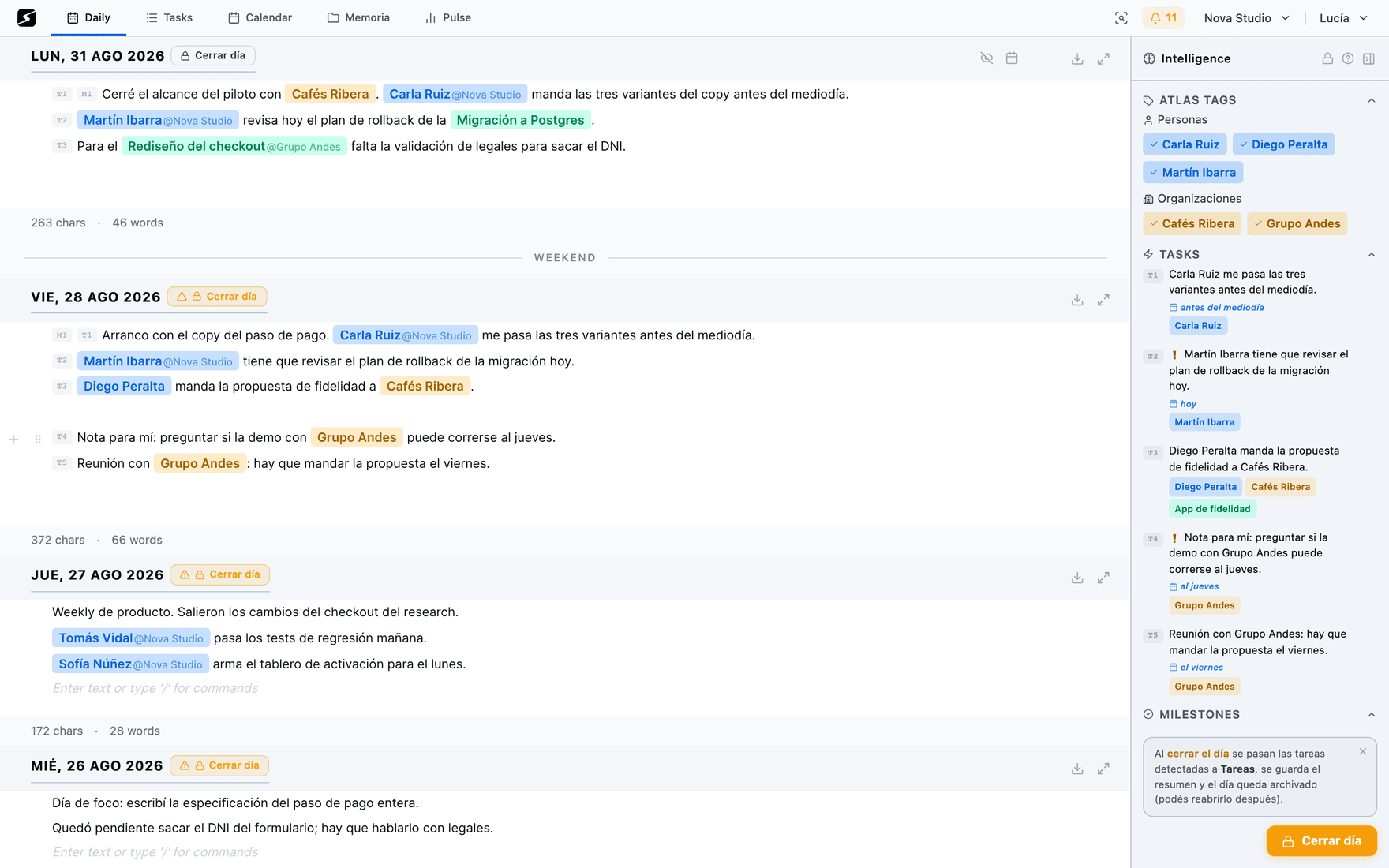
How detection works
While you write the daily note, the AI does three different things at once, and they are worth keeping apart.
- It detects knowledge entities — people, organizations and projects. Every mention links to its Atlas entry, and if the entity did not exist, creating it is proposed.
- It flags task segments — the stretches of text that look like a commitment. The flag lives on top of your text without changing it: what you wrote is never rewritten.
- It scores how clear the action is — read on its own, outside the note, a week from now. If there is no telling what it is about, the task is flagged vague, and very vague when on top of that it hangs off no person and no project; that amber flag follows it all the way to Tasks. The three levels of clarity and the full table are in the vagueness score.
The flag is reversible: the crossed-out eye dismisses it before the close, without touching your text (more in The daily note). The same dismissal is in chat, as a button on the bot's reply, and in Tasks, by right-clicking the provisional task → Discard.
Why detection creates nothing on its own
Creating tasks while you write looks faster, but it breaks the writing: you start composing carefully so you don't generate junk, and that is when you stop capturing. With detection separated from creation you can write fast and messy, which is the only way to keep capturing on a bad day.
Closing the day: when everything becomes real
Closing the day is the gesture that turns proposals into objects: every segment you did not dismiss is created as a task, with its date and its people, and lands in the planner. Today you close yourself, on the review screen explained in The daily note; past days left open close on their own — it comes switched on, and you turn it off per workspace in Settings.
Until it closes, those tasks half-exist, and it shows: in Tasks they appear as provisional, with an orange ghost and the days they have left. Tapping one takes you to the note it came from, and right-clicking lets you mark it done, give it a project, assign it to someone or discard it. What you cannot do is change its status or open it in the editor: it is not a row yet, it is a proposal.
What a task holds, and who fills it in
A task is born with the minimum: a title and, if the text said so, a date and the people it mentioned. Everything else gets added when it is needed, and none of it is required — a task with no owner, no date range and no project is a task all the same.
Status
Four of them: pending, in progress, done and cancelled. It is born pending. Beside status there are two marks that live alongside it: urgent, which paints it red — it switches on by itself when the task is due today, tomorrow or the day after, and touching it pins it by hand —, and backlog, which sets it aside without closing it.
Date and range
The due date is a day. The range —from and to— is a different thing, and almost no task is born with one: you draw it by dragging on the timeline. Saving a range also saves the due date, equal to the end of the range, so no two views can quote different dates.
Owner
One person, and not the same thing as the related people: a task can mention three —whoever asked for it, whoever has to be told, whoever got named in the note— and there is exactly one owner. You declare it by dropping the card in someone's column, or from the editor.
Atlas entities
People, organizations, projects and labels, as many as needed. They came out of the text on their own, and they are what later lets the same work be grouped by project, by client or by person without your having sorted anything by hand.
When the owner is not declared but the task hangs off exactly one person, the timeline infers it and shows it in italics: it is a guess, and it looks like one. With two related people it picks neither.
The list, the kanban, the calendar and the timeline all open the same editor, and from it you touch everything above — title, description, status, urgent, backlog, owner, deliverable, date and range — and talk it over in the task's comments. There is no screen where you can do more than in another.
Reminders: the task that also pings you
A reminder is a task with an hour: at that hour it reaches you, whether the app is open or not. It lives on the same board as the rest, with its ⏰ 15:30 next to the date — without the hour in sight it would read like any other task —, and the Reminders filter leaves only the ones that will ring. On the calendar it sits on the day and hour of the alert, and over chat, recordatorios lists them.
You ask for one with the / → Reminder menu in the daily note or over chat: "recordame mañana a las 15:30 llamar al contador". The time is yours: if you travel, the alert rings at the local time of wherever you are. How to write one, what happens when you edit or delete the line and which way the alert reaches you, in The daily note; over chat, in WhatsApp and Telegram.
Organizing the work
Views: one criterion and one shape
The Tasks screen asks two questions, and it asks them in a single bar: by which criterion the work gets split, and in which shape it gets drawn. Both are picked up top and every combination is remembered, so coming back to Tasks puts you exactly where you were.
There are seven criteria, in two families. Two split the work by a property of the task itself:
Urgency
Overdue, today, tomorrow, this week, next week, undated. Worked out in your local time, on the device you are looking from.
Status
What each task is up to: backlog, pending, in progress, done, cancelled. That is the board explained below.
Four split it by an Atlas entity — and the columns come out of what the app already linked in your text, with nothing assigned by you:
Project
Everything that pushes a project forward, no matter which day it came from or who executes it.
Person
What is each person waiting on from me, and what am I waiting on from them? This is the one-on-one view — and dropping a card in someone's column is also the short way to declare an owner.
Organization
The whole relationship with a client on one screen: their tasks, their people, their projects.
Label
Any other Atlas tag that is not a person, an organization or a project.
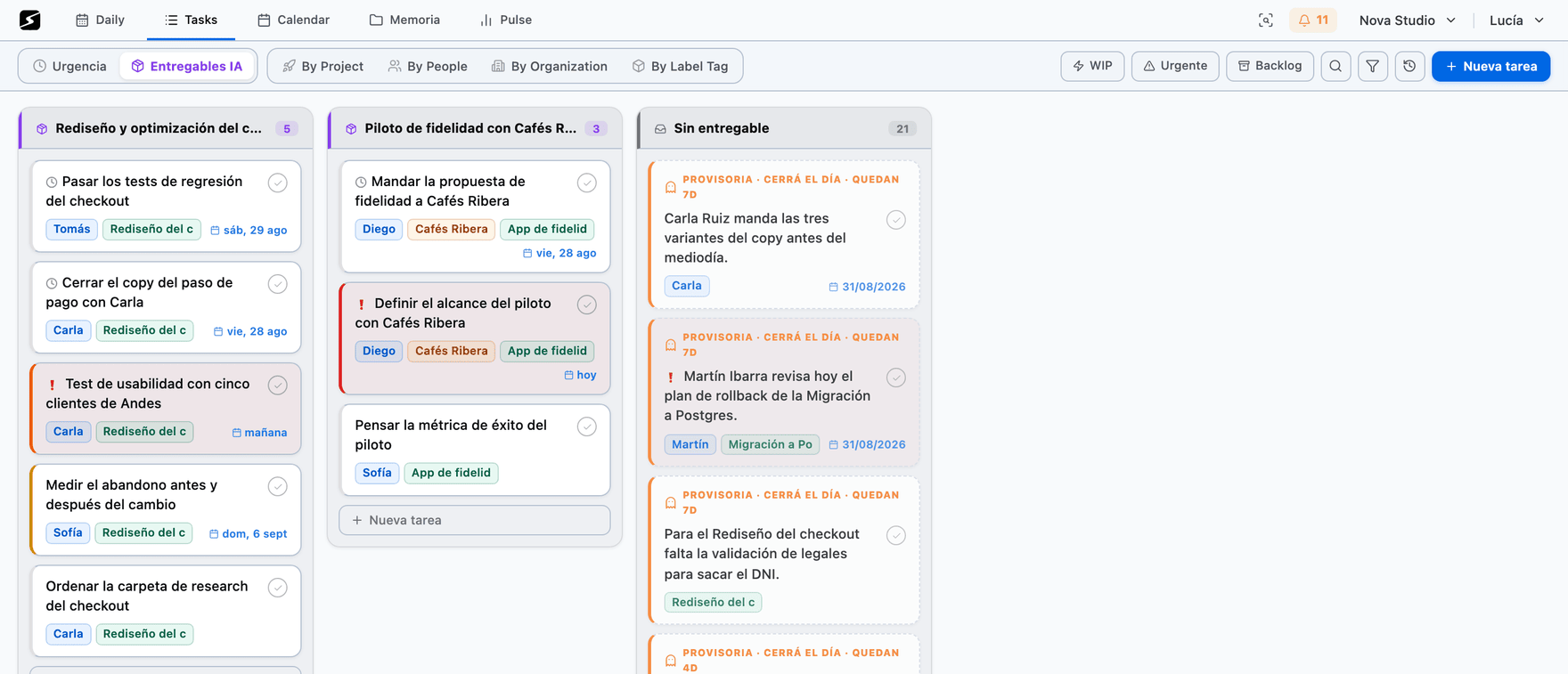
And the seventh is AI deliverables, which groups not by anything that already exists but by a result the AI proposes: it is further down.
There are three shapes, and switching shape keeps the criterion:
- List — one row per task, grouped by the criterion. It is the one that fits the most on screen, and the only one that shows every entity of a task at once.
- Kanban — one column per group, cards you drag. Dragging means something different under each criterion: under Person it reassigns, under Project it moves the task to another project, under Status it changes the status.
- Timeline — the same columns, laid down on an axis of dates. It is right below.
Two combinations do not exist: Urgency and Status have no timeline —one already has dates for columns, and the other would have the five statuses for rows— and AI deliverables is kanban and nothing else.
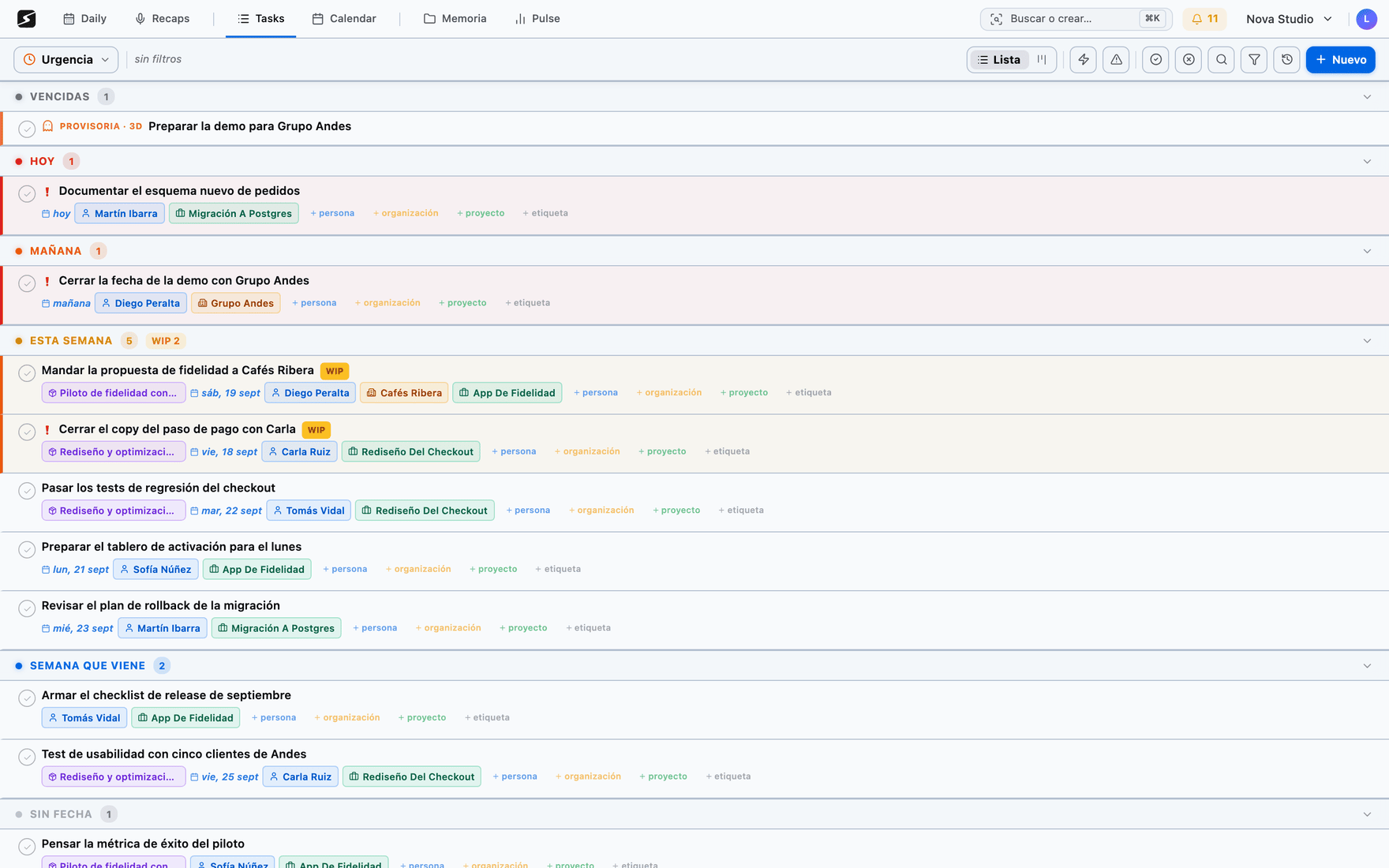
What you are not deciding today gets out of the way without being deleted: backlog hides the task from Tasks until you switch on the Backlog filter, and in the editor, The planner skips it until a date keeps it in Tasks but out of the week plan until that day.
A combination you keep coming back to is saved by name as a board, and a board can be shared with someone else or with a team without giving them access to anything else in your space: how that works is in Secondbrain Teams. Your boards live in a side panel, like the Recaps library: it starts closed to leave the screen to the work, opens with a click and closes again on its own once you pick one.
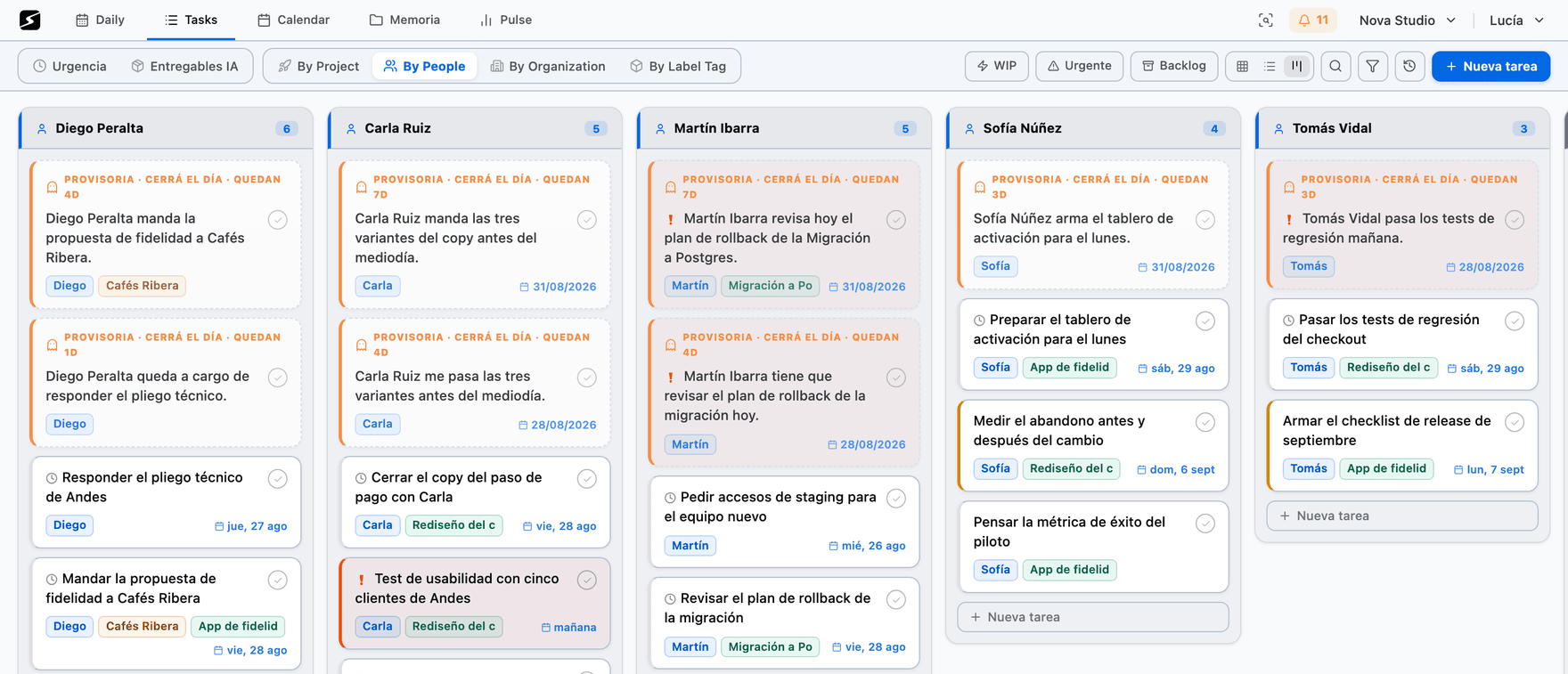
The status board: dragging is changing status
It is the usual kanban —same cards, same dragging— with one difference: the columns are not things in the world but the statuses a task goes through. Which is why dragging here reorders nothing: dropping a card in another column changes its status.
There are five columns and four statuses: backlog is not a status but a separate mark that lives alongside "pending" —what you set aside is still pending, just off the radar—, and it gets its own column because "what did I put off?" and "what do I still have to do?" are two different questions.
- 1Backlog · Pending · In progressThe three you look at every day. Moving between them closes nothing and asks nothing; the drag also clears the opposite mark, so something you pull out of the backlog to work on does not end up carrying both.
- 2Done and CancelledThe two ways of closing. What is closed is not deleted: it stays in the history.
- 3And the way backDragging a card out of Done or Cancelled reopens it, and reopening clears the closing date: a task that came back to the radar cannot go on claiming it was closed on Tuesday.
The last two columns say how far back they look, and that is where you change it: by count —the last 25 or 50, always full—, by period —15, 30 or 90 days, which can come up empty, and that says something too— or all. What you just closed is never cut, however full the cap already is.
Next to the criterion there is a second dropdown that narrows the board to one project, person, organization or label. Mind the difference: it does not group and it does not split the board, not one column moves — it only takes out of sight whatever is not from there. And there is no column configurator and no reordering: the statuses are not a list each person builds, they are the ones there are.
The timeline: when, and for how long
It is the same board laid down on an axis of dates. The rows are the same columns the kanban builds —project, organization, person or label—, and inside each one you can group by any of the other three: projects with their people inside, clients with their projects inside. The top row shows the summary of what is below it and cannot be dragged: it is a calculation, not a date anyone set.
Every task is drawn according to the dates it has, and the difference is information:
- A bar — the task has a declared range: from this day to that one, and the width means something.
- A diamond — the task only has a due date: nobody said how long it takes, so it is not drawn as a one-day bar. The first tug on an edge turns it into a bar.
- An empty lane — the task has no date at all, but it gets a row anyway: drag across its lane to draw the bar, or click once to leave a due date.
Every gesture happens on that same bar:
- 1Sideways: move or stretchFrom the middle, the whole task shifts; from an end, it stretches. While you drag, a little label spells out the dates in words — at month scale three days are ten pixels, and by eye you cannot tell what changed.
- 2Up or down: change rowThe same bar, moved to another row, changes its project, its person or its organization. It is the same gesture as dropping a card in another kanban column, and it does exactly the same thing.
- 3And the axis locksWithin the first few pixels the gesture decides whether it is horizontal or vertical and stays locked until you let go, so moving a bar three weeks never drags it to another row by accident.
At the bottom there is a rail: the scale —days, weeks or months—, one screen back and forward, Today, how many tasks have no date, and a checkbox to also bring in what is done and cancelled, off by default. The axis scrolls endlessly both ways, and the name column on the left widens by dragging its edge.
Deliverables · Hobby: how loose tasks are grouped
When tasks get detected on their own there are many of them, and none is worth much alone. "Ask for the logo", "review the copy", "send Ana the link" are not three things: they are one presentation. A deliverable is that handful of tasks that together produce a result someone is waiting for.
Grouping runs on its own when you open AI deliverables and there are new loose tasks — or when you hit the round button at the bottom right —, in three steps, and each one only does what it is good at:
- 1They get compared by meaningEvery open task is compared to the rest by what it says rather than the words it uses: "ask for the logo" and "send Ana the artwork" resemble each other without sharing a single one.
- 2The ones that resemble each other join upEach task attaches to the group it resembles most, if the resemblance is close enough. Sharing a project or an organization pushes that resemblance up. No AI takes part yet: with the same material, the result is always the same.
- 3AI names and prunesOnly at the end does the AI step in, and only for two things: deciding whether the group holds up as a deliverable and giving it a name that means something. It does not decide the grouping — the previous step already did.
The rules that make the result believable:
- A deliverable has two tasks or more. A one-task deliverable is just the task.
- It never touches a task that already has a deliverable. Regrouping does not overwrite what you arranged by hand.
- Before inventing a new deliverable, it tries to fit the task into an existing one. Without that rule, every run would create duplicates.
- By hand too: holding one card over another creates a new deliverable with both, the name changes from the column header, and a task moves from one to another by dragging it. Automatic grouping is a starting point, not a verdict.
History, archive and undo
The Task history — the clock button at the top of Tasks — gathers what you completed and cancelled, plus definitions and milestones, with date and origin. It is what feeds your weekly reports.
Completing a task archives it, it does not destroy it: it stays searchable and stays linked to its project and its people. And if you got it wrong, from the history you reopen it and it goes back to pending.
When the list has filled up with tasks that got done and nobody ticked, the phone's cleanup goes through them one at a time, in the order that makes sense: it is in the mobile app.
ClickUp and Jira
What holds for both
If your team already works in ClickUp or Jira, there is no need to move. secondbrain syncs with both both ways: what the team files there shows up in your tasks, and what comes out of your daily note or a recap goes up there with its date and its people. Each one has its own detail further down: ClickUp and Jira.
- 1Where they connectWorkspace switcher → Edit workspace → Integrations → Tool sync. It is set up from the web or the desktop app; the iPad does not configure it, but what you connected keeps working there.
- 2You authorizeThe ClickUp or Atlassian window opens, you grant access and come back. No keys to copy.
- 3You pick what, and which wayClickUp lists or Jira projects, one by one. Both syncs back and forth; Pull only brings things in: those tasks are visible here but edited there, and carry a lock that says so.
A task lives in a single tool. If you have both connected, a new task is never duplicated: it goes to one place, decided in this order:
- The one you pick on the task. When you create or edit it you get the ClickUp list and Jira project fields. Picking one sets the other to None, and None (Secondbrain only) keeps it here.
- Its project's. If the task is linked to an Atlas project that is a ClickUp list or a Jira project, it goes there.
- The default one. The Default for new tasks button next to each list or project marks where new tasks go when neither step above placed them; once marked it reads ★ Default for new tasks. There is only one per workspace across both tools: marking it in one unmarks it in the other, and clicking the marked one clears it.
- If none of that applies, the task stays in secondbrain.
Two more rules on what goes up: only tasks created after connecting go up on their own —older ones go up if you pick a list or project for them by hand— and private tasks never go up.
When things travel. What you change here goes up right away. What changes there arrives almost instantly, through the notice the tool sends, and on top of that everything is checked again every two minutes in case something got lost on the way. The panel has Sync now, which tells you how many came down (↓), how many went up (↑) and how many conflicts there were.
Statuses. secondbrain has four —Pending, In progress, Done and Cancelled— plus Backlog, which is a mark on Pending. Your tools have whatever statuses your team came up with. The translation goes by each status's category, so it works with any workflow without setting anything up:
| In ClickUp or Jira | In secondbrain |
|---|---|
| A status in the to do category | Pending |
| … with “backlog” in its name | Pending + Backlog |
| A status in the in progress category (In progress, Code review, QA…) | In progress |
| A status in the done category | Done |
| … closed as cancelled (Won't do, Cancelled, Duplicate, Obsolete, Invalid…) | Cancelled |
And on the way back, when you move a task here, a status from the matching category is picked, preferring the obvious name:
| In secondbrain | Looked for there |
|---|---|
| Pending | To do, Por hacer, Open, Abierto, Pendiente |
| Backlog | Backlog; if the list has none, the usual pending one |
| In progress | In progress, Doing, WIP, En curso |
| Done | Complete, Done, Hecho, Listo, Resuelto, Closed, Cerrado |
| Cancelled | A closed status with a cancellation name; if there is none, a done one |
Moving a task within the same category overwrites nothing: if it went from In progress to Code review there, it stays In progress here untouched; if it is Cancelled here, closing it there does not turn it into Done.
If your workflow needs something else, every list or project has a Statuses drop-down where you change the translation one status at a time: Automatic, Pending, Pending + Backlog, In progress, Done or Cancelled. What you changed is marked edited and goes back with reset. And every synced task has a chip with the tool's real status —“Status in Jira: Code review”—: one click and you pick exactly which one to move it to.
 ClickUp
Reads and writes your tasks and lists to keep them in sync with the Service.
 Jira
Jira
Reads and writes the issues of the projects you choose to sync, and reads the projects and epics of your Atlassian site to show them in the Service.
ClickUp, in detail
When you connect, all your lists come in switched on and set to Both, and so do the ones you create later in ClickUp; you switch off the ones you do not want. Each ClickUp Workspace you authorize is a separate account, and you can connect more than one. The first read brings every task that is not archived, closed ones included.
| In ClickUp | In secondbrain | Travels |
|---|---|---|
| Name | Title | Both ways |
| Description | Description, as text | Both ways |
| Due date | Due date (the day, no time) | Both ways |
| Status | Status, per the tables above | Both ways |
| Assignees | Atlas related people | Both ways |
| Tags | Atlas tags | Both ways |
| Teams (groups of people) | Atlas organizations | Both ways |
| List, with its Space and Folder | An Atlas project, locked | Comes in only |
| Subtasks | Standalone tasks, without the link to the parent | Comes in only |
| Start date, priority, estimates, points, comments, attachments, checklists | — | Do not travel |
- People. The members of your ClickUp team show up in the Atlas on their own. The assignees of a ClickUp task come in as its related people; on the way back, each person is matched to a member by username or email, and if nobody matches, nobody is assigned. Urgency does not travel: here it is worked out from the due date.
- If it changed on both sides, the latest edit wins and it counts as a conflict. Before sending anything up, the task is read again from ClickUp, so a change made there a minute ago is not overwritten. People, tags and groups are merged: what someone removed on one side does not come back.
- Moving a task to another list asks for confirmation, because ClickUp does not move: it deletes it and creates it again over there. Subtasks, comments (as a copy) and attachments are kept; the activity history is lost and the ID changes.
| If… | This happens |
|---|---|
| You delete the task in secondbrain | It goes to the ClickUp trash, where it can be recovered for 30 days |
| Someone deletes it in ClickUp | It is deleted here. If they restore it from the trash, it comes back |
| A list is deleted in ClickUp | Its tasks are deleted here; the Atlas project stays, as an ordinary project |
| A list is archived | Nothing is touched |
| You switch a list off | Tasks that came from ClickUp are removed from secondbrain; the ones born here stay, with no list. Switch it back on and they relink without duplicates |
| You hit Disconnect | The same, for every list in that account |
If ClickUp withdraws the app's permission, the account goes to needs reconnecting with the notice “ClickUp stopped authorizing this workspace: connect it again”, and it does not sync until you hit Reconnect. What you had chosen is kept. A list that can no longer be read does not stop everything: it is skipped and the rest carry on.
While the connection is down, that account's tasks are read-only, for you too: whatever you changed here would not reach ClickUp, and could be overwritten on reconnecting. A red strip shows up at the top of Tasks — “Your ClickUp connection is down: 3 tasks are read-only until you reconnect it” — with a Reconnect ClickUp button, and the editor of each of those tasks states that problem and nothing else, with the same button.
All integrations →Jira, in detail
When you connect, projects come in switched off: you switch on the ones you want to sync —there is a search box when there are many—. Each project gets two choices: direction, Both or Pull, and scope, All —the project's open issues plus the ones closed in the last 30 days— or Mine —only the ones assigned to you; what was already brought in is kept even if it changes hands—. Each Atlassian site is a separate connection, and you can connect more than one.
| In Jira | In secondbrain | Travels |
|---|---|---|
| Summary | Title | Both ways |
| Description | Description: paragraphs, lists, headings and code | Both ways |
| Due date | Due date | Both ways |
| Start date / Target start and end | The task's span (start and end), if your site has that field | Both ways |
| Status and resolution | Status, per the tables above | Both ways |
| Assignee | Owner | Both ways |
| Labels | Atlas tags (spaces become hyphens) | Both ways |
| Project | An Atlas project, locked | Comes in only |
| Epic | Another Atlas project, locked; the epic is not brought in as a task | Comes in only |
| Subtasks | Standalone tasks, without the link to the parent | Comes in only |
| Priority, comments, attachments, estimates, logged time | — | Do not travel |
- The owner. Here the Jira assignee is the task's Owner —in ClickUp, by contrast, assignees come in as related people—. Coming in, the Atlas person is found by email or name; going out, among the people assignable in that project, and it is only assigned when there is exactly one match: with two Martíns, it does not guess. Related people do not travel.
- Statuses go through the workflow. Jira does not let you set any status: it takes a transition. secondbrain picks one the workflow allows, and when closing it fills in the resolution — Won't Do for a cancelled one, Done for a done one. If the workflow does not allow it, it says so (“the Jira workflow does not let it move to…”) and does not insist until you change it again. Note: what tells a closed issue is a cancellation is its resolution, not the status name; if your workflow closes without a resolution, adjust it under Statuses.
- If it changed on both sides, it is settled field by field: if the title changed there and the date here, both stay. Only when the same field changed on both sides does the most recent win, and that counts as a conflict. Labels are added together. In a project set to Pull, Jira always wins.
- New tasks are created as Task, are born in the workflow's initial status and are then moved to the right one. Default for new tasks can only be marked on a project set to Both. If the project has required fields secondbrain does not fill in, the panel warns you first: those tasks will not be able to go up there.
- Moving a task to another project moves the issue: it keeps its history and comments, but the key changes (ABC-12 becomes XYZ-3). Jira requires the Make bulk changes permission for it.
| If… | This happens |
|---|---|
| You delete the task in secondbrain | The issue is not deleted: it is closed, as Won't Do if your Jira has it. And it does not come back here |
| Someone deletes it in Jira | It is deleted here |
| It is moved to a project you do not sync | It is let go: if it came from Jira it is removed here; if it was born here, it stays as an ordinary task |
| You switch a project off (or it is deleted in Jira) | Tasks that came from Jira are removed from secondbrain; the ones born here stay, with no project |
| You hit Disconnect | The same, for every project on that site |
Jira changes arrive instantly through a notice the site sends; if that notice is not active, the panel says so and they arrive every two minutes. If the permission is revoked or access to the site is lost, the connection goes to needs reconnecting and is fixed with Reconnect.
Just like ClickUp, while it is down its tasks are read-only, for you too, with the “Your Jira connection is down…” strip at the top of Tasks and the Reconnect Jira button on the strip and in each task's editor.
All integrations →In a shared board
A shared board shows every task that meets its conditions, and that includes the ones coming from ClickUp or Jira. The rule behind everything else: secondbrain never writes to your ClickUp or your Jira with your account on someone else's behalf. Whoever gets the board sees those tasks; editing them is a different matter.
| Whoever gets the board… | A secondbrain task | A ClickUp or Jira task |
|---|---|---|
| … with view permission | Sees it | Sees it, read-only |
| … with edit permission, no account in that tool | Edits it | Sees it read-only, with a Connect my Jira account (or ClickUp) button |
| … with edit permission and their own account with permission on that task there | Edits it | Edits it, and the change reaches the tool under their name, not yours |
| … with their account, but no permission there on that task | Edits it | Read-only: “Your Jira account doesn't have permission to edit this task there” |
Nobody who gets a board can delete tasks or pull them out of the board, wherever they come from. And private tasks never come in.
- 1When you share, it tells youIf the board includes ClickUp or Jira tasks, the share dialog says so before inviting: how many are in today and, if a condition is something a tool brought in — a Jira project, a ClickUp list, a label —, that new tasks from there will come in on their own. Share stays off until you tick I understand: share them anyway, just like with a board with no conditions.
- 2Or you leave them outThe same notice has Don't include ClickUp or Jira tasks in this board: the board is shared with everything else and nothing from the tools, not even what you added by hand. Include them undoes it.
- 3If they show up later, it tells you againIf an already shared board starts bringing in tasks from a tool you had not confirmed — you changed the conditions, you connected Jira afterwards —, a strip with Got it and Don't include them shows up on top of the board. And connecting ClickUp or Jira while you have shared boards is flagged in the integration panel too.
How the person who got the board connects their account. They open a ClickUp or Jira task and hit Connect my … account: the ClickUp or Atlassian permission window opens, they authorize and come back. That connection only identifies them: it syncs nothing and brings no tasks into their space. If they already sync that tool in a workspace of their own, there is no need: that one is used.
The tool decides whether they can edit. Jira says up front whether that account can edit the issue. ClickUp has no way to ask: if the account can see the task it is allowed to try, and if ClickUp refuses, the task turns read-only for that person with the reason. Either way, if the tool says no, nothing changes in secondbrain: no half-saved tasks. If their permission there changes, it is asked again within a few minutes.
New tasks written by whoever got the board stay in secondbrain only: your sync does not push them to your ClickUp or your Jira. If they have an account in the tool, the board shows Also create new tasks in “Backend”, with your Jira account; ticked, they are created there with their account and stay synced like any other. If the tool does not allow it, the task stays in secondbrain and a notice says why. Without an account, the strip offers to connect one. A task someone else wrote can be sent to a list or project by you, picking it by hand.
If your connection goes down, that tool's tasks become read-only for everyone — for you and for whoever got the board —, and they see “The board owner's Jira connection is down”. Everything comes back when you reconnect.
Sharing a task board →Shall we try it?
Create your free account and use all of this today.