' d='M71 0.33c-25 1 -45.67 12.67 -59.33 33c-4.67 7 -7 12.67 -9.33 21.33c-2.33 8.33 -2 1.33 -2.33 111c0 103.33 0 104 1.33 111.33c1.67 8.33 6.33 19.67 11 26.67c8.33 12.33 22.33 23 36.33 27.67c4.67 1.67 15.33 3.67 20.33 4c6 0.33 227.33 0.33 234 0c10.67 -0.67 23 -4.33 32 -9.33c9 -5 19 -14 24.33 -22c5 -7.67 7.33 -12.67 9.67 -20.33c1.67 -5.67 2.33 -9 2.67 -15.67c0.33 -7.67 0.33 -196 0 -201c-1 -11.33 -3.67 -20 -10.33 -31.33c-3 -5.33 -5 -8 -8.33 -11.33c-11.33 -12 -24.67 -19.67 -40 -22.67c-2.67 -0.67 -6.33 -1 -7.67 -1.33c-4.33 0 -228.33 -0.33 -234.33 0z'/%3E %3Cpath fill='%23FFFFFF' d='M357 33.33c-0.67 0 -2.33 0.67 -3.67 1.33c-1.33 0.33 -3.67 1.33 -5 2c-1.33 0.33 -3.67 1.33 -5 2c-1.67 0.67 -4.67 1.67 -6.67 2.67c-12 4.33 -11.67 4 -19.33 7.33c-1.33 0.67 -3.67 1.33 -5 2c-1.67 0.67 -3.67 1.33 -5.33 2c-1.33 0.67 -4.33 1.67 -6.33 2.67c-10 3.67 -12 4.33 -14.33 5.33c-1.67 0.67 -4.67 1.67 -6.67 2.33c-2 1 -5 2 -6.33 2.67c-1.67 0.67 -6 2.33 -9.67 3.33c-3.67 1.33 -8 3 -9.33 3.67c-3.33 1.33 -8.67 3.33 -16 6c-3 1 -7.33 2.67 -9.67 3.33c-2.33 1 -6.67 2.67 -9.33 3.67c-3 1 -7.33 2.67 -9.33 3.33c-2.33 1 -6 2.33 -8.33 3.33c-2.33 0.67 -7.33 2.33 -11 3.67c-3.67 1.33 -8 3 -9.33 3.67c-1.67 0.67 -6 2.33 -9.67 3.67c-3.67 1.33 -8.67 3 -11 3.67c-2.33 1 -6.67 2.67 -9.33 3.67c-3 1 -7.33 2.67 -9.67 3.33c-2.33 1 -5.67 2.33 -7.67 3c-2 0.67 -4.33 1.67 -5 2c-4.33 2.33 -9 6.33 -11.67 10c-2.67 4 -3 5.33 -5 12.33c-0.67 2.33 -0.67 7.33 -0.33 9.33c1.67 6.33 2.33 7.33 3.67 9.67c2 2.67 8.33 9.33 10.67 11c0.67 0.67 2 1.67 2.67 2.33c0.67 0.33 2 1.67 3 2.33c3.33 2.33 5.33 4 7.67 5.67c1.33 1 3 2.33 4 3c3.33 2.33 8.33 8 9.67 10.67l1.33 2.33l0 5c0 6.67 -1.33 10 -6 14.67c-2.33 2 -8 5.33 -11.33 6.33c-1 0.33 -2.33 1 -3.67 1.33c-1.33 0.67 -2.67 1.33 -3.33 1.67c-1 0.33 -2.33 1 -3.33 1.33c-1 0.67 -3 1.33 -4.33 2c-1 0.33 -3 1 -4.33 1.33c-1 0.67 -2.67 1.33 -3.67 1.67c-1 0.67 -2.67 1.33 -4 2c-1 0.33 -3 1 -4.33 1.67c-1 0.33 -3 1 -4 1.67c-1 0.33 -2.33 1 -3 1.33c-1 0.33 -2.33 1 -3.67 1.33c-1.33 0.67 -2.67 1.33 -3.33 1.67c-1 0.33 -2.33 1 -3.33 1.33c-1 0.67 -3 1.33 -4 1.67c-1.33 0.67 -3.33 1.33 -4.67 2c-5.67 2.33 -8 3 -10 4c-1 0.33 -3 1 -4 1.67c-1 0.33 -2.33 1 -3 1.33c-1 0.33 -2.33 1 -3.33 1.33c-1 0.67 -3 1.33 -4 1.67c-1.33 0.67 -3.33 1.33 -4.67 2c-1.67 0.67 -3.67 1.33 -5 2c-1 0.33 -2.67 1 -3.67 1.67c-1 0.33 -2.67 1 -3.67 1.33c-1.33 0.67 -3.33 1.33 -4.67 2c-5.67 2.33 -8 3 -10 4c-1 0.33 -3 1 -4 1.67c-1 0.33 -2.33 1 -3 1.33c-1 0.33 -2.33 1 -3.33 1.33c-1.33 0.67 -3 1.33 -3.67 1.67c-3.33 1 -7 2.67 -7.33 3.33c-1 1 0 4.33 3.33 12c1.33 2.33 2.67 5.33 3.33 6.33c1.67 2.33 2.67 2.67 6 1c1 -0.67 2.67 -1.33 3.67 -1.67c0.67 -0.33 2 -1 3 -1.33c1.33 -0.67 3.67 -1.67 5.67 -2.33c2 -0.67 4.67 -1.67 6.33 -2.33c1.33 -0.67 3.67 -1.33 5 -2c1.33 -0.67 3.33 -1.33 4.67 -2c1.33 -0.67 3.67 -1.33 5.33 -2c1.33 -0.67 4.33 -1.67 6.33 -2.67c3.67 -1 5.33 -1.67 11.67 -4.33c3 -1.33 9 -3.67 14 -5.33c2 -0.67 4.33 -1.67 5.33 -2c1 -0.67 3.33 -1.67 5.33 -2.33c2 -0.67 5.33 -2 7.67 -3c2.33 -0.67 6.67 -2.33 9.67 -3.33c3 -1 7.67 -3 10.67 -4c3 -1 7.33 -2.67 9.67 -3.33c2 -1 5.67 -2.33 8 -3.33c5.33 -1.67 15.33 -5.33 28 -9.67c5.33 -2 11.67 -4.33 14 -5c2.33 -1 8 -3 12.67 -4.67c19 -6.67 25.33 -9 29 -10.33c4.33 -1.67 10.33 -4.67 12.33 -6c0.67 -0.67 2.33 -1.67 3 -2.33c2.67 -2 7.33 -9.67 8.67 -14.33c0.33 -0.67 0.67 -2 1 -3c0.33 -2 0.33 -8 0 -10c-2 -7 -2 -7 -5 -11.67c-1.67 -2.33 -3.33 -4.67 -4 -5c-1.67 -1.67 -3.67 -3 -5.67 -4.33c-1 -0.67 -2 -1.67 -2.33 -2c-0.67 -0.33 -1.67 -1.33 -2.67 -2c-1 -0.67 -2.33 -1.67 -3 -2.67c-0.67 -0.67 -2 -1.67 -3 -2.33c-3 -2.33 -5.67 -4 -7 -5.33c-1 -0.67 -2.33 -1.67 -3 -2.33c-2.67 -2 -6 -8 -6 -10.67c0 -0.67 -0.33 -2 -0.67 -3c-0.33 -1.67 -0.33 -1.67 0 -3.33c0.33 -1 0.67 -2.33 0.67 -2.67c0 -0.67 3 -7 4 -8.33c2 -2 8 -5.67 12.67 -7.33c1.33 -0.67 3.33 -1.33 4.33 -1.67c1.33 -0.67 3.67 -1.67 5 -2.33c1.33 -0.67 3.67 -1.67 4.67 -2c1.33 -0.67 3.33 -1.33 5 -2c1.33 -0.67 3.33 -1.33 4.67 -2c1 -0.33 3 -1 4 -1.67c1 -0.33 2.33 -1 3.33 -1.33c0.67 -0.33 2 -1 3.33 -1.33c1.33 -0.67 3.33 -1.67 5 -2.33c1.67 -0.33 3.67 -1.33 5 -2c1.33 -0.33 2.67 -1 3.67 -1.33c0.67 -0.33 2 -1 3 -1.33c1 -0.67 3 -1.33 4 -1.67c2 -1 4.33 -1.67 10 -4c1.33 -0.67 3.33 -1.33 4.67 -2c1 -0.33 3 -1 4 -1.67c1 -0.33 3 -1.33 4.67 -2c1.67 -0.33 3.67 -1.33 4.67 -1.67c1 -0.67 3 -1.33 4 -1.67c1.33 -0.67 3.33 -1.33 4.67 -2c5.67 -2.33 8 -3 10 -4c1 -0.33 2.67 -1 3.67 -1.67c1 -0.33 3.33 -1.33 5.33 -2c2 -0.67 4.67 -1.67 6.33 -2.33c1.33 -0.67 3.33 -1.33 4.67 -2c1 -0.33 2.67 -1 3.67 -1.33c1 -0.67 2.67 -1.33 3.67 -1.67c1.33 -0.67 3.33 -1.33 4.67 -2c1.67 -0.67 3.67 -1.33 5.33 -2c1.33 -0.67 3.33 -1.33 4.67 -2c4.33 -1.67 4.33 -2.33 0.67 -10.67c-1 -2.33 -2.67 -5.33 -3.67 -7.33c-2.33 -3.67 -3 -4.33 -5 -3.33z'/%3E %3Cg clip-path='url(%23rimb)'%3E %3Cpath d='M357 33.33c-0.67 0 -2.33 0.67 -3.67 1.33c-1.33 0.33 -3.67 1.33 -5 2c-1.33 0.33 -3.67 1.33 -5 2c-1.67 0.67 -4.67 1.67 -6.67 2.67c-12 4.33 -11.67 4 -19.33 7.33c-1.33 0.67 -3.67 1.33 -5 2c-1.67 0.67 -3.67 1.33 -5.33 2c-1.33 0.67 -4.33 1.67 -6.33 2.67c-10 3.67 -12 4.33 -14.33 5.33c-1.67 0.67 -4.67 1.67 -6.67 2.33c-2 1 -5 2 -6.33 2.67c-1.67 0.67 -6 2.33 -9.67 3.33c-3.67 1.33 -8 3 -9.33 3.67c-3.33 1.33 -8.67 3.33 -16 6c-3 1 -7.33 2.67 -9.67 3.33c-2.33 1 -6.67 2.67 -9.33 3.67c-3 1 -7.33 2.67 -9.33 3.33c-2.33 1 -6 2.33 -8.33 3.33c-2.33 0.67 -7.33 2.33 -11 3.67c-3.67 1.33 -8 3 -9.33 3.67c-1.67 0.67 -6 2.33 -9.67 3.67c-3.67 1.33 -8.67 3 -11 3.67c-2.33 1 -6.67 2.67 -9.33 3.67c-3 1 -7.33 2.67 -9.67 3.33c-2.33 1 -5.67 2.33 -7.67 3c-2 0.67 -4.33 1.67 -5 2c-4.33 2.33 -9 6.33 -11.67 10c-2.67 4 -3 5.33 -5 12.33c-0.67 2.33 -0.67 7.33 -0.33 9.33c1.67 6.33 2.33 7.33 3.67 9.67c2 2.67 8.33 9.33 10.67 11c0.67 0.67 2 1.67 2.67 2.33c0.67 0.33 2 1.67 3 2.33c3.33 2.33 5.33 4 7.67 5.67c1.33 1 3 2.33 4 3c3.33 2.33 8.33 8 9.67 10.67l1.33 2.33l0 5c0 6.67 -1.33 10 -6 14.67c-2.33 2 -8 5.33 -11.33 6.33c-1 0.33 -2.33 1 -3.67 1.33c-1.33 0.67 -2.67 1.33 -3.33 1.67c-1 0.33 -2.33 1 -3.33 1.33c-1 0.67 -3 1.33 -4.33 2c-1 0.33 -3 1 -4.33 1.33c-1 0.67 -2.67 1.33 -3.67 1.67c-1 0.67 -2.67 1.33 -4 2c-1 0.33 -3 1 -4.33 1.67c-1 0.33 -3 1 -4 1.67c-1 0.33 -2.33 1 -3 1.33c-1 0.33 -2.33 1 -3.67 1.33c-1.33 0.67 -2.67 1.33 -3.33 1.67c-1 0.33 -2.33 1 -3.33 1.33c-1 0.67 -3 1.33 -4 1.67c-1.33 0.67 -3.33 1.33 -4.67 2c-5.67 2.33 -8 3 -10 4c-1 0.33 -3 1 -4 1.67c-1 0.33 -2.33 1 -3 1.33c-1 0.33 -2.33 1 -3.33 1.33c-1 0.67 -3 1.33 -4 1.67c-1.33 0.67 -3.33 1.33 -4.67 2c-1.67 0.67 -3.67 1.33 -5 2c-1 0.33 -2.67 1 -3.67 1.67c-1 0.33 -2.67 1 -3.67 1.33c-1.33 0.67 -3.33 1.33 -4.67 2c-5.67 2.33 -8 3 -10 4c-1 0.33 -3 1 -4 1.67c-1 0.33 -2.33 1 -3 1.33c-1 0.33 -2.33 1 -3.33 1.33c-1.33 0.67 -3 1.33 -3.67 1.67c-3.33 1 -7 2.67 -7.33 3.33c-1 1 0 4.33 3.33 12c1.33 2.33 2.67 5.33 3.33 6.33c1.67 2.33 2.67 2.67 6 1c1 -0.67 2.67 -1.33 3.67 -1.67c0.67 -0.33 2 -1 3 -1.33c1.33 -0.67 3.67 -1.67 5.67 -2.33c2 -0.67 4.67 -1.67 6.33 -2.33c1.33 -0.67 3.67 -1.33 5 -2c1.33 -0.67 3.33 -1.33 4.67 -2c1.33 -0.67 3.67 -1.33 5.33 -2c1.33 -0.67 4.33 -1.67 6.33 -2.67c3.67 -1 5.33 -1.67 11.67 -4.33c3 -1.33 9 -3.67 14 -5.33c2 -0.67 4.33 -1.67 5.33 -2c1 -0.67 3.33 -1.67 5.33 -2.33c2 -0.67 5.33 -2 7.67 -3c2.33 -0.67 6.67 -2.33 9.67 -3.33c3 -1 7.67 -3 10.67 -4c3 -1 7.33 -2.67 9.67 -3.33c2 -1 5.67 -2.33 8 -3.33c5.33 -1.67 15.33 -5.33 28 -9.67c5.33 -2 11.67 -4.33 14 -5c2.33 -1 8 -3 12.67 -4.67c19 -6.67 25.33 -9 29 -10.33c4.33 -1.67 10.33 -4.67 12.33 -6c0.67 -0.67 2.33 -1.67 3 -2.33c2.67 -2 7.33 -9.67 8.67 -14.33c0.33 -0.67 0.67 -2 1 -3c0.33 -2 0.33 -8 0 -10c-2 -7 -2 -7 -5 -11.67c-1.67 -2.33 -3.33 -4.67 -4 -5c-1.67 -1.67 -3.67 -3 -5.67 -4.33c-1 -0.67 -2 -1.67 -2.33 -2c-0.67 -0.33 -1.67 -1.33 -2.67 -2c-1 -0.67 -2.33 -1.67 -3 -2.67c-0.67 -0.67 -2 -1.67 -3 -2.33c-3 -2.33 -5.67 -4 -7 -5.33c-1 -0.67 -2.33 -1.67 -3 -2.33c-2.67 -2 -6 -8 -6 -10.67c0 -0.67 -0.33 -2 -0.67 -3c-0.33 -1.67 -0.33 -1.67 0 -3.33c0.33 -1 0.67 -2.33 0.67 -2.67c0 -0.67 3 -7 4 -8.33c2 -2 8 -5.67 12.67 -7.33c1.33 -0.67 3.33 -1.33 4.33 -1.67c1.33 -0.67 3.67 -1.67 5 -2.33c1.33 -0.67 3.67 -1.67 4.67 -2c1.33 -0.67 3.33 -1.33 5 -2c1.33 -0.67 3.33 -1.33 4.67 -2c1 -0.33 3 -1 4 -1.67c1 -0.33 2.33 -1 3.33 -1.33c0.67 -0.33 2 -1 3.33 -1.33c1.33 -0.67 3.33 -1.67 5 -2.33c1.67 -0.33 3.67 -1.33 5 -2c1.33 -0.33 2.67 -1 3.67 -1.33c0.67 -0.33 2 -1 3 -1.33c1 -0.67 3 -1.33 4 -1.67c2 -1 4.33 -1.67 10 -4c1.33 -0.67 3.33 -1.33 4.67 -2c1 -0.33 3 -1 4 -1.67c1 -0.33 3 -1.33 4.67 -2c1.67 -0.33 3.67 -1.33 4.67 -1.67c1 -0.67 3 -1.33 4 -1.67c1.33 -0.67 3.33 -1.33 4.67 -2c5.67 -2.33 8 -3 10 -4c1 -0.33 2.67 -1 3.67 -1.67c1 -0.33 3.33 -1.33 5.33 -2c2 -0.67 4.67 -1.67 6.33 -2.33c1.33 -0.67 3.33 -1.33 4.67 -2c1 -0.33 2.67 -1 3.67 -1.33c1 -0.67 2.67 -1.33 3.67 -1.67c1.33 -0.67 3.33 -1.33 4.67 -2c1.67 -0.67 3.67 -1.33 5.33 -2c1.33 -0.67 3.33 -1.33 4.67 -2c4.33 -1.67 4.33 -2.33 0.67 -10.67c-1 -2.33 -2.67 -5.33 -3.67 -7.33c-2.33 -3.67 -3 -4.33 -5 -3.33z' fill='none' stroke='url(%23fileteInv)' stroke-width='3.65'/%3E %3C/g%3E %3Cg clip-path='url(%23rim)'%3E %3Cpath d='M71 0.33c-25 1 -45.67 12.67 -59.33 33c-4.67 7 -7 12.67 -9.33 21.33c-2.33 8.33 -2 1.33 -2.33 111c0 103.33 0 104 1.33 111.33c1.67 8.33 6.33 19.67 11 26.67c8.33 12.33 22.33 23 36.33 27.67c4.67 1.67 15.33 3.67 20.33 4c6 0.33 227.33 0.33 234 0c10.67 -0.67 23 -4.33 32 -9.33c9 -5 19 -14 24.33 -22c5 -7.67 7.33 -12.67 9.67 -20.33c1.67 -5.67 2.33 -9 2.67 -15.67c0.33 -7.67 0.33 -196 0 -201c-1 -11.33 -3.67 -20 -10.33 -31.33c-3 -5.33 -5 -8 -8.33 -11.33c-11.33 -12 -24.67 -19.67 -40 -22.67c-2.67 -0.67 -6.33 -1 -7.67 -1.33c-4.33 0 -228.33 -0.33 -234.33 0z' fill='none' stroke='url(%23filete)' stroke-width='8.64'/%3E %3C/g%3E %3Cpath d='M1269 56l-0.67 0.67l-0.33 35c0 19 -0.33 35 -0.33 35.33c-0.67 1 -1.33 0.67 -4 -0.67c-6 -4 -14.67 -7.33 -23.67 -9c-4.33 -0.67 -15.33 -0.67 -20.67 0c-17.33 2.33 -33.33 11.67 -44.67 25.67c-10.33 13 -14.67 26.33 -14.67 44.67c-0.33 13.33 1.67 21.67 7.33 33c3.67 7 7 11.67 14.33 19c5.33 5.67 16.33 12 26.33 15.33c19.67 6.67 42.33 4 60 -6.67c10.33 -6 20 -16.33 25 -26c5 -9.67 7.33 -18.67 8 -28.33c0.33 -7 0.33 -135 0 -136.67c-0.33 -1 -0.67 -1.33 -1.33 -1.67c-0.33 -0.33 -6.67 -0.33 -15.33 -0.33c-14 0 -14.67 0 -15.33 0.67zm-31 91.33c7 1 15.33 5.33 20 10c3.67 4 8.33 11 10 15.33c2.67 8 3 20 0 28.67c-5.33 16.33 -20.33 27.33 -36.67 27.33c-11 0 -20.33 -3.67 -28.67 -11.67c-7 -6.67 -11.67 -18.33 -11.67 -29.33c0 -16 8.33 -30.33 22.67 -37.33c6.33 -3.33 16.33 -4.67 24.33 -3zM1319.33 55.67c-0.33 0 -0.67 0.67 -1 1c-0.33 1 -0.33 133.33 0 138c1 11.67 5.33 24 11 32.67c4.33 6.67 13 15.33 18.67 19c3 2 11 6 15.67 7.67c13 5.33 30.67 6 45.33 2c6 -1.67 16.33 -6.67 22.33 -10.67c4.33 -3 13 -12 16.67 -17.67c2.67 -4 4.67 -8.33 7.33 -14.33c5.33 -14.67 6 -28.67 2 -44c-3.33 -14 -8.67 -23.33 -18.67 -33.33c-13.33 -12.67 -29.67 -19 -49.33 -19c-13 0 -24.67 3.33 -34 9.33c-3.67 2.67 -4.33 2.67 -4.67 0c-0.33 -0.67 -0.33 -17 -0.33 -35.67l0.33 -34l-1 -0.67c-0.67 -0.67 -1.33 -0.67 -15 -0.67c-8 0 -14.67 0.33 -15.33 0.33zm76.33 91.67c5.67 0.67 10 2.67 15.67 6.33c5.33 3.67 8.33 7 12.33 14c3.67 6.33 4.67 10.33 5 18.33c0.33 9.67 -1.67 16.67 -7.67 25.67c-3.33 5.33 -9.67 10.33 -16.33 13.67c-8 3.67 -18.67 4.33 -27.67 1.67c-6.33 -2 -15.33 -8.33 -19 -13c-2.33 -3 -6.67 -12.33 -7.67 -16.67c-2.33 -8.33 -1 -19.33 2.67 -27.33c5.33 -11 12.33 -17.33 23 -21.33c5.33 -2 13.33 -2.67 19.67 -1.33zM1696 67.33c-8.67 2.67 -14.33 9.67 -14.33 18c0 8.67 5.67 16 13.67 18.33c2.33 0.67 7.67 0.67 10 0.33c9.67 -2.67 15.33 -12 13 -22.33c-1 -5 -4.67 -10 -9 -12.33c-4 -2 -9.67 -3 -13.33 -2zM1080.33 117.33c-7.33 1 -16.33 3.33 -22.33 6.33c-8 3.67 -19.33 13.67 -23 20c-4.33 6.67 -6.67 12.33 -8 18.33c-2.33 8.67 -2 7.33 -2.33 46.33c0 39.67 0 45.33 1 46.33l0.67 0.67l14.33 0.33c13.67 0 14.33 0 15 -0.67l1 -0.67l0 -38.67c0 -25.67 0 -39.67 0.33 -41.67c1 -7 4 -12.67 9.33 -18.33c5.33 -5.67 12.33 -8 21.67 -8c6 0 8 0.33 12.67 2.67c8.33 4.33 12 8 15.33 16c3 6.67 2.67 2.67 3 48c0 39.33 0.33 40.33 0.67 41c0.67 0.33 3.33 0.33 15 0.33c13.33 0 14 0 14.67 -0.67l1 -0.67l0 -38c0 -40 0 -43.67 -1.33 -51.33c-2.33 -12 -6.67 -20.33 -15 -29c-9.67 -9.67 -20.33 -15.33 -34 -18c-4.33 -1 -15 -1.33 -19.67 -0.67zM531.33 117.67c-16 1 -28.33 6.67 -37.67 17.33c-4.33 4.67 -6.33 9.33 -7.67 17.33c-1.67 11 1.67 21.67 8.67 29c3.33 3.33 10 8 14.33 10c5.33 2.33 16.67 6 27.67 8.33c11 2.67 16 4.67 19 7.67c5.67 5.67 3 14 -5.33 18c-7.67 4 -20 3.67 -28 -0.33c-4.67 -2.33 -9 -6.67 -12.67 -11.67c-1.33 -2.33 -2.33 -3.33 -3 -3.67c-0.33 0 -2 0.67 -6 2.33c-18.33 9.33 -19.33 9.67 -19.33 11.33c0 0.67 0.67 2.33 1.67 4.33c7.67 15 20.67 24.33 40 28.67c3.33 0.67 4.33 0.67 13.67 0.67c11.33 0 15 -0.33 23 -3c9 -3 19 -9.67 23.33 -16c8.67 -12 10.33 -26 4.67 -39c-3.67 -8.33 -7 -12 -17 -17.67c-6.33 -3.33 -15.67 -6.67 -25.67 -9c-7.33 -1.67 -17.33 -4.67 -20 -6c-4.67 -2.33 -7 -5 -7 -8.67c0 -5.33 4 -9.67 11 -11.67c3 -0.67 10.67 -0.67 13.67 0c6.67 2 11.67 5.33 15 10c1.67 2.67 2.33 3 3.33 3c1 0 20.33 -9.67 22.67 -11.67c1.33 -1 1.33 -2.33 -0.33 -5.33c-3.67 -7 -14 -16 -22.67 -19.33c-10.67 -4.33 -19.33 -5.67 -29.33 -5zM663.67 117.67c-14 1 -24.33 5 -34.33 12.33c-8 6 -10 8.33 -14.67 14.33c-10.67 14.33 -15.33 30 -14 48.67c1.67 24 16.33 46.67 37.33 57c7.33 3.67 12.33 5.33 19.33 6.33c7 1.33 18 1 25.33 -0.33c9 -1.67 20.33 -7 27.67 -12.33c5 -3.67 13.33 -13 15 -16.67c1 -2 1 -2 0.67 -3c-0.33 -0.33 -1.33 -1 -2 -1.67c-16 -9.33 -22.33 -12.67 -23.33 -12.67c-1 0 -2.33 1.33 -4 3.67c-3.33 5 -12 10.67 -19.33 12.67c-3.67 1 -14 1 -17.33 0.33c-9.67 -2.67 -18 -9 -22.67 -17.33c-1.67 -3 -3 -7 -3 -8.67c0 -2 -3.33 -1.67 49.33 -2c38.33 0 48.67 -0.33 49.33 -0.67c1.33 -0.67 1.33 -2.67 1.33 -11.33c0.33 -9.33 -0.33 -12.67 -2.67 -20.67c-3.33 -12.67 -8 -21 -16.67 -29.33c-8.33 -8.33 -19 -14.33 -29.67 -16.67c-6.67 -1.67 -15.67 -2.33 -21.67 -2zm14.33 30.67c3 0.67 9 3.67 11.67 5.67c4.33 3 8 7.33 10.33 13.33c1.33 3.67 1.67 4.33 0.67 5c-0.67 0.67 -64 1 -65 0.33c-1 -0.67 -1 -2 0.33 -5c4 -9.33 12.67 -16.67 22.67 -19.33c3.67 -1 3.67 -1 10.67 -1c5.33 0.33 7 0.33 8.67 1zM807 118c-9 1 -18.33 4 -25 7.67c-5 3 -15.67 11.33 -19 15.33c-2.67 3.33 -7.33 10.67 -9.67 14.67c-2 5 -5.33 14 -6 18.67c-1 4.67 -1.33 16 -0.67 21c1.67 14.67 6.67 26 16.67 38.33c9.33 11.33 25 20.33 39.67 22.67c14 2 28.33 1 38.33 -3c5 -2 13 -6 15.67 -8c8 -6 17.67 -17.33 17.67 -20.67c0 -1.33 -1.33 -2.33 -8.33 -6.33c-3 -1.67 -7 -4 -9 -5.33c-8 -5 -7.67 -5 -10.67 -1c-8.67 10.67 -18 15.33 -29.67 15.33c-11 0 -20.33 -4 -28.33 -11.67c-9.67 -9.67 -13.33 -24.67 -9.33 -39c3 -13 13 -23.67 25 -27.33c7 -2.33 16 -2.67 22.33 -1c7 2.33 11 4.67 16.67 10.33c3 2.67 4 3.67 4.67 3.67c1 0 7.33 -4 11 -6.67c1 -1 3.33 -2.67 5.33 -4c6.33 -3.67 7.67 -5 7.67 -6c0 -3.67 -12.33 -15 -21.33 -20c-13 -6.67 -29 -9.67 -43.67 -7.67zM938 118c-16.67 2.33 -25.67 6.33 -39 17.67c-4.33 3.67 -6.67 6.67 -11 13.33c-3.67 5.67 -5 9 -7.33 15.67c-3.33 9.33 -4 14 -3.67 24.67c0.33 12.33 2.67 20.67 9 32.33c3.33 6.33 5 9 9.33 13.33c15.67 18 40.67 25.67 65.33 20.67c7 -1.33 14.67 -4.33 22 -8.67c10.33 -6.33 21 -18.67 25.67 -30.33c3.67 -9 5.33 -16 6 -25.67c1 -14.33 -2 -27 -9 -39.33c-5.67 -9.67 -11 -15.67 -21 -23c-6.33 -4.33 -18.67 -9 -28 -10.67c-4.67 -0.67 -14 -0.67 -18.33 0zm11.67 29.67c8 1 16.33 5 21.67 10.33c6 6.33 9.67 13.33 11.33 21.67c0.67 4 0.33 14.33 -0.33 17.33c-2.67 10 -8.33 18 -16 23.33c-6 4.33 -10.67 5.67 -19.67 6.67c-11 0.67 -24.67 -6.33 -31.33 -16.33c-2.67 -4 -5.33 -10.33 -6.33 -15c-1.67 -7.33 -0.33 -18 2.33 -25c3.33 -7.67 10.33 -15.33 17.33 -19c7.33 -3.67 13.67 -5 21 -4zM1531.33 117.67c-17.33 1 -29.67 4.67 -39 12.33c-7.33 6 -11.67 11.67 -15.67 20c-2.67 5.33 -3.33 7.67 -4.33 12.67c-1.33 7.33 -1.33 10 -1.33 51.67l0.33 40.33l0.67 0.67c0.67 0.67 1.33 0.67 15 0.67c13.33 0 14.33 -0.33 15 -0.67c0.67 -0.67 0.67 -0.67 0.67 -40.67c0.33 -43.67 0 -41 2 -47c2.33 -6.33 6.33 -11.33 12 -15.33c5.33 -3.67 10 -4.67 21.33 -5.33c4.33 -0.33 5 -0.33 5.67 -0.67c0.33 -0.67 0.33 -3.33 0.33 -14c0 -16 0.33 -14.67 -4.67 -14.67c-2 -0.33 -5.67 0 -8 0zM1797 117.67c-9.67 0.33 -16 1.67 -23.67 4.67c-8.67 3.67 -12 5.67 -21.67 15c-6.33 5.67 -12.33 17 -15 26.67c-1.67 7.67 -1.67 7.67 -1.67 50.33c0 21.67 0 39.67 0 40.33c0.33 0.33 0.67 0.67 1.33 1c1.33 0.33 28 0.33 29 0c0.67 0 1 -0.67 1.33 -1c0 -0.33 0.33 -18.67 0.33 -40.33l0 -39.33l0.67 -2.67c2 -7.67 7.33 -15.33 12.67 -19c11 -7 22.33 -7.67 34.33 -1.67c5.67 3 9.67 7.33 13.33 14.33c3.33 7 3 3 3.33 48.67l0.33 40l0.67 0.67c0.67 0.67 1.33 0.67 15 0.67c13.33 0 14.33 -0.33 15 -0.67c0.33 -0.67 0.67 -2.67 0.67 -38.33c0 -39.33 0 -43 -1.33 -49.33c-2 -9.67 -6.33 -19.67 -12.67 -27c-2.33 -3.33 -9.33 -9.33 -13 -12c-3.33 -2 -9.33 -5.33 -14 -7c-6.33 -2.67 -17.67 -4.67 -25 -4zM1602.67 118c-11 1.67 -16.67 3.33 -23.67 7c-6.67 3.33 -10 5.67 -15.33 11c-6.67 6.67 -8.67 9.33 -7.33 11c0.67 0.67 5.33 4.33 11.33 8.33c2.33 1.67 5.33 3.67 6.67 4.67c2.67 1.67 3 1.67 6 -0.67c6.33 -5.33 9 -7.33 14 -9.33c7 -2.67 13.67 -3.67 20.67 -2.67c9.33 1.67 16 6 19.33 12.67c2.33 4.67 3 9.67 1.67 10.67c-1 1 -1.33 1 -21.67 1c-23.67 0.33 -25.67 0.67 -34.33 3c-3.33 1 -9.67 3.33 -11.33 4.33c-5.33 3.33 -10.67 8 -13.67 12.67c-7 10.33 -7.33 27.33 -1.33 39.67c3 6 9 12.67 14.33 16.33c10 7 21.33 10 36 9.67c12.33 -0.33 20 -2.67 29 -9c3.33 -2.33 4.33 -2.67 5 -1.67c0 0.33 0.33 2.33 0.33 4.33c0 3 0.33 3.67 0.67 4c1 0.67 11 1 21 1c9.67 -0.33 9 0.33 9 -7c0.33 -10.67 0 -79.67 -0.33 -83c-1 -6.67 -3.33 -15.67 -6 -21c-5.33 -10 -17 -19.67 -29.33 -23.67c-4 -1.33 -10 -2.67 -15 -3.33c-3.67 -0.33 -13.67 -0.33 -15.67 0zm33 79c2 1 1.33 8.67 -0.67 14.33c-2 5.33 -6.33 10.67 -10.67 13c-3 1.67 -9.67 4 -13.67 4.33c-7.67 1 -17.67 -1 -22.67 -4.67c-4.67 -3.33 -6.33 -6.33 -6.33 -12.33c0 -3.33 0 -3.67 1 -5.67c2.33 -5 8 -8.33 16.33 -9c4 -0.33 36 -0.33 36.67 0zM1686.33 122l-0.67 0.67l0 65.33c0 36 0 66 0 66.33c0.67 1.67 1.33 1.67 16.33 1.67c13.33 0 13.67 0 14.33 -0.67l1 -0.67l0 -66c0 -62.67 -0.33 -66 -0.67 -66.67c-0.67 -0.33 -1.67 -0.67 -15 -0.67c-14 0 -14.67 0 -15.33 0.67z' fill='none' stroke='%23000000' stroke-opacity='0.26' stroke-width='3.72'/%3E %3Cpath fill='%230071FC' d='M1269 56l-0.67 0.67l-0.33 35c0 19 -0.33 35 -0.33 35.33c-0.67 1 -1.33 0.67 -4 -0.67c-6 -4 -14.67 -7.33 -23.67 -9c-4.33 -0.67 -15.33 -0.67 -20.67 0c-17.33 2.33 -33.33 11.67 -44.67 25.67c-10.33 13 -14.67 26.33 -14.67 44.67c-0.33 13.33 1.67 21.67 7.33 33c3.67 7 7 11.67 14.33 19c5.33 5.67 16.33 12 26.33 15.33c19.67 6.67 42.33 4 60 -6.67c10.33 -6 20 -16.33 25 -26c5 -9.67 7.33 -18.67 8 -28.33c0.33 -7 0.33 -135 0 -136.67c-0.33 -1 -0.67 -1.33 -1.33 -1.67c-0.33 -0.33 -6.67 -0.33 -15.33 -0.33c-14 0 -14.67 0 -15.33 0.67zm-31 91.33c7 1 15.33 5.33 20 10c3.67 4 8.33 11 10 15.33c2.67 8 3 20 0 28.67c-5.33 16.33 -20.33 27.33 -36.67 27.33c-11 0 -20.33 -3.67 -28.67 -11.67c-7 -6.67 -11.67 -18.33 -11.67 -29.33c0 -16 8.33 -30.33 22.67 -37.33c6.33 -3.33 16.33 -4.67 24.33 -3zM1319.33 55.67c-0.33 0 -0.67 0.67 -1 1c-0.33 1 -0.33 133.33 0 138c1 11.67 5.33 24 11 32.67c4.33 6.67 13 15.33 18.67 19c3 2 11 6 15.67 7.67c13 5.33 30.67 6 45.33 2c6 -1.67 16.33 -6.67 22.33 -10.67c4.33 -3 13 -12 16.67 -17.67c2.67 -4 4.67 -8.33 7.33 -14.33c5.33 -14.67 6 -28.67 2 -44c-3.33 -14 -8.67 -23.33 -18.67 -33.33c-13.33 -12.67 -29.67 -19 -49.33 -19c-13 0 -24.67 3.33 -34 9.33c-3.67 2.67 -4.33 2.67 -4.67 0c-0.33 -0.67 -0.33 -17 -0.33 -35.67l0.33 -34l-1 -0.67c-0.67 -0.67 -1.33 -0.67 -15 -0.67c-8 0 -14.67 0.33 -15.33 0.33zm76.33 91.67c5.67 0.67 10 2.67 15.67 6.33c5.33 3.67 8.33 7 12.33 14c3.67 6.33 4.67 10.33 5 18.33c0.33 9.67 -1.67 16.67 -7.67 25.67c-3.33 5.33 -9.67 10.33 -16.33 13.67c-8 3.67 -18.67 4.33 -27.67 1.67c-6.33 -2 -15.33 -8.33 -19 -13c-2.33 -3 -6.67 -12.33 -7.67 -16.67c-2.33 -8.33 -1 -19.33 2.67 -27.33c5.33 -11 12.33 -17.33 23 -21.33c5.33 -2 13.33 -2.67 19.67 -1.33zM1696 67.33c-8.67 2.67 -14.33 9.67 -14.33 18c0 8.67 5.67 16 13.67 18.33c2.33 0.67 7.67 0.67 10 0.33c9.67 -2.67 15.33 -12 13 -22.33c-1 -5 -4.67 -10 -9 -12.33c-4 -2 -9.67 -3 -13.33 -2zM1080.33 117.33c-7.33 1 -16.33 3.33 -22.33 6.33c-8 3.67 -19.33 13.67 -23 20c-4.33 6.67 -6.67 12.33 -8 18.33c-2.33 8.67 -2 7.33 -2.33 46.33c0 39.67 0 45.33 1 46.33l0.67 0.67l14.33 0.33c13.67 0 14.33 0 15 -0.67l1 -0.67l0 -38.67c0 -25.67 0 -39.67 0.33 -41.67c1 -7 4 -12.67 9.33 -18.33c5.33 -5.67 12.33 -8 21.67 -8c6 0 8 0.33 12.67 2.67c8.33 4.33 12 8 15.33 16c3 6.67 2.67 2.67 3 48c0 39.33 0.33 40.33 0.67 41c0.67 0.33 3.33 0.33 15 0.33c13.33 0 14 0 14.67 -0.67l1 -0.67l0 -38c0 -40 0 -43.67 -1.33 -51.33c-2.33 -12 -6.67 -20.33 -15 -29c-9.67 -9.67 -20.33 -15.33 -34 -18c-4.33 -1 -15 -1.33 -19.67 -0.67zM531.33 117.67c-16 1 -28.33 6.67 -37.67 17.33c-4.33 4.67 -6.33 9.33 -7.67 17.33c-1.67 11 1.67 21.67 8.67 29c3.33 3.33 10 8 14.33 10c5.33 2.33 16.67 6 27.67 8.33c11 2.67 16 4.67 19 7.67c5.67 5.67 3 14 -5.33 18c-7.67 4 -20 3.67 -28 -0.33c-4.67 -2.33 -9 -6.67 -12.67 -11.67c-1.33 -2.33 -2.33 -3.33 -3 -3.67c-0.33 0 -2 0.67 -6 2.33c-18.33 9.33 -19.33 9.67 -19.33 11.33c0 0.67 0.67 2.33 1.67 4.33c7.67 15 20.67 24.33 40 28.67c3.33 0.67 4.33 0.67 13.67 0.67c11.33 0 15 -0.33 23 -3c9 -3 19 -9.67 23.33 -16c8.67 -12 10.33 -26 4.67 -39c-3.67 -8.33 -7 -12 -17 -17.67c-6.33 -3.33 -15.67 -6.67 -25.67 -9c-7.33 -1.67 -17.33 -4.67 -20 -6c-4.67 -2.33 -7 -5 -7 -8.67c0 -5.33 4 -9.67 11 -11.67c3 -0.67 10.67 -0.67 13.67 0c6.67 2 11.67 5.33 15 10c1.67 2.67 2.33 3 3.33 3c1 0 20.33 -9.67 22.67 -11.67c1.33 -1 1.33 -2.33 -0.33 -5.33c-3.67 -7 -14 -16 -22.67 -19.33c-10.67 -4.33 -19.33 -5.67 -29.33 -5zM663.67 117.67c-14 1 -24.33 5 -34.33 12.33c-8 6 -10 8.33 -14.67 14.33c-10.67 14.33 -15.33 30 -14 48.67c1.67 24 16.33 46.67 37.33 57c7.33 3.67 12.33 5.33 19.33 6.33c7 1.33 18 1 25.33 -0.33c9 -1.67 20.33 -7 27.67 -12.33c5 -3.67 13.33 -13 15 -16.67c1 -2 1 -2 0.67 -3c-0.33 -0.33 -1.33 -1 -2 -1.67c-16 -9.33 -22.33 -12.67 -23.33 -12.67c-1 0 -2.33 1.33 -4 3.67c-3.33 5 -12 10.67 -19.33 12.67c-3.67 1 -14 1 -17.33 0.33c-9.67 -2.67 -18 -9 -22.67 -17.33c-1.67 -3 -3 -7 -3 -8.67c0 -2 -3.33 -1.67 49.33 -2c38.33 0 48.67 -0.33 49.33 -0.67c1.33 -0.67 1.33 -2.67 1.33 -11.33c0.33 -9.33 -0.33 -12.67 -2.67 -20.67c-3.33 -12.67 -8 -21 -16.67 -29.33c-8.33 -8.33 -19 -14.33 -29.67 -16.67c-6.67 -1.67 -15.67 -2.33 -21.67 -2zm14.33 30.67c3 0.67 9 3.67 11.67 5.67c4.33 3 8 7.33 10.33 13.33c1.33 3.67 1.67 4.33 0.67 5c-0.67 0.67 -64 1 -65 0.33c-1 -0.67 -1 -2 0.33 -5c4 -9.33 12.67 -16.67 22.67 -19.33c3.67 -1 3.67 -1 10.67 -1c5.33 0.33 7 0.33 8.67 1zM807 118c-9 1 -18.33 4 -25 7.67c-5 3 -15.67 11.33 -19 15.33c-2.67 3.33 -7.33 10.67 -9.67 14.67c-2 5 -5.33 14 -6 18.67c-1 4.67 -1.33 16 -0.67 21c1.67 14.67 6.67 26 16.67 38.33c9.33 11.33 25 20.33 39.67 22.67c14 2 28.33 1 38.33 -3c5 -2 13 -6 15.67 -8c8 -6 17.67 -17.33 17.67 -20.67c0 -1.33 -1.33 -2.33 -8.33 -6.33c-3 -1.67 -7 -4 -9 -5.33c-8 -5 -7.67 -5 -10.67 -1c-8.67 10.67 -18 15.33 -29.67 15.33c-11 0 -20.33 -4 -28.33 -11.67c-9.67 -9.67 -13.33 -24.67 -9.33 -39c3 -13 13 -23.67 25 -27.33c7 -2.33 16 -2.67 22.33 -1c7 2.33 11 4.67 16.67 10.33c3 2.67 4 3.67 4.67 3.67c1 0 7.33 -4 11 -6.67c1 -1 3.33 -2.67 5.33 -4c6.33 -3.67 7.67 -5 7.67 -6c0 -3.67 -12.33 -15 -21.33 -20c-13 -6.67 -29 -9.67 -43.67 -7.67zM938 118c-16.67 2.33 -25.67 6.33 -39 17.67c-4.33 3.67 -6.67 6.67 -11 13.33c-3.67 5.67 -5 9 -7.33 15.67c-3.33 9.33 -4 14 -3.67 24.67c0.33 12.33 2.67 20.67 9 32.33c3.33 6.33 5 9 9.33 13.33c15.67 18 40.67 25.67 65.33 20.67c7 -1.33 14.67 -4.33 22 -8.67c10.33 -6.33 21 -18.67 25.67 -30.33c3.67 -9 5.33 -16 6 -25.67c1 -14.33 -2 -27 -9 -39.33c-5.67 -9.67 -11 -15.67 -21 -23c-6.33 -4.33 -18.67 -9 -28 -10.67c-4.67 -0.67 -14 -0.67 -18.33 0zm11.67 29.67c8 1 16.33 5 21.67 10.33c6 6.33 9.67 13.33 11.33 21.67c0.67 4 0.33 14.33 -0.33 17.33c-2.67 10 -8.33 18 -16 23.33c-6 4.33 -10.67 5.67 -19.67 6.67c-11 0.67 -24.67 -6.33 -31.33 -16.33c-2.67 -4 -5.33 -10.33 -6.33 -15c-1.67 -7.33 -0.33 -18 2.33 -25c3.33 -7.67 10.33 -15.33 17.33 -19c7.33 -3.67 13.67 -5 21 -4zM1531.33 117.67c-17.33 1 -29.67 4.67 -39 12.33c-7.33 6 -11.67 11.67 -15.67 20c-2.67 5.33 -3.33 7.67 -4.33 12.67c-1.33 7.33 -1.33 10 -1.33 51.67l0.33 40.33l0.67 0.67c0.67 0.67 1.33 0.67 15 0.67c13.33 0 14.33 -0.33 15 -0.67c0.67 -0.67 0.67 -0.67 0.67 -40.67c0.33 -43.67 0 -41 2 -47c2.33 -6.33 6.33 -11.33 12 -15.33c5.33 -3.67 10 -4.67 21.33 -5.33c4.33 -0.33 5 -0.33 5.67 -0.67c0.33 -0.67 0.33 -3.33 0.33 -14c0 -16 0.33 -14.67 -4.67 -14.67c-2 -0.33 -5.67 0 -8 0zM1797 117.67c-9.67 0.33 -16 1.67 -23.67 4.67c-8.67 3.67 -12 5.67 -21.67 15c-6.33 5.67 -12.33 17 -15 26.67c-1.67 7.67 -1.67 7.67 -1.67 50.33c0 21.67 0 39.67 0 40.33c0.33 0.33 0.67 0.67 1.33 1c1.33 0.33 28 0.33 29 0c0.67 0 1 -0.67 1.33 -1c0 -0.33 0.33 -18.67 0.33 -40.33l0 -39.33l0.67 -2.67c2 -7.67 7.33 -15.33 12.67 -19c11 -7 22.33 -7.67 34.33 -1.67c5.67 3 9.67 7.33 13.33 14.33c3.33 7 3 3 3.33 48.67l0.33 40l0.67 0.67c0.67 0.67 1.33 0.67 15 0.67c13.33 0 14.33 -0.33 15 -0.67c0.33 -0.67 0.67 -2.67 0.67 -38.33c0 -39.33 0 -43 -1.33 -49.33c-2 -9.67 -6.33 -19.67 -12.67 -27c-2.33 -3.33 -9.33 -9.33 -13 -12c-3.33 -2 -9.33 -5.33 -14 -7c-6.33 -2.67 -17.67 -4.67 -25 -4zM1602.67 118c-11 1.67 -16.67 3.33 -23.67 7c-6.67 3.33 -10 5.67 -15.33 11c-6.67 6.67 -8.67 9.33 -7.33 11c0.67 0.67 5.33 4.33 11.33 8.33c2.33 1.67 5.33 3.67 6.67 4.67c2.67 1.67 3 1.67 6 -0.67c6.33 -5.33 9 -7.33 14 -9.33c7 -2.67 13.67 -3.67 20.67 -2.67c9.33 1.67 16 6 19.33 12.67c2.33 4.67 3 9.67 1.67 10.67c-1 1 -1.33 1 -21.67 1c-23.67 0.33 -25.67 0.67 -34.33 3c-3.33 1 -9.67 3.33 -11.33 4.33c-5.33 3.33 -10.67 8 -13.67 12.67c-7 10.33 -7.33 27.33 -1.33 39.67c3 6 9 12.67 14.33 16.33c10 7 21.33 10 36 9.67c12.33 -0.33 20 -2.67 29 -9c3.33 -2.33 4.33 -2.67 5 -1.67c0 0.33 0.33 2.33 0.33 4.33c0 3 0.33 3.67 0.67 4c1 0.67 11 1 21 1c9.67 -0.33 9 0.33 9 -7c0.33 -10.67 0 -79.67 -0.33 -83c-1 -6.67 -3.33 -15.67 -6 -21c-5.33 -10 -17 -19.67 -29.33 -23.67c-4 -1.33 -10 -2.67 -15 -3.33c-3.67 -0.33 -13.67 -0.33 -15.67 0zm33 79c2 1 1.33 8.67 -0.67 14.33c-2 5.33 -6.33 10.67 -10.67 13c-3 1.67 -9.67 4 -13.67 4.33c-7.67 1 -17.67 -1 -22.67 -4.67c-4.67 -3.33 -6.33 -6.33 -6.33 -12.33c0 -3.33 0 -3.67 1 -5.67c2.33 -5 8 -8.33 16.33 -9c4 -0.33 36 -0.33 36.67 0zM1686.33 122l-0.67 0.67l0 65.33c0 36 0 66 0 66.33c0.67 1.67 1.33 1.67 16.33 1.67c13.33 0 13.67 0 14.33 -0.67l1 -0.67l0 -66c0 -62.67 -0.33 -66 -0.67 -66.67c-0.67 -0.33 -1.67 -0.67 -15 -0.67c-14 0 -14.67 0 -15.33 0.67z'/%3E %3Cg clip-path='url(%23rimw)'%3E %3Cpath d='M1269 56l-0.67 0.67l-0.33 35c0 19 -0.33 35 -0.33 35.33c-0.67 1 -1.33 0.67 -4 -0.67c-6 -4 -14.67 -7.33 -23.67 -9c-4.33 -0.67 -15.33 -0.67 -20.67 0c-17.33 2.33 -33.33 11.67 -44.67 25.67c-10.33 13 -14.67 26.33 -14.67 44.67c-0.33 13.33 1.67 21.67 7.33 33c3.67 7 7 11.67 14.33 19c5.33 5.67 16.33 12 26.33 15.33c19.67 6.67 42.33 4 60 -6.67c10.33 -6 20 -16.33 25 -26c5 -9.67 7.33 -18.67 8 -28.33c0.33 -7 0.33 -135 0 -136.67c-0.33 -1 -0.67 -1.33 -1.33 -1.67c-0.33 -0.33 -6.67 -0.33 -15.33 -0.33c-14 0 -14.67 0 -15.33 0.67zm-31 91.33c7 1 15.33 5.33 20 10c3.67 4 8.33 11 10 15.33c2.67 8 3 20 0 28.67c-5.33 16.33 -20.33 27.33 -36.67 27.33c-11 0 -20.33 -3.67 -28.67 -11.67c-7 -6.67 -11.67 -18.33 -11.67 -29.33c0 -16 8.33 -30.33 22.67 -37.33c6.33 -3.33 16.33 -4.67 24.33 -3zM1319.33 55.67c-0.33 0 -0.67 0.67 -1 1c-0.33 1 -0.33 133.33 0 138c1 11.67 5.33 24 11 32.67c4.33 6.67 13 15.33 18.67 19c3 2 11 6 15.67 7.67c13 5.33 30.67 6 45.33 2c6 -1.67 16.33 -6.67 22.33 -10.67c4.33 -3 13 -12 16.67 -17.67c2.67 -4 4.67 -8.33 7.33 -14.33c5.33 -14.67 6 -28.67 2 -44c-3.33 -14 -8.67 -23.33 -18.67 -33.33c-13.33 -12.67 -29.67 -19 -49.33 -19c-13 0 -24.67 3.33 -34 9.33c-3.67 2.67 -4.33 2.67 -4.67 0c-0.33 -0.67 -0.33 -17 -0.33 -35.67l0.33 -34l-1 -0.67c-0.67 -0.67 -1.33 -0.67 -15 -0.67c-8 0 -14.67 0.33 -15.33 0.33zm76.33 91.67c5.67 0.67 10 2.67 15.67 6.33c5.33 3.67 8.33 7 12.33 14c3.67 6.33 4.67 10.33 5 18.33c0.33 9.67 -1.67 16.67 -7.67 25.67c-3.33 5.33 -9.67 10.33 -16.33 13.67c-8 3.67 -18.67 4.33 -27.67 1.67c-6.33 -2 -15.33 -8.33 -19 -13c-2.33 -3 -6.67 -12.33 -7.67 -16.67c-2.33 -8.33 -1 -19.33 2.67 -27.33c5.33 -11 12.33 -17.33 23 -21.33c5.33 -2 13.33 -2.67 19.67 -1.33zM1696 67.33c-8.67 2.67 -14.33 9.67 -14.33 18c0 8.67 5.67 16 13.67 18.33c2.33 0.67 7.67 0.67 10 0.33c9.67 -2.67 15.33 -12 13 -22.33c-1 -5 -4.67 -10 -9 -12.33c-4 -2 -9.67 -3 -13.33 -2zM1080.33 117.33c-7.33 1 -16.33 3.33 -22.33 6.33c-8 3.67 -19.33 13.67 -23 20c-4.33 6.67 -6.67 12.33 -8 18.33c-2.33 8.67 -2 7.33 -2.33 46.33c0 39.67 0 45.33 1 46.33l0.67 0.67l14.33 0.33c13.67 0 14.33 0 15 -0.67l1 -0.67l0 -38.67c0 -25.67 0 -39.67 0.33 -41.67c1 -7 4 -12.67 9.33 -18.33c5.33 -5.67 12.33 -8 21.67 -8c6 0 8 0.33 12.67 2.67c8.33 4.33 12 8 15.33 16c3 6.67 2.67 2.67 3 48c0 39.33 0.33 40.33 0.67 41c0.67 0.33 3.33 0.33 15 0.33c13.33 0 14 0 14.67 -0.67l1 -0.67l0 -38c0 -40 0 -43.67 -1.33 -51.33c-2.33 -12 -6.67 -20.33 -15 -29c-9.67 -9.67 -20.33 -15.33 -34 -18c-4.33 -1 -15 -1.33 -19.67 -0.67zM531.33 117.67c-16 1 -28.33 6.67 -37.67 17.33c-4.33 4.67 -6.33 9.33 -7.67 17.33c-1.67 11 1.67 21.67 8.67 29c3.33 3.33 10 8 14.33 10c5.33 2.33 16.67 6 27.67 8.33c11 2.67 16 4.67 19 7.67c5.67 5.67 3 14 -5.33 18c-7.67 4 -20 3.67 -28 -0.33c-4.67 -2.33 -9 -6.67 -12.67 -11.67c-1.33 -2.33 -2.33 -3.33 -3 -3.67c-0.33 0 -2 0.67 -6 2.33c-18.33 9.33 -19.33 9.67 -19.33 11.33c0 0.67 0.67 2.33 1.67 4.33c7.67 15 20.67 24.33 40 28.67c3.33 0.67 4.33 0.67 13.67 0.67c11.33 0 15 -0.33 23 -3c9 -3 19 -9.67 23.33 -16c8.67 -12 10.33 -26 4.67 -39c-3.67 -8.33 -7 -12 -17 -17.67c-6.33 -3.33 -15.67 -6.67 -25.67 -9c-7.33 -1.67 -17.33 -4.67 -20 -6c-4.67 -2.33 -7 -5 -7 -8.67c0 -5.33 4 -9.67 11 -11.67c3 -0.67 10.67 -0.67 13.67 0c6.67 2 11.67 5.33 15 10c1.67 2.67 2.33 3 3.33 3c1 0 20.33 -9.67 22.67 -11.67c1.33 -1 1.33 -2.33 -0.33 -5.33c-3.67 -7 -14 -16 -22.67 -19.33c-10.67 -4.33 -19.33 -5.67 -29.33 -5zM663.67 117.67c-14 1 -24.33 5 -34.33 12.33c-8 6 -10 8.33 -14.67 14.33c-10.67 14.33 -15.33 30 -14 48.67c1.67 24 16.33 46.67 37.33 57c7.33 3.67 12.33 5.33 19.33 6.33c7 1.33 18 1 25.33 -0.33c9 -1.67 20.33 -7 27.67 -12.33c5 -3.67 13.33 -13 15 -16.67c1 -2 1 -2 0.67 -3c-0.33 -0.33 -1.33 -1 -2 -1.67c-16 -9.33 -22.33 -12.67 -23.33 -12.67c-1 0 -2.33 1.33 -4 3.67c-3.33 5 -12 10.67 -19.33 12.67c-3.67 1 -14 1 -17.33 0.33c-9.67 -2.67 -18 -9 -22.67 -17.33c-1.67 -3 -3 -7 -3 -8.67c0 -2 -3.33 -1.67 49.33 -2c38.33 0 48.67 -0.33 49.33 -0.67c1.33 -0.67 1.33 -2.67 1.33 -11.33c0.33 -9.33 -0.33 -12.67 -2.67 -20.67c-3.33 -12.67 -8 -21 -16.67 -29.33c-8.33 -8.33 -19 -14.33 -29.67 -16.67c-6.67 -1.67 -15.67 -2.33 -21.67 -2zm14.33 30.67c3 0.67 9 3.67 11.67 5.67c4.33 3 8 7.33 10.33 13.33c1.33 3.67 1.67 4.33 0.67 5c-0.67 0.67 -64 1 -65 0.33c-1 -0.67 -1 -2 0.33 -5c4 -9.33 12.67 -16.67 22.67 -19.33c3.67 -1 3.67 -1 10.67 -1c5.33 0.33 7 0.33 8.67 1zM807 118c-9 1 -18.33 4 -25 7.67c-5 3 -15.67 11.33 -19 15.33c-2.67 3.33 -7.33 10.67 -9.67 14.67c-2 5 -5.33 14 -6 18.67c-1 4.67 -1.33 16 -0.67 21c1.67 14.67 6.67 26 16.67 38.33c9.33 11.33 25 20.33 39.67 22.67c14 2 28.33 1 38.33 -3c5 -2 13 -6 15.67 -8c8 -6 17.67 -17.33 17.67 -20.67c0 -1.33 -1.33 -2.33 -8.33 -6.33c-3 -1.67 -7 -4 -9 -5.33c-8 -5 -7.67 -5 -10.67 -1c-8.67 10.67 -18 15.33 -29.67 15.33c-11 0 -20.33 -4 -28.33 -11.67c-9.67 -9.67 -13.33 -24.67 -9.33 -39c3 -13 13 -23.67 25 -27.33c7 -2.33 16 -2.67 22.33 -1c7 2.33 11 4.67 16.67 10.33c3 2.67 4 3.67 4.67 3.67c1 0 7.33 -4 11 -6.67c1 -1 3.33 -2.67 5.33 -4c6.33 -3.67 7.67 -5 7.67 -6c0 -3.67 -12.33 -15 -21.33 -20c-13 -6.67 -29 -9.67 -43.67 -7.67zM938 118c-16.67 2.33 -25.67 6.33 -39 17.67c-4.33 3.67 -6.67 6.67 -11 13.33c-3.67 5.67 -5 9 -7.33 15.67c-3.33 9.33 -4 14 -3.67 24.67c0.33 12.33 2.67 20.67 9 32.33c3.33 6.33 5 9 9.33 13.33c15.67 18 40.67 25.67 65.33 20.67c7 -1.33 14.67 -4.33 22 -8.67c10.33 -6.33 21 -18.67 25.67 -30.33c3.67 -9 5.33 -16 6 -25.67c1 -14.33 -2 -27 -9 -39.33c-5.67 -9.67 -11 -15.67 -21 -23c-6.33 -4.33 -18.67 -9 -28 -10.67c-4.67 -0.67 -14 -0.67 -18.33 0zm11.67 29.67c8 1 16.33 5 21.67 10.33c6 6.33 9.67 13.33 11.33 21.67c0.67 4 0.33 14.33 -0.33 17.33c-2.67 10 -8.33 18 -16 23.33c-6 4.33 -10.67 5.67 -19.67 6.67c-11 0.67 -24.67 -6.33 -31.33 -16.33c-2.67 -4 -5.33 -10.33 -6.33 -15c-1.67 -7.33 -0.33 -18 2.33 -25c3.33 -7.67 10.33 -15.33 17.33 -19c7.33 -3.67 13.67 -5 21 -4zM1531.33 117.67c-17.33 1 -29.67 4.67 -39 12.33c-7.33 6 -11.67 11.67 -15.67 20c-2.67 5.33 -3.33 7.67 -4.33 12.67c-1.33 7.33 -1.33 10 -1.33 51.67l0.33 40.33l0.67 0.67c0.67 0.67 1.33 0.67 15 0.67c13.33 0 14.33 -0.33 15 -0.67c0.67 -0.67 0.67 -0.67 0.67 -40.67c0.33 -43.67 0 -41 2 -47c2.33 -6.33 6.33 -11.33 12 -15.33c5.33 -3.67 10 -4.67 21.33 -5.33c4.33 -0.33 5 -0.33 5.67 -0.67c0.33 -0.67 0.33 -3.33 0.33 -14c0 -16 0.33 -14.67 -4.67 -14.67c-2 -0.33 -5.67 0 -8 0zM1797 117.67c-9.67 0.33 -16 1.67 -23.67 4.67c-8.67 3.67 -12 5.67 -21.67 15c-6.33 5.67 -12.33 17 -15 26.67c-1.67 7.67 -1.67 7.67 -1.67 50.33c0 21.67 0 39.67 0 40.33c0.33 0.33 0.67 0.67 1.33 1c1.33 0.33 28 0.33 29 0c0.67 0 1 -0.67 1.33 -1c0 -0.33 0.33 -18.67 0.33 -40.33l0 -39.33l0.67 -2.67c2 -7.67 7.33 -15.33 12.67 -19c11 -7 22.33 -7.67 34.33 -1.67c5.67 3 9.67 7.33 13.33 14.33c3.33 7 3 3 3.33 48.67l0.33 40l0.67 0.67c0.67 0.67 1.33 0.67 15 0.67c13.33 0 14.33 -0.33 15 -0.67c0.33 -0.67 0.67 -2.67 0.67 -38.33c0 -39.33 0 -43 -1.33 -49.33c-2 -9.67 -6.33 -19.67 -12.67 -27c-2.33 -3.33 -9.33 -9.33 -13 -12c-3.33 -2 -9.33 -5.33 -14 -7c-6.33 -2.67 -17.67 -4.67 -25 -4zM1602.67 118c-11 1.67 -16.67 3.33 -23.67 7c-6.67 3.33 -10 5.67 -15.33 11c-6.67 6.67 -8.67 9.33 -7.33 11c0.67 0.67 5.33 4.33 11.33 8.33c2.33 1.67 5.33 3.67 6.67 4.67c2.67 1.67 3 1.67 6 -0.67c6.33 -5.33 9 -7.33 14 -9.33c7 -2.67 13.67 -3.67 20.67 -2.67c9.33 1.67 16 6 19.33 12.67c2.33 4.67 3 9.67 1.67 10.67c-1 1 -1.33 1 -21.67 1c-23.67 0.33 -25.67 0.67 -34.33 3c-3.33 1 -9.67 3.33 -11.33 4.33c-5.33 3.33 -10.67 8 -13.67 12.67c-7 10.33 -7.33 27.33 -1.33 39.67c3 6 9 12.67 14.33 16.33c10 7 21.33 10 36 9.67c12.33 -0.33 20 -2.67 29 -9c3.33 -2.33 4.33 -2.67 5 -1.67c0 0.33 0.33 2.33 0.33 4.33c0 3 0.33 3.67 0.67 4c1 0.67 11 1 21 1c9.67 -0.33 9 0.33 9 -7c0.33 -10.67 0 -79.67 -0.33 -83c-1 -6.67 -3.33 -15.67 -6 -21c-5.33 -10 -17 -19.67 -29.33 -23.67c-4 -1.33 -10 -2.67 -15 -3.33c-3.67 -0.33 -13.67 -0.33 -15.67 0zm33 79c2 1 1.33 8.67 -0.67 14.33c-2 5.33 -6.33 10.67 -10.67 13c-3 1.67 -9.67 4 -13.67 4.33c-7.67 1 -17.67 -1 -22.67 -4.67c-4.67 -3.33 -6.33 -6.33 -6.33 -12.33c0 -3.33 0 -3.67 1 -5.67c2.33 -5 8 -8.33 16.33 -9c4 -0.33 36 -0.33 36.67 0zM1686.33 122l-0.67 0.67l0 65.33c0 36 0 66 0 66.33c0.67 1.67 1.33 1.67 16.33 1.67c13.33 0 13.67 0 14.33 -0.67l1 -0.67l0 -66c0 -62.67 -0.33 -66 -0.67 -66.67c-0.67 -0.33 -1.67 -0.67 -15 -0.67c-14 0 -14.67 0 -15.33 0.67z' fill='none' stroke='url(%23filete)' stroke-width='6.91'/%3E %3C/g%3E %3C/svg%3E)
The full app: in your browser or on your desktop.
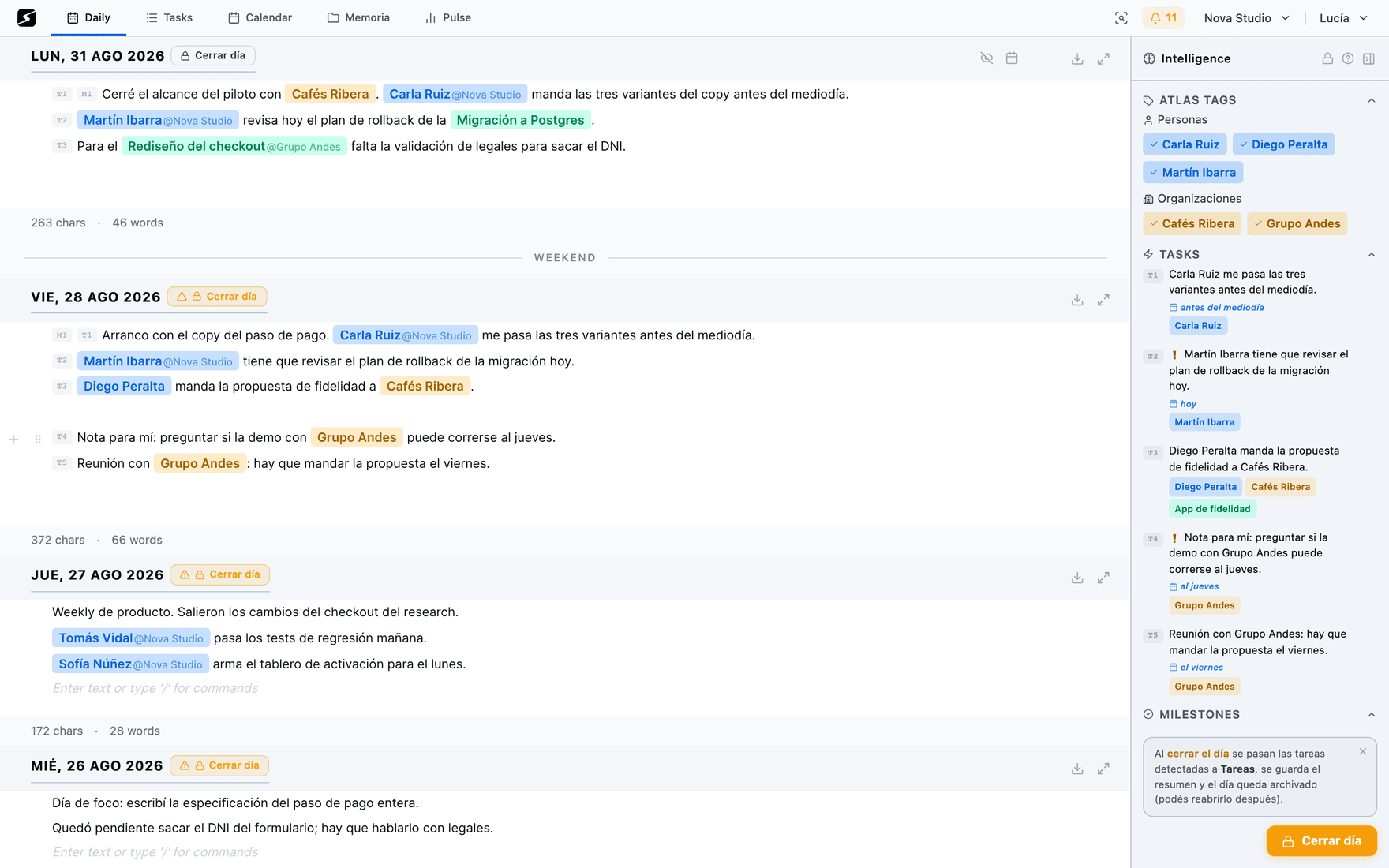
This is the whole workspace, with everything the platform can do, in any browser and with nothing to install. The macOS and Windows app adds what a browser cannot: recording recaps with system audio and the screen, the recording pill and the Pomodoro in the menu bar.
In the browser
The tabs
Each tab is a different view of the same material, not a separate module. What you do in one shows up in the others instantly.
Daily
One page per day. Almost everything comes in through here: you write, AI detects, and closing the day materializes it. See The daily note.
Recaps
Record, transcribe, summarize and extract action items. See Recaps.
Tasks
Your tasks as a list, kanban or timeline, your saved boards and your deliverables. See Tasks.
Calendar
Month and week, your events and your tasks on the same grid, with drag to plan. The weekly Planner opens from here · Hobby. See Calendar.
Memory
Docs — the document tree and the editor —, Canvas — infinite canvases, with Apple Pencil on iPad —, Files — everything you uploaded, with inline preview for PDF, Word and Excel — and Clips — what you saved with the Clipper. See Memory.
Pulse
You, the Atlas with its graph, and the period's Digest. See Atlas, The digest and Secondbrain Me.
Global search
The Search or create… box in the bar (⌘K on Mac, Ctrl+K on Windows) sweeps documents, daily notes, recaps, tasks and the Atlas. What literally says what you typed comes first and highlighted; when nothing matches literally, what is similar in meaning shows up, even if it was written in other words.
Every result opens in its place in the workspace. And if what you typed does not exist yet, from the same box you create it as a task, add it to today's note or open a document with that title.
Workspaces
Each workspace has its own content, its own Atlas and its own digest, and you switch between them from the selector at the top right. How many you can have, how to set up a new one and what each one configures is in Settings.
Desktop and settings
What the desktop app adds
The web does everything else. This needs to live outside the browser:
- Recording recaps — the browser does not record: tapping record offers you the app download. You record from the desktop app or from your phone.
- System audio — capturing what plays on your computer (Teams, Meet, Zoom) to record a meeting without anyone having to authorize a bot.
- Screen Comprehension · Pro — the snapshots that understand what is projected during a recording.
- The recording pill — while you record it floats over whatever you are doing, with the controls and your notes at hand. See Recaps.
- It tells you when a call starts · macOS — when you join a Zoom, Meet, Teams or FaceTime meeting, a small prompt offers to record it. You turn it off in Account settings → Notifications.
- The Pomodoro in the menu bar — on macOS the countdown is drawn next to the Secondbrain icon, top right, and you can start, pause and reset it from there without opening the app. On Windows the clock runs too, with the controls in the tray icon menu, but without the number on show. The same menu has an option to start a recap, which opens the recorder and starts right away. The durations are changed in Account settings → Profile and are the same ones that run on your phone. See the framework.
- Updates — a new version installs when you press the button on the notice, never on its own: on macOS it is already downloaded; on Windows it takes you to the download.
It is available for macOS and Windows, and downloads from Downloads.
Settings and account
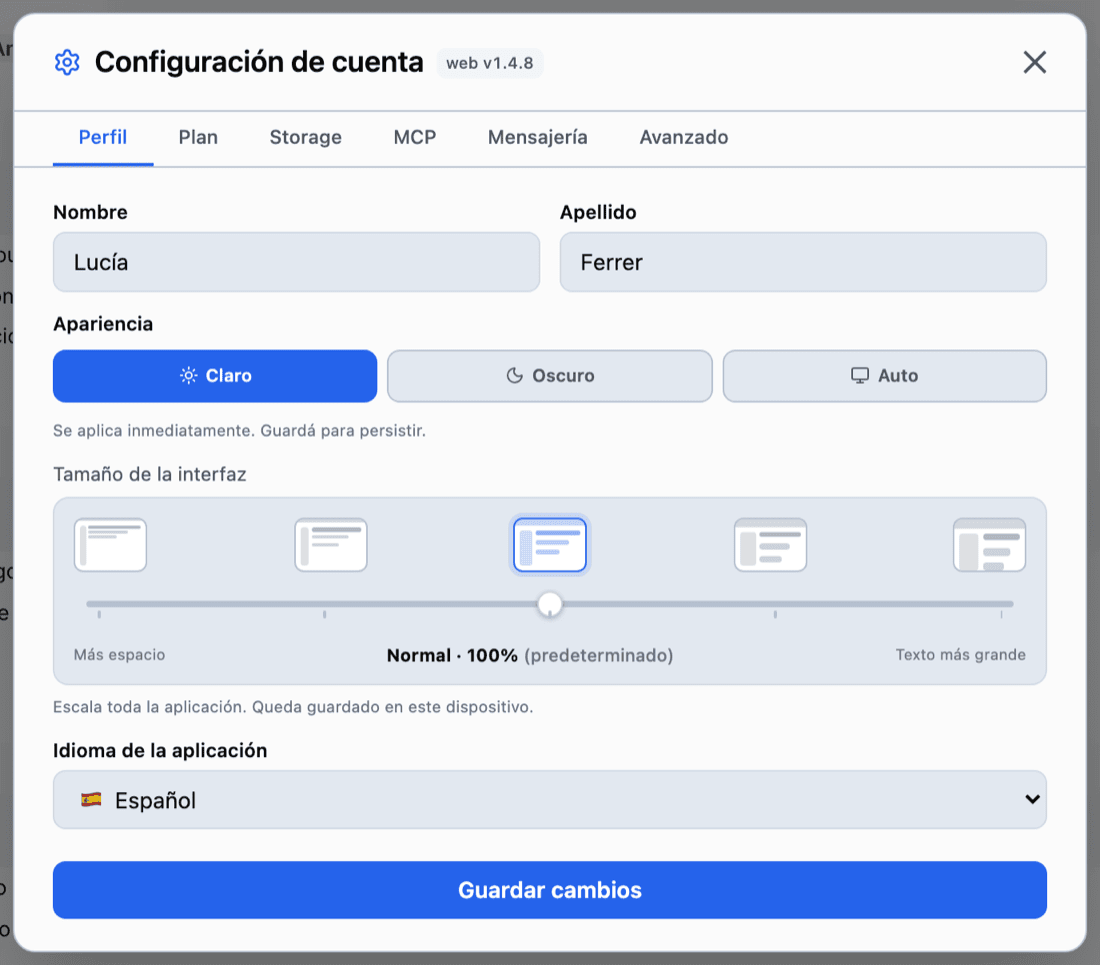
There are two settings screens, each in its own menu at the top right: one is yours and follows you across every workspace; the other belongs to one workspace and only affects that one.
- Your name → Account settings: profile — with appearance and language —, plan, storage, MCP, messaging, notifications and security.
- The workspace name → Edit workspace: recaps and templates, calendars, the shape of the digest, integrations and Atlas maintenance.
Both of them, tab by tab, are in Settings.
Integrations
All of them connect from Settings, all are optional and all can be disconnected whenever you want.
 Google Calendar
Reads and writes calendar events to show them alongside your tasks and to create or update events when you schedule a task.
 Microsoft / Outlook Calendar
The same two-way calendar sync.
 Apple Calendar
iCal subscription: we read your events to show them inside your workspace, and you can subscribe to your Secondbrain tasks from Apple Calendar.
 ClickUp
Reads and writes your tasks and lists to keep them in sync with the Service.
 Jira
Jira
Reads and writes the issues of the projects you choose to sync, and reads the projects and epics of your Atlassian site to show them in the Service.
 MCP
MCP
External AI clients (Claude, ChatGPT, Gemini and others) can query and operate your workspace over the MCP protocol, only with the token you generate.
Shall we try it?
Create your free account and use all of this today.