' d='M71 0.33c-25 1 -45.67 12.67 -59.33 33c-4.67 7 -7 12.67 -9.33 21.33c-2.33 8.33 -2 1.33 -2.33 111c0 103.33 0 104 1.33 111.33c1.67 8.33 6.33 19.67 11 26.67c8.33 12.33 22.33 23 36.33 27.67c4.67 1.67 15.33 3.67 20.33 4c6 0.33 227.33 0.33 234 0c10.67 -0.67 23 -4.33 32 -9.33c9 -5 19 -14 24.33 -22c5 -7.67 7.33 -12.67 9.67 -20.33c1.67 -5.67 2.33 -9 2.67 -15.67c0.33 -7.67 0.33 -196 0 -201c-1 -11.33 -3.67 -20 -10.33 -31.33c-3 -5.33 -5 -8 -8.33 -11.33c-11.33 -12 -24.67 -19.67 -40 -22.67c-2.67 -0.67 -6.33 -1 -7.67 -1.33c-4.33 0 -228.33 -0.33 -234.33 0z'/%3E %3Cpath fill='%23FFFFFF' d='M357 33.33c-0.67 0 -2.33 0.67 -3.67 1.33c-1.33 0.33 -3.67 1.33 -5 2c-1.33 0.33 -3.67 1.33 -5 2c-1.67 0.67 -4.67 1.67 -6.67 2.67c-12 4.33 -11.67 4 -19.33 7.33c-1.33 0.67 -3.67 1.33 -5 2c-1.67 0.67 -3.67 1.33 -5.33 2c-1.33 0.67 -4.33 1.67 -6.33 2.67c-10 3.67 -12 4.33 -14.33 5.33c-1.67 0.67 -4.67 1.67 -6.67 2.33c-2 1 -5 2 -6.33 2.67c-1.67 0.67 -6 2.33 -9.67 3.33c-3.67 1.33 -8 3 -9.33 3.67c-3.33 1.33 -8.67 3.33 -16 6c-3 1 -7.33 2.67 -9.67 3.33c-2.33 1 -6.67 2.67 -9.33 3.67c-3 1 -7.33 2.67 -9.33 3.33c-2.33 1 -6 2.33 -8.33 3.33c-2.33 0.67 -7.33 2.33 -11 3.67c-3.67 1.33 -8 3 -9.33 3.67c-1.67 0.67 -6 2.33 -9.67 3.67c-3.67 1.33 -8.67 3 -11 3.67c-2.33 1 -6.67 2.67 -9.33 3.67c-3 1 -7.33 2.67 -9.67 3.33c-2.33 1 -5.67 2.33 -7.67 3c-2 0.67 -4.33 1.67 -5 2c-4.33 2.33 -9 6.33 -11.67 10c-2.67 4 -3 5.33 -5 12.33c-0.67 2.33 -0.67 7.33 -0.33 9.33c1.67 6.33 2.33 7.33 3.67 9.67c2 2.67 8.33 9.33 10.67 11c0.67 0.67 2 1.67 2.67 2.33c0.67 0.33 2 1.67 3 2.33c3.33 2.33 5.33 4 7.67 5.67c1.33 1 3 2.33 4 3c3.33 2.33 8.33 8 9.67 10.67l1.33 2.33l0 5c0 6.67 -1.33 10 -6 14.67c-2.33 2 -8 5.33 -11.33 6.33c-1 0.33 -2.33 1 -3.67 1.33c-1.33 0.67 -2.67 1.33 -3.33 1.67c-1 0.33 -2.33 1 -3.33 1.33c-1 0.67 -3 1.33 -4.33 2c-1 0.33 -3 1 -4.33 1.33c-1 0.67 -2.67 1.33 -3.67 1.67c-1 0.67 -2.67 1.33 -4 2c-1 0.33 -3 1 -4.33 1.67c-1 0.33 -3 1 -4 1.67c-1 0.33 -2.33 1 -3 1.33c-1 0.33 -2.33 1 -3.67 1.33c-1.33 0.67 -2.67 1.33 -3.33 1.67c-1 0.33 -2.33 1 -3.33 1.33c-1 0.67 -3 1.33 -4 1.67c-1.33 0.67 -3.33 1.33 -4.67 2c-5.67 2.33 -8 3 -10 4c-1 0.33 -3 1 -4 1.67c-1 0.33 -2.33 1 -3 1.33c-1 0.33 -2.33 1 -3.33 1.33c-1 0.67 -3 1.33 -4 1.67c-1.33 0.67 -3.33 1.33 -4.67 2c-1.67 0.67 -3.67 1.33 -5 2c-1 0.33 -2.67 1 -3.67 1.67c-1 0.33 -2.67 1 -3.67 1.33c-1.33 0.67 -3.33 1.33 -4.67 2c-5.67 2.33 -8 3 -10 4c-1 0.33 -3 1 -4 1.67c-1 0.33 -2.33 1 -3 1.33c-1 0.33 -2.33 1 -3.33 1.33c-1.33 0.67 -3 1.33 -3.67 1.67c-3.33 1 -7 2.67 -7.33 3.33c-1 1 0 4.33 3.33 12c1.33 2.33 2.67 5.33 3.33 6.33c1.67 2.33 2.67 2.67 6 1c1 -0.67 2.67 -1.33 3.67 -1.67c0.67 -0.33 2 -1 3 -1.33c1.33 -0.67 3.67 -1.67 5.67 -2.33c2 -0.67 4.67 -1.67 6.33 -2.33c1.33 -0.67 3.67 -1.33 5 -2c1.33 -0.67 3.33 -1.33 4.67 -2c1.33 -0.67 3.67 -1.33 5.33 -2c1.33 -0.67 4.33 -1.67 6.33 -2.67c3.67 -1 5.33 -1.67 11.67 -4.33c3 -1.33 9 -3.67 14 -5.33c2 -0.67 4.33 -1.67 5.33 -2c1 -0.67 3.33 -1.67 5.33 -2.33c2 -0.67 5.33 -2 7.67 -3c2.33 -0.67 6.67 -2.33 9.67 -3.33c3 -1 7.67 -3 10.67 -4c3 -1 7.33 -2.67 9.67 -3.33c2 -1 5.67 -2.33 8 -3.33c5.33 -1.67 15.33 -5.33 28 -9.67c5.33 -2 11.67 -4.33 14 -5c2.33 -1 8 -3 12.67 -4.67c19 -6.67 25.33 -9 29 -10.33c4.33 -1.67 10.33 -4.67 12.33 -6c0.67 -0.67 2.33 -1.67 3 -2.33c2.67 -2 7.33 -9.67 8.67 -14.33c0.33 -0.67 0.67 -2 1 -3c0.33 -2 0.33 -8 0 -10c-2 -7 -2 -7 -5 -11.67c-1.67 -2.33 -3.33 -4.67 -4 -5c-1.67 -1.67 -3.67 -3 -5.67 -4.33c-1 -0.67 -2 -1.67 -2.33 -2c-0.67 -0.33 -1.67 -1.33 -2.67 -2c-1 -0.67 -2.33 -1.67 -3 -2.67c-0.67 -0.67 -2 -1.67 -3 -2.33c-3 -2.33 -5.67 -4 -7 -5.33c-1 -0.67 -2.33 -1.67 -3 -2.33c-2.67 -2 -6 -8 -6 -10.67c0 -0.67 -0.33 -2 -0.67 -3c-0.33 -1.67 -0.33 -1.67 0 -3.33c0.33 -1 0.67 -2.33 0.67 -2.67c0 -0.67 3 -7 4 -8.33c2 -2 8 -5.67 12.67 -7.33c1.33 -0.67 3.33 -1.33 4.33 -1.67c1.33 -0.67 3.67 -1.67 5 -2.33c1.33 -0.67 3.67 -1.67 4.67 -2c1.33 -0.67 3.33 -1.33 5 -2c1.33 -0.67 3.33 -1.33 4.67 -2c1 -0.33 3 -1 4 -1.67c1 -0.33 2.33 -1 3.33 -1.33c0.67 -0.33 2 -1 3.33 -1.33c1.33 -0.67 3.33 -1.67 5 -2.33c1.67 -0.33 3.67 -1.33 5 -2c1.33 -0.33 2.67 -1 3.67 -1.33c0.67 -0.33 2 -1 3 -1.33c1 -0.67 3 -1.33 4 -1.67c2 -1 4.33 -1.67 10 -4c1.33 -0.67 3.33 -1.33 4.67 -2c1 -0.33 3 -1 4 -1.67c1 -0.33 3 -1.33 4.67 -2c1.67 -0.33 3.67 -1.33 4.67 -1.67c1 -0.67 3 -1.33 4 -1.67c1.33 -0.67 3.33 -1.33 4.67 -2c5.67 -2.33 8 -3 10 -4c1 -0.33 2.67 -1 3.67 -1.67c1 -0.33 3.33 -1.33 5.33 -2c2 -0.67 4.67 -1.67 6.33 -2.33c1.33 -0.67 3.33 -1.33 4.67 -2c1 -0.33 2.67 -1 3.67 -1.33c1 -0.67 2.67 -1.33 3.67 -1.67c1.33 -0.67 3.33 -1.33 4.67 -2c1.67 -0.67 3.67 -1.33 5.33 -2c1.33 -0.67 3.33 -1.33 4.67 -2c4.33 -1.67 4.33 -2.33 0.67 -10.67c-1 -2.33 -2.67 -5.33 -3.67 -7.33c-2.33 -3.67 -3 -4.33 -5 -3.33z'/%3E %3Cg clip-path='url(%23rimb)'%3E %3Cpath d='M357 33.33c-0.67 0 -2.33 0.67 -3.67 1.33c-1.33 0.33 -3.67 1.33 -5 2c-1.33 0.33 -3.67 1.33 -5 2c-1.67 0.67 -4.67 1.67 -6.67 2.67c-12 4.33 -11.67 4 -19.33 7.33c-1.33 0.67 -3.67 1.33 -5 2c-1.67 0.67 -3.67 1.33 -5.33 2c-1.33 0.67 -4.33 1.67 -6.33 2.67c-10 3.67 -12 4.33 -14.33 5.33c-1.67 0.67 -4.67 1.67 -6.67 2.33c-2 1 -5 2 -6.33 2.67c-1.67 0.67 -6 2.33 -9.67 3.33c-3.67 1.33 -8 3 -9.33 3.67c-3.33 1.33 -8.67 3.33 -16 6c-3 1 -7.33 2.67 -9.67 3.33c-2.33 1 -6.67 2.67 -9.33 3.67c-3 1 -7.33 2.67 -9.33 3.33c-2.33 1 -6 2.33 -8.33 3.33c-2.33 0.67 -7.33 2.33 -11 3.67c-3.67 1.33 -8 3 -9.33 3.67c-1.67 0.67 -6 2.33 -9.67 3.67c-3.67 1.33 -8.67 3 -11 3.67c-2.33 1 -6.67 2.67 -9.33 3.67c-3 1 -7.33 2.67 -9.67 3.33c-2.33 1 -5.67 2.33 -7.67 3c-2 0.67 -4.33 1.67 -5 2c-4.33 2.33 -9 6.33 -11.67 10c-2.67 4 -3 5.33 -5 12.33c-0.67 2.33 -0.67 7.33 -0.33 9.33c1.67 6.33 2.33 7.33 3.67 9.67c2 2.67 8.33 9.33 10.67 11c0.67 0.67 2 1.67 2.67 2.33c0.67 0.33 2 1.67 3 2.33c3.33 2.33 5.33 4 7.67 5.67c1.33 1 3 2.33 4 3c3.33 2.33 8.33 8 9.67 10.67l1.33 2.33l0 5c0 6.67 -1.33 10 -6 14.67c-2.33 2 -8 5.33 -11.33 6.33c-1 0.33 -2.33 1 -3.67 1.33c-1.33 0.67 -2.67 1.33 -3.33 1.67c-1 0.33 -2.33 1 -3.33 1.33c-1 0.67 -3 1.33 -4.33 2c-1 0.33 -3 1 -4.33 1.33c-1 0.67 -2.67 1.33 -3.67 1.67c-1 0.67 -2.67 1.33 -4 2c-1 0.33 -3 1 -4.33 1.67c-1 0.33 -3 1 -4 1.67c-1 0.33 -2.33 1 -3 1.33c-1 0.33 -2.33 1 -3.67 1.33c-1.33 0.67 -2.67 1.33 -3.33 1.67c-1 0.33 -2.33 1 -3.33 1.33c-1 0.67 -3 1.33 -4 1.67c-1.33 0.67 -3.33 1.33 -4.67 2c-5.67 2.33 -8 3 -10 4c-1 0.33 -3 1 -4 1.67c-1 0.33 -2.33 1 -3 1.33c-1 0.33 -2.33 1 -3.33 1.33c-1 0.67 -3 1.33 -4 1.67c-1.33 0.67 -3.33 1.33 -4.67 2c-1.67 0.67 -3.67 1.33 -5 2c-1 0.33 -2.67 1 -3.67 1.67c-1 0.33 -2.67 1 -3.67 1.33c-1.33 0.67 -3.33 1.33 -4.67 2c-5.67 2.33 -8 3 -10 4c-1 0.33 -3 1 -4 1.67c-1 0.33 -2.33 1 -3 1.33c-1 0.33 -2.33 1 -3.33 1.33c-1.33 0.67 -3 1.33 -3.67 1.67c-3.33 1 -7 2.67 -7.33 3.33c-1 1 0 4.33 3.33 12c1.33 2.33 2.67 5.33 3.33 6.33c1.67 2.33 2.67 2.67 6 1c1 -0.67 2.67 -1.33 3.67 -1.67c0.67 -0.33 2 -1 3 -1.33c1.33 -0.67 3.67 -1.67 5.67 -2.33c2 -0.67 4.67 -1.67 6.33 -2.33c1.33 -0.67 3.67 -1.33 5 -2c1.33 -0.67 3.33 -1.33 4.67 -2c1.33 -0.67 3.67 -1.33 5.33 -2c1.33 -0.67 4.33 -1.67 6.33 -2.67c3.67 -1 5.33 -1.67 11.67 -4.33c3 -1.33 9 -3.67 14 -5.33c2 -0.67 4.33 -1.67 5.33 -2c1 -0.67 3.33 -1.67 5.33 -2.33c2 -0.67 5.33 -2 7.67 -3c2.33 -0.67 6.67 -2.33 9.67 -3.33c3 -1 7.67 -3 10.67 -4c3 -1 7.33 -2.67 9.67 -3.33c2 -1 5.67 -2.33 8 -3.33c5.33 -1.67 15.33 -5.33 28 -9.67c5.33 -2 11.67 -4.33 14 -5c2.33 -1 8 -3 12.67 -4.67c19 -6.67 25.33 -9 29 -10.33c4.33 -1.67 10.33 -4.67 12.33 -6c0.67 -0.67 2.33 -1.67 3 -2.33c2.67 -2 7.33 -9.67 8.67 -14.33c0.33 -0.67 0.67 -2 1 -3c0.33 -2 0.33 -8 0 -10c-2 -7 -2 -7 -5 -11.67c-1.67 -2.33 -3.33 -4.67 -4 -5c-1.67 -1.67 -3.67 -3 -5.67 -4.33c-1 -0.67 -2 -1.67 -2.33 -2c-0.67 -0.33 -1.67 -1.33 -2.67 -2c-1 -0.67 -2.33 -1.67 -3 -2.67c-0.67 -0.67 -2 -1.67 -3 -2.33c-3 -2.33 -5.67 -4 -7 -5.33c-1 -0.67 -2.33 -1.67 -3 -2.33c-2.67 -2 -6 -8 -6 -10.67c0 -0.67 -0.33 -2 -0.67 -3c-0.33 -1.67 -0.33 -1.67 0 -3.33c0.33 -1 0.67 -2.33 0.67 -2.67c0 -0.67 3 -7 4 -8.33c2 -2 8 -5.67 12.67 -7.33c1.33 -0.67 3.33 -1.33 4.33 -1.67c1.33 -0.67 3.67 -1.67 5 -2.33c1.33 -0.67 3.67 -1.67 4.67 -2c1.33 -0.67 3.33 -1.33 5 -2c1.33 -0.67 3.33 -1.33 4.67 -2c1 -0.33 3 -1 4 -1.67c1 -0.33 2.33 -1 3.33 -1.33c0.67 -0.33 2 -1 3.33 -1.33c1.33 -0.67 3.33 -1.67 5 -2.33c1.67 -0.33 3.67 -1.33 5 -2c1.33 -0.33 2.67 -1 3.67 -1.33c0.67 -0.33 2 -1 3 -1.33c1 -0.67 3 -1.33 4 -1.67c2 -1 4.33 -1.67 10 -4c1.33 -0.67 3.33 -1.33 4.67 -2c1 -0.33 3 -1 4 -1.67c1 -0.33 3 -1.33 4.67 -2c1.67 -0.33 3.67 -1.33 4.67 -1.67c1 -0.67 3 -1.33 4 -1.67c1.33 -0.67 3.33 -1.33 4.67 -2c5.67 -2.33 8 -3 10 -4c1 -0.33 2.67 -1 3.67 -1.67c1 -0.33 3.33 -1.33 5.33 -2c2 -0.67 4.67 -1.67 6.33 -2.33c1.33 -0.67 3.33 -1.33 4.67 -2c1 -0.33 2.67 -1 3.67 -1.33c1 -0.67 2.67 -1.33 3.67 -1.67c1.33 -0.67 3.33 -1.33 4.67 -2c1.67 -0.67 3.67 -1.33 5.33 -2c1.33 -0.67 3.33 -1.33 4.67 -2c4.33 -1.67 4.33 -2.33 0.67 -10.67c-1 -2.33 -2.67 -5.33 -3.67 -7.33c-2.33 -3.67 -3 -4.33 -5 -3.33z' fill='none' stroke='url(%23fileteInv)' stroke-width='3.65'/%3E %3C/g%3E %3Cg clip-path='url(%23rim)'%3E %3Cpath d='M71 0.33c-25 1 -45.67 12.67 -59.33 33c-4.67 7 -7 12.67 -9.33 21.33c-2.33 8.33 -2 1.33 -2.33 111c0 103.33 0 104 1.33 111.33c1.67 8.33 6.33 19.67 11 26.67c8.33 12.33 22.33 23 36.33 27.67c4.67 1.67 15.33 3.67 20.33 4c6 0.33 227.33 0.33 234 0c10.67 -0.67 23 -4.33 32 -9.33c9 -5 19 -14 24.33 -22c5 -7.67 7.33 -12.67 9.67 -20.33c1.67 -5.67 2.33 -9 2.67 -15.67c0.33 -7.67 0.33 -196 0 -201c-1 -11.33 -3.67 -20 -10.33 -31.33c-3 -5.33 -5 -8 -8.33 -11.33c-11.33 -12 -24.67 -19.67 -40 -22.67c-2.67 -0.67 -6.33 -1 -7.67 -1.33c-4.33 0 -228.33 -0.33 -234.33 0z' fill='none' stroke='url(%23filete)' stroke-width='8.64'/%3E %3C/g%3E %3Cpath d='M1269 56l-0.67 0.67l-0.33 35c0 19 -0.33 35 -0.33 35.33c-0.67 1 -1.33 0.67 -4 -0.67c-6 -4 -14.67 -7.33 -23.67 -9c-4.33 -0.67 -15.33 -0.67 -20.67 0c-17.33 2.33 -33.33 11.67 -44.67 25.67c-10.33 13 -14.67 26.33 -14.67 44.67c-0.33 13.33 1.67 21.67 7.33 33c3.67 7 7 11.67 14.33 19c5.33 5.67 16.33 12 26.33 15.33c19.67 6.67 42.33 4 60 -6.67c10.33 -6 20 -16.33 25 -26c5 -9.67 7.33 -18.67 8 -28.33c0.33 -7 0.33 -135 0 -136.67c-0.33 -1 -0.67 -1.33 -1.33 -1.67c-0.33 -0.33 -6.67 -0.33 -15.33 -0.33c-14 0 -14.67 0 -15.33 0.67zm-31 91.33c7 1 15.33 5.33 20 10c3.67 4 8.33 11 10 15.33c2.67 8 3 20 0 28.67c-5.33 16.33 -20.33 27.33 -36.67 27.33c-11 0 -20.33 -3.67 -28.67 -11.67c-7 -6.67 -11.67 -18.33 -11.67 -29.33c0 -16 8.33 -30.33 22.67 -37.33c6.33 -3.33 16.33 -4.67 24.33 -3zM1319.33 55.67c-0.33 0 -0.67 0.67 -1 1c-0.33 1 -0.33 133.33 0 138c1 11.67 5.33 24 11 32.67c4.33 6.67 13 15.33 18.67 19c3 2 11 6 15.67 7.67c13 5.33 30.67 6 45.33 2c6 -1.67 16.33 -6.67 22.33 -10.67c4.33 -3 13 -12 16.67 -17.67c2.67 -4 4.67 -8.33 7.33 -14.33c5.33 -14.67 6 -28.67 2 -44c-3.33 -14 -8.67 -23.33 -18.67 -33.33c-13.33 -12.67 -29.67 -19 -49.33 -19c-13 0 -24.67 3.33 -34 9.33c-3.67 2.67 -4.33 2.67 -4.67 0c-0.33 -0.67 -0.33 -17 -0.33 -35.67l0.33 -34l-1 -0.67c-0.67 -0.67 -1.33 -0.67 -15 -0.67c-8 0 -14.67 0.33 -15.33 0.33zm76.33 91.67c5.67 0.67 10 2.67 15.67 6.33c5.33 3.67 8.33 7 12.33 14c3.67 6.33 4.67 10.33 5 18.33c0.33 9.67 -1.67 16.67 -7.67 25.67c-3.33 5.33 -9.67 10.33 -16.33 13.67c-8 3.67 -18.67 4.33 -27.67 1.67c-6.33 -2 -15.33 -8.33 -19 -13c-2.33 -3 -6.67 -12.33 -7.67 -16.67c-2.33 -8.33 -1 -19.33 2.67 -27.33c5.33 -11 12.33 -17.33 23 -21.33c5.33 -2 13.33 -2.67 19.67 -1.33zM1696 67.33c-8.67 2.67 -14.33 9.67 -14.33 18c0 8.67 5.67 16 13.67 18.33c2.33 0.67 7.67 0.67 10 0.33c9.67 -2.67 15.33 -12 13 -22.33c-1 -5 -4.67 -10 -9 -12.33c-4 -2 -9.67 -3 -13.33 -2zM1080.33 117.33c-7.33 1 -16.33 3.33 -22.33 6.33c-8 3.67 -19.33 13.67 -23 20c-4.33 6.67 -6.67 12.33 -8 18.33c-2.33 8.67 -2 7.33 -2.33 46.33c0 39.67 0 45.33 1 46.33l0.67 0.67l14.33 0.33c13.67 0 14.33 0 15 -0.67l1 -0.67l0 -38.67c0 -25.67 0 -39.67 0.33 -41.67c1 -7 4 -12.67 9.33 -18.33c5.33 -5.67 12.33 -8 21.67 -8c6 0 8 0.33 12.67 2.67c8.33 4.33 12 8 15.33 16c3 6.67 2.67 2.67 3 48c0 39.33 0.33 40.33 0.67 41c0.67 0.33 3.33 0.33 15 0.33c13.33 0 14 0 14.67 -0.67l1 -0.67l0 -38c0 -40 0 -43.67 -1.33 -51.33c-2.33 -12 -6.67 -20.33 -15 -29c-9.67 -9.67 -20.33 -15.33 -34 -18c-4.33 -1 -15 -1.33 -19.67 -0.67zM531.33 117.67c-16 1 -28.33 6.67 -37.67 17.33c-4.33 4.67 -6.33 9.33 -7.67 17.33c-1.67 11 1.67 21.67 8.67 29c3.33 3.33 10 8 14.33 10c5.33 2.33 16.67 6 27.67 8.33c11 2.67 16 4.67 19 7.67c5.67 5.67 3 14 -5.33 18c-7.67 4 -20 3.67 -28 -0.33c-4.67 -2.33 -9 -6.67 -12.67 -11.67c-1.33 -2.33 -2.33 -3.33 -3 -3.67c-0.33 0 -2 0.67 -6 2.33c-18.33 9.33 -19.33 9.67 -19.33 11.33c0 0.67 0.67 2.33 1.67 4.33c7.67 15 20.67 24.33 40 28.67c3.33 0.67 4.33 0.67 13.67 0.67c11.33 0 15 -0.33 23 -3c9 -3 19 -9.67 23.33 -16c8.67 -12 10.33 -26 4.67 -39c-3.67 -8.33 -7 -12 -17 -17.67c-6.33 -3.33 -15.67 -6.67 -25.67 -9c-7.33 -1.67 -17.33 -4.67 -20 -6c-4.67 -2.33 -7 -5 -7 -8.67c0 -5.33 4 -9.67 11 -11.67c3 -0.67 10.67 -0.67 13.67 0c6.67 2 11.67 5.33 15 10c1.67 2.67 2.33 3 3.33 3c1 0 20.33 -9.67 22.67 -11.67c1.33 -1 1.33 -2.33 -0.33 -5.33c-3.67 -7 -14 -16 -22.67 -19.33c-10.67 -4.33 -19.33 -5.67 -29.33 -5zM663.67 117.67c-14 1 -24.33 5 -34.33 12.33c-8 6 -10 8.33 -14.67 14.33c-10.67 14.33 -15.33 30 -14 48.67c1.67 24 16.33 46.67 37.33 57c7.33 3.67 12.33 5.33 19.33 6.33c7 1.33 18 1 25.33 -0.33c9 -1.67 20.33 -7 27.67 -12.33c5 -3.67 13.33 -13 15 -16.67c1 -2 1 -2 0.67 -3c-0.33 -0.33 -1.33 -1 -2 -1.67c-16 -9.33 -22.33 -12.67 -23.33 -12.67c-1 0 -2.33 1.33 -4 3.67c-3.33 5 -12 10.67 -19.33 12.67c-3.67 1 -14 1 -17.33 0.33c-9.67 -2.67 -18 -9 -22.67 -17.33c-1.67 -3 -3 -7 -3 -8.67c0 -2 -3.33 -1.67 49.33 -2c38.33 0 48.67 -0.33 49.33 -0.67c1.33 -0.67 1.33 -2.67 1.33 -11.33c0.33 -9.33 -0.33 -12.67 -2.67 -20.67c-3.33 -12.67 -8 -21 -16.67 -29.33c-8.33 -8.33 -19 -14.33 -29.67 -16.67c-6.67 -1.67 -15.67 -2.33 -21.67 -2zm14.33 30.67c3 0.67 9 3.67 11.67 5.67c4.33 3 8 7.33 10.33 13.33c1.33 3.67 1.67 4.33 0.67 5c-0.67 0.67 -64 1 -65 0.33c-1 -0.67 -1 -2 0.33 -5c4 -9.33 12.67 -16.67 22.67 -19.33c3.67 -1 3.67 -1 10.67 -1c5.33 0.33 7 0.33 8.67 1zM807 118c-9 1 -18.33 4 -25 7.67c-5 3 -15.67 11.33 -19 15.33c-2.67 3.33 -7.33 10.67 -9.67 14.67c-2 5 -5.33 14 -6 18.67c-1 4.67 -1.33 16 -0.67 21c1.67 14.67 6.67 26 16.67 38.33c9.33 11.33 25 20.33 39.67 22.67c14 2 28.33 1 38.33 -3c5 -2 13 -6 15.67 -8c8 -6 17.67 -17.33 17.67 -20.67c0 -1.33 -1.33 -2.33 -8.33 -6.33c-3 -1.67 -7 -4 -9 -5.33c-8 -5 -7.67 -5 -10.67 -1c-8.67 10.67 -18 15.33 -29.67 15.33c-11 0 -20.33 -4 -28.33 -11.67c-9.67 -9.67 -13.33 -24.67 -9.33 -39c3 -13 13 -23.67 25 -27.33c7 -2.33 16 -2.67 22.33 -1c7 2.33 11 4.67 16.67 10.33c3 2.67 4 3.67 4.67 3.67c1 0 7.33 -4 11 -6.67c1 -1 3.33 -2.67 5.33 -4c6.33 -3.67 7.67 -5 7.67 -6c0 -3.67 -12.33 -15 -21.33 -20c-13 -6.67 -29 -9.67 -43.67 -7.67zM938 118c-16.67 2.33 -25.67 6.33 -39 17.67c-4.33 3.67 -6.67 6.67 -11 13.33c-3.67 5.67 -5 9 -7.33 15.67c-3.33 9.33 -4 14 -3.67 24.67c0.33 12.33 2.67 20.67 9 32.33c3.33 6.33 5 9 9.33 13.33c15.67 18 40.67 25.67 65.33 20.67c7 -1.33 14.67 -4.33 22 -8.67c10.33 -6.33 21 -18.67 25.67 -30.33c3.67 -9 5.33 -16 6 -25.67c1 -14.33 -2 -27 -9 -39.33c-5.67 -9.67 -11 -15.67 -21 -23c-6.33 -4.33 -18.67 -9 -28 -10.67c-4.67 -0.67 -14 -0.67 -18.33 0zm11.67 29.67c8 1 16.33 5 21.67 10.33c6 6.33 9.67 13.33 11.33 21.67c0.67 4 0.33 14.33 -0.33 17.33c-2.67 10 -8.33 18 -16 23.33c-6 4.33 -10.67 5.67 -19.67 6.67c-11 0.67 -24.67 -6.33 -31.33 -16.33c-2.67 -4 -5.33 -10.33 -6.33 -15c-1.67 -7.33 -0.33 -18 2.33 -25c3.33 -7.67 10.33 -15.33 17.33 -19c7.33 -3.67 13.67 -5 21 -4zM1531.33 117.67c-17.33 1 -29.67 4.67 -39 12.33c-7.33 6 -11.67 11.67 -15.67 20c-2.67 5.33 -3.33 7.67 -4.33 12.67c-1.33 7.33 -1.33 10 -1.33 51.67l0.33 40.33l0.67 0.67c0.67 0.67 1.33 0.67 15 0.67c13.33 0 14.33 -0.33 15 -0.67c0.67 -0.67 0.67 -0.67 0.67 -40.67c0.33 -43.67 0 -41 2 -47c2.33 -6.33 6.33 -11.33 12 -15.33c5.33 -3.67 10 -4.67 21.33 -5.33c4.33 -0.33 5 -0.33 5.67 -0.67c0.33 -0.67 0.33 -3.33 0.33 -14c0 -16 0.33 -14.67 -4.67 -14.67c-2 -0.33 -5.67 0 -8 0zM1797 117.67c-9.67 0.33 -16 1.67 -23.67 4.67c-8.67 3.67 -12 5.67 -21.67 15c-6.33 5.67 -12.33 17 -15 26.67c-1.67 7.67 -1.67 7.67 -1.67 50.33c0 21.67 0 39.67 0 40.33c0.33 0.33 0.67 0.67 1.33 1c1.33 0.33 28 0.33 29 0c0.67 0 1 -0.67 1.33 -1c0 -0.33 0.33 -18.67 0.33 -40.33l0 -39.33l0.67 -2.67c2 -7.67 7.33 -15.33 12.67 -19c11 -7 22.33 -7.67 34.33 -1.67c5.67 3 9.67 7.33 13.33 14.33c3.33 7 3 3 3.33 48.67l0.33 40l0.67 0.67c0.67 0.67 1.33 0.67 15 0.67c13.33 0 14.33 -0.33 15 -0.67c0.33 -0.67 0.67 -2.67 0.67 -38.33c0 -39.33 0 -43 -1.33 -49.33c-2 -9.67 -6.33 -19.67 -12.67 -27c-2.33 -3.33 -9.33 -9.33 -13 -12c-3.33 -2 -9.33 -5.33 -14 -7c-6.33 -2.67 -17.67 -4.67 -25 -4zM1602.67 118c-11 1.67 -16.67 3.33 -23.67 7c-6.67 3.33 -10 5.67 -15.33 11c-6.67 6.67 -8.67 9.33 -7.33 11c0.67 0.67 5.33 4.33 11.33 8.33c2.33 1.67 5.33 3.67 6.67 4.67c2.67 1.67 3 1.67 6 -0.67c6.33 -5.33 9 -7.33 14 -9.33c7 -2.67 13.67 -3.67 20.67 -2.67c9.33 1.67 16 6 19.33 12.67c2.33 4.67 3 9.67 1.67 10.67c-1 1 -1.33 1 -21.67 1c-23.67 0.33 -25.67 0.67 -34.33 3c-3.33 1 -9.67 3.33 -11.33 4.33c-5.33 3.33 -10.67 8 -13.67 12.67c-7 10.33 -7.33 27.33 -1.33 39.67c3 6 9 12.67 14.33 16.33c10 7 21.33 10 36 9.67c12.33 -0.33 20 -2.67 29 -9c3.33 -2.33 4.33 -2.67 5 -1.67c0 0.33 0.33 2.33 0.33 4.33c0 3 0.33 3.67 0.67 4c1 0.67 11 1 21 1c9.67 -0.33 9 0.33 9 -7c0.33 -10.67 0 -79.67 -0.33 -83c-1 -6.67 -3.33 -15.67 -6 -21c-5.33 -10 -17 -19.67 -29.33 -23.67c-4 -1.33 -10 -2.67 -15 -3.33c-3.67 -0.33 -13.67 -0.33 -15.67 0zm33 79c2 1 1.33 8.67 -0.67 14.33c-2 5.33 -6.33 10.67 -10.67 13c-3 1.67 -9.67 4 -13.67 4.33c-7.67 1 -17.67 -1 -22.67 -4.67c-4.67 -3.33 -6.33 -6.33 -6.33 -12.33c0 -3.33 0 -3.67 1 -5.67c2.33 -5 8 -8.33 16.33 -9c4 -0.33 36 -0.33 36.67 0zM1686.33 122l-0.67 0.67l0 65.33c0 36 0 66 0 66.33c0.67 1.67 1.33 1.67 16.33 1.67c13.33 0 13.67 0 14.33 -0.67l1 -0.67l0 -66c0 -62.67 -0.33 -66 -0.67 -66.67c-0.67 -0.33 -1.67 -0.67 -15 -0.67c-14 0 -14.67 0 -15.33 0.67z' fill='none' stroke='%23000000' stroke-opacity='0.26' stroke-width='3.72'/%3E %3Cpath fill='%230071FC' d='M1269 56l-0.67 0.67l-0.33 35c0 19 -0.33 35 -0.33 35.33c-0.67 1 -1.33 0.67 -4 -0.67c-6 -4 -14.67 -7.33 -23.67 -9c-4.33 -0.67 -15.33 -0.67 -20.67 0c-17.33 2.33 -33.33 11.67 -44.67 25.67c-10.33 13 -14.67 26.33 -14.67 44.67c-0.33 13.33 1.67 21.67 7.33 33c3.67 7 7 11.67 14.33 19c5.33 5.67 16.33 12 26.33 15.33c19.67 6.67 42.33 4 60 -6.67c10.33 -6 20 -16.33 25 -26c5 -9.67 7.33 -18.67 8 -28.33c0.33 -7 0.33 -135 0 -136.67c-0.33 -1 -0.67 -1.33 -1.33 -1.67c-0.33 -0.33 -6.67 -0.33 -15.33 -0.33c-14 0 -14.67 0 -15.33 0.67zm-31 91.33c7 1 15.33 5.33 20 10c3.67 4 8.33 11 10 15.33c2.67 8 3 20 0 28.67c-5.33 16.33 -20.33 27.33 -36.67 27.33c-11 0 -20.33 -3.67 -28.67 -11.67c-7 -6.67 -11.67 -18.33 -11.67 -29.33c0 -16 8.33 -30.33 22.67 -37.33c6.33 -3.33 16.33 -4.67 24.33 -3zM1319.33 55.67c-0.33 0 -0.67 0.67 -1 1c-0.33 1 -0.33 133.33 0 138c1 11.67 5.33 24 11 32.67c4.33 6.67 13 15.33 18.67 19c3 2 11 6 15.67 7.67c13 5.33 30.67 6 45.33 2c6 -1.67 16.33 -6.67 22.33 -10.67c4.33 -3 13 -12 16.67 -17.67c2.67 -4 4.67 -8.33 7.33 -14.33c5.33 -14.67 6 -28.67 2 -44c-3.33 -14 -8.67 -23.33 -18.67 -33.33c-13.33 -12.67 -29.67 -19 -49.33 -19c-13 0 -24.67 3.33 -34 9.33c-3.67 2.67 -4.33 2.67 -4.67 0c-0.33 -0.67 -0.33 -17 -0.33 -35.67l0.33 -34l-1 -0.67c-0.67 -0.67 -1.33 -0.67 -15 -0.67c-8 0 -14.67 0.33 -15.33 0.33zm76.33 91.67c5.67 0.67 10 2.67 15.67 6.33c5.33 3.67 8.33 7 12.33 14c3.67 6.33 4.67 10.33 5 18.33c0.33 9.67 -1.67 16.67 -7.67 25.67c-3.33 5.33 -9.67 10.33 -16.33 13.67c-8 3.67 -18.67 4.33 -27.67 1.67c-6.33 -2 -15.33 -8.33 -19 -13c-2.33 -3 -6.67 -12.33 -7.67 -16.67c-2.33 -8.33 -1 -19.33 2.67 -27.33c5.33 -11 12.33 -17.33 23 -21.33c5.33 -2 13.33 -2.67 19.67 -1.33zM1696 67.33c-8.67 2.67 -14.33 9.67 -14.33 18c0 8.67 5.67 16 13.67 18.33c2.33 0.67 7.67 0.67 10 0.33c9.67 -2.67 15.33 -12 13 -22.33c-1 -5 -4.67 -10 -9 -12.33c-4 -2 -9.67 -3 -13.33 -2zM1080.33 117.33c-7.33 1 -16.33 3.33 -22.33 6.33c-8 3.67 -19.33 13.67 -23 20c-4.33 6.67 -6.67 12.33 -8 18.33c-2.33 8.67 -2 7.33 -2.33 46.33c0 39.67 0 45.33 1 46.33l0.67 0.67l14.33 0.33c13.67 0 14.33 0 15 -0.67l1 -0.67l0 -38.67c0 -25.67 0 -39.67 0.33 -41.67c1 -7 4 -12.67 9.33 -18.33c5.33 -5.67 12.33 -8 21.67 -8c6 0 8 0.33 12.67 2.67c8.33 4.33 12 8 15.33 16c3 6.67 2.67 2.67 3 48c0 39.33 0.33 40.33 0.67 41c0.67 0.33 3.33 0.33 15 0.33c13.33 0 14 0 14.67 -0.67l1 -0.67l0 -38c0 -40 0 -43.67 -1.33 -51.33c-2.33 -12 -6.67 -20.33 -15 -29c-9.67 -9.67 -20.33 -15.33 -34 -18c-4.33 -1 -15 -1.33 -19.67 -0.67zM531.33 117.67c-16 1 -28.33 6.67 -37.67 17.33c-4.33 4.67 -6.33 9.33 -7.67 17.33c-1.67 11 1.67 21.67 8.67 29c3.33 3.33 10 8 14.33 10c5.33 2.33 16.67 6 27.67 8.33c11 2.67 16 4.67 19 7.67c5.67 5.67 3 14 -5.33 18c-7.67 4 -20 3.67 -28 -0.33c-4.67 -2.33 -9 -6.67 -12.67 -11.67c-1.33 -2.33 -2.33 -3.33 -3 -3.67c-0.33 0 -2 0.67 -6 2.33c-18.33 9.33 -19.33 9.67 -19.33 11.33c0 0.67 0.67 2.33 1.67 4.33c7.67 15 20.67 24.33 40 28.67c3.33 0.67 4.33 0.67 13.67 0.67c11.33 0 15 -0.33 23 -3c9 -3 19 -9.67 23.33 -16c8.67 -12 10.33 -26 4.67 -39c-3.67 -8.33 -7 -12 -17 -17.67c-6.33 -3.33 -15.67 -6.67 -25.67 -9c-7.33 -1.67 -17.33 -4.67 -20 -6c-4.67 -2.33 -7 -5 -7 -8.67c0 -5.33 4 -9.67 11 -11.67c3 -0.67 10.67 -0.67 13.67 0c6.67 2 11.67 5.33 15 10c1.67 2.67 2.33 3 3.33 3c1 0 20.33 -9.67 22.67 -11.67c1.33 -1 1.33 -2.33 -0.33 -5.33c-3.67 -7 -14 -16 -22.67 -19.33c-10.67 -4.33 -19.33 -5.67 -29.33 -5zM663.67 117.67c-14 1 -24.33 5 -34.33 12.33c-8 6 -10 8.33 -14.67 14.33c-10.67 14.33 -15.33 30 -14 48.67c1.67 24 16.33 46.67 37.33 57c7.33 3.67 12.33 5.33 19.33 6.33c7 1.33 18 1 25.33 -0.33c9 -1.67 20.33 -7 27.67 -12.33c5 -3.67 13.33 -13 15 -16.67c1 -2 1 -2 0.67 -3c-0.33 -0.33 -1.33 -1 -2 -1.67c-16 -9.33 -22.33 -12.67 -23.33 -12.67c-1 0 -2.33 1.33 -4 3.67c-3.33 5 -12 10.67 -19.33 12.67c-3.67 1 -14 1 -17.33 0.33c-9.67 -2.67 -18 -9 -22.67 -17.33c-1.67 -3 -3 -7 -3 -8.67c0 -2 -3.33 -1.67 49.33 -2c38.33 0 48.67 -0.33 49.33 -0.67c1.33 -0.67 1.33 -2.67 1.33 -11.33c0.33 -9.33 -0.33 -12.67 -2.67 -20.67c-3.33 -12.67 -8 -21 -16.67 -29.33c-8.33 -8.33 -19 -14.33 -29.67 -16.67c-6.67 -1.67 -15.67 -2.33 -21.67 -2zm14.33 30.67c3 0.67 9 3.67 11.67 5.67c4.33 3 8 7.33 10.33 13.33c1.33 3.67 1.67 4.33 0.67 5c-0.67 0.67 -64 1 -65 0.33c-1 -0.67 -1 -2 0.33 -5c4 -9.33 12.67 -16.67 22.67 -19.33c3.67 -1 3.67 -1 10.67 -1c5.33 0.33 7 0.33 8.67 1zM807 118c-9 1 -18.33 4 -25 7.67c-5 3 -15.67 11.33 -19 15.33c-2.67 3.33 -7.33 10.67 -9.67 14.67c-2 5 -5.33 14 -6 18.67c-1 4.67 -1.33 16 -0.67 21c1.67 14.67 6.67 26 16.67 38.33c9.33 11.33 25 20.33 39.67 22.67c14 2 28.33 1 38.33 -3c5 -2 13 -6 15.67 -8c8 -6 17.67 -17.33 17.67 -20.67c0 -1.33 -1.33 -2.33 -8.33 -6.33c-3 -1.67 -7 -4 -9 -5.33c-8 -5 -7.67 -5 -10.67 -1c-8.67 10.67 -18 15.33 -29.67 15.33c-11 0 -20.33 -4 -28.33 -11.67c-9.67 -9.67 -13.33 -24.67 -9.33 -39c3 -13 13 -23.67 25 -27.33c7 -2.33 16 -2.67 22.33 -1c7 2.33 11 4.67 16.67 10.33c3 2.67 4 3.67 4.67 3.67c1 0 7.33 -4 11 -6.67c1 -1 3.33 -2.67 5.33 -4c6.33 -3.67 7.67 -5 7.67 -6c0 -3.67 -12.33 -15 -21.33 -20c-13 -6.67 -29 -9.67 -43.67 -7.67zM938 118c-16.67 2.33 -25.67 6.33 -39 17.67c-4.33 3.67 -6.67 6.67 -11 13.33c-3.67 5.67 -5 9 -7.33 15.67c-3.33 9.33 -4 14 -3.67 24.67c0.33 12.33 2.67 20.67 9 32.33c3.33 6.33 5 9 9.33 13.33c15.67 18 40.67 25.67 65.33 20.67c7 -1.33 14.67 -4.33 22 -8.67c10.33 -6.33 21 -18.67 25.67 -30.33c3.67 -9 5.33 -16 6 -25.67c1 -14.33 -2 -27 -9 -39.33c-5.67 -9.67 -11 -15.67 -21 -23c-6.33 -4.33 -18.67 -9 -28 -10.67c-4.67 -0.67 -14 -0.67 -18.33 0zm11.67 29.67c8 1 16.33 5 21.67 10.33c6 6.33 9.67 13.33 11.33 21.67c0.67 4 0.33 14.33 -0.33 17.33c-2.67 10 -8.33 18 -16 23.33c-6 4.33 -10.67 5.67 -19.67 6.67c-11 0.67 -24.67 -6.33 -31.33 -16.33c-2.67 -4 -5.33 -10.33 -6.33 -15c-1.67 -7.33 -0.33 -18 2.33 -25c3.33 -7.67 10.33 -15.33 17.33 -19c7.33 -3.67 13.67 -5 21 -4zM1531.33 117.67c-17.33 1 -29.67 4.67 -39 12.33c-7.33 6 -11.67 11.67 -15.67 20c-2.67 5.33 -3.33 7.67 -4.33 12.67c-1.33 7.33 -1.33 10 -1.33 51.67l0.33 40.33l0.67 0.67c0.67 0.67 1.33 0.67 15 0.67c13.33 0 14.33 -0.33 15 -0.67c0.67 -0.67 0.67 -0.67 0.67 -40.67c0.33 -43.67 0 -41 2 -47c2.33 -6.33 6.33 -11.33 12 -15.33c5.33 -3.67 10 -4.67 21.33 -5.33c4.33 -0.33 5 -0.33 5.67 -0.67c0.33 -0.67 0.33 -3.33 0.33 -14c0 -16 0.33 -14.67 -4.67 -14.67c-2 -0.33 -5.67 0 -8 0zM1797 117.67c-9.67 0.33 -16 1.67 -23.67 4.67c-8.67 3.67 -12 5.67 -21.67 15c-6.33 5.67 -12.33 17 -15 26.67c-1.67 7.67 -1.67 7.67 -1.67 50.33c0 21.67 0 39.67 0 40.33c0.33 0.33 0.67 0.67 1.33 1c1.33 0.33 28 0.33 29 0c0.67 0 1 -0.67 1.33 -1c0 -0.33 0.33 -18.67 0.33 -40.33l0 -39.33l0.67 -2.67c2 -7.67 7.33 -15.33 12.67 -19c11 -7 22.33 -7.67 34.33 -1.67c5.67 3 9.67 7.33 13.33 14.33c3.33 7 3 3 3.33 48.67l0.33 40l0.67 0.67c0.67 0.67 1.33 0.67 15 0.67c13.33 0 14.33 -0.33 15 -0.67c0.33 -0.67 0.67 -2.67 0.67 -38.33c0 -39.33 0 -43 -1.33 -49.33c-2 -9.67 -6.33 -19.67 -12.67 -27c-2.33 -3.33 -9.33 -9.33 -13 -12c-3.33 -2 -9.33 -5.33 -14 -7c-6.33 -2.67 -17.67 -4.67 -25 -4zM1602.67 118c-11 1.67 -16.67 3.33 -23.67 7c-6.67 3.33 -10 5.67 -15.33 11c-6.67 6.67 -8.67 9.33 -7.33 11c0.67 0.67 5.33 4.33 11.33 8.33c2.33 1.67 5.33 3.67 6.67 4.67c2.67 1.67 3 1.67 6 -0.67c6.33 -5.33 9 -7.33 14 -9.33c7 -2.67 13.67 -3.67 20.67 -2.67c9.33 1.67 16 6 19.33 12.67c2.33 4.67 3 9.67 1.67 10.67c-1 1 -1.33 1 -21.67 1c-23.67 0.33 -25.67 0.67 -34.33 3c-3.33 1 -9.67 3.33 -11.33 4.33c-5.33 3.33 -10.67 8 -13.67 12.67c-7 10.33 -7.33 27.33 -1.33 39.67c3 6 9 12.67 14.33 16.33c10 7 21.33 10 36 9.67c12.33 -0.33 20 -2.67 29 -9c3.33 -2.33 4.33 -2.67 5 -1.67c0 0.33 0.33 2.33 0.33 4.33c0 3 0.33 3.67 0.67 4c1 0.67 11 1 21 1c9.67 -0.33 9 0.33 9 -7c0.33 -10.67 0 -79.67 -0.33 -83c-1 -6.67 -3.33 -15.67 -6 -21c-5.33 -10 -17 -19.67 -29.33 -23.67c-4 -1.33 -10 -2.67 -15 -3.33c-3.67 -0.33 -13.67 -0.33 -15.67 0zm33 79c2 1 1.33 8.67 -0.67 14.33c-2 5.33 -6.33 10.67 -10.67 13c-3 1.67 -9.67 4 -13.67 4.33c-7.67 1 -17.67 -1 -22.67 -4.67c-4.67 -3.33 -6.33 -6.33 -6.33 -12.33c0 -3.33 0 -3.67 1 -5.67c2.33 -5 8 -8.33 16.33 -9c4 -0.33 36 -0.33 36.67 0zM1686.33 122l-0.67 0.67l0 65.33c0 36 0 66 0 66.33c0.67 1.67 1.33 1.67 16.33 1.67c13.33 0 13.67 0 14.33 -0.67l1 -0.67l0 -66c0 -62.67 -0.33 -66 -0.67 -66.67c-0.67 -0.33 -1.67 -0.67 -15 -0.67c-14 0 -14.67 0 -15.33 0.67z'/%3E %3Cg clip-path='url(%23rimw)'%3E %3Cpath d='M1269 56l-0.67 0.67l-0.33 35c0 19 -0.33 35 -0.33 35.33c-0.67 1 -1.33 0.67 -4 -0.67c-6 -4 -14.67 -7.33 -23.67 -9c-4.33 -0.67 -15.33 -0.67 -20.67 0c-17.33 2.33 -33.33 11.67 -44.67 25.67c-10.33 13 -14.67 26.33 -14.67 44.67c-0.33 13.33 1.67 21.67 7.33 33c3.67 7 7 11.67 14.33 19c5.33 5.67 16.33 12 26.33 15.33c19.67 6.67 42.33 4 60 -6.67c10.33 -6 20 -16.33 25 -26c5 -9.67 7.33 -18.67 8 -28.33c0.33 -7 0.33 -135 0 -136.67c-0.33 -1 -0.67 -1.33 -1.33 -1.67c-0.33 -0.33 -6.67 -0.33 -15.33 -0.33c-14 0 -14.67 0 -15.33 0.67zm-31 91.33c7 1 15.33 5.33 20 10c3.67 4 8.33 11 10 15.33c2.67 8 3 20 0 28.67c-5.33 16.33 -20.33 27.33 -36.67 27.33c-11 0 -20.33 -3.67 -28.67 -11.67c-7 -6.67 -11.67 -18.33 -11.67 -29.33c0 -16 8.33 -30.33 22.67 -37.33c6.33 -3.33 16.33 -4.67 24.33 -3zM1319.33 55.67c-0.33 0 -0.67 0.67 -1 1c-0.33 1 -0.33 133.33 0 138c1 11.67 5.33 24 11 32.67c4.33 6.67 13 15.33 18.67 19c3 2 11 6 15.67 7.67c13 5.33 30.67 6 45.33 2c6 -1.67 16.33 -6.67 22.33 -10.67c4.33 -3 13 -12 16.67 -17.67c2.67 -4 4.67 -8.33 7.33 -14.33c5.33 -14.67 6 -28.67 2 -44c-3.33 -14 -8.67 -23.33 -18.67 -33.33c-13.33 -12.67 -29.67 -19 -49.33 -19c-13 0 -24.67 3.33 -34 9.33c-3.67 2.67 -4.33 2.67 -4.67 0c-0.33 -0.67 -0.33 -17 -0.33 -35.67l0.33 -34l-1 -0.67c-0.67 -0.67 -1.33 -0.67 -15 -0.67c-8 0 -14.67 0.33 -15.33 0.33zm76.33 91.67c5.67 0.67 10 2.67 15.67 6.33c5.33 3.67 8.33 7 12.33 14c3.67 6.33 4.67 10.33 5 18.33c0.33 9.67 -1.67 16.67 -7.67 25.67c-3.33 5.33 -9.67 10.33 -16.33 13.67c-8 3.67 -18.67 4.33 -27.67 1.67c-6.33 -2 -15.33 -8.33 -19 -13c-2.33 -3 -6.67 -12.33 -7.67 -16.67c-2.33 -8.33 -1 -19.33 2.67 -27.33c5.33 -11 12.33 -17.33 23 -21.33c5.33 -2 13.33 -2.67 19.67 -1.33zM1696 67.33c-8.67 2.67 -14.33 9.67 -14.33 18c0 8.67 5.67 16 13.67 18.33c2.33 0.67 7.67 0.67 10 0.33c9.67 -2.67 15.33 -12 13 -22.33c-1 -5 -4.67 -10 -9 -12.33c-4 -2 -9.67 -3 -13.33 -2zM1080.33 117.33c-7.33 1 -16.33 3.33 -22.33 6.33c-8 3.67 -19.33 13.67 -23 20c-4.33 6.67 -6.67 12.33 -8 18.33c-2.33 8.67 -2 7.33 -2.33 46.33c0 39.67 0 45.33 1 46.33l0.67 0.67l14.33 0.33c13.67 0 14.33 0 15 -0.67l1 -0.67l0 -38.67c0 -25.67 0 -39.67 0.33 -41.67c1 -7 4 -12.67 9.33 -18.33c5.33 -5.67 12.33 -8 21.67 -8c6 0 8 0.33 12.67 2.67c8.33 4.33 12 8 15.33 16c3 6.67 2.67 2.67 3 48c0 39.33 0.33 40.33 0.67 41c0.67 0.33 3.33 0.33 15 0.33c13.33 0 14 0 14.67 -0.67l1 -0.67l0 -38c0 -40 0 -43.67 -1.33 -51.33c-2.33 -12 -6.67 -20.33 -15 -29c-9.67 -9.67 -20.33 -15.33 -34 -18c-4.33 -1 -15 -1.33 -19.67 -0.67zM531.33 117.67c-16 1 -28.33 6.67 -37.67 17.33c-4.33 4.67 -6.33 9.33 -7.67 17.33c-1.67 11 1.67 21.67 8.67 29c3.33 3.33 10 8 14.33 10c5.33 2.33 16.67 6 27.67 8.33c11 2.67 16 4.67 19 7.67c5.67 5.67 3 14 -5.33 18c-7.67 4 -20 3.67 -28 -0.33c-4.67 -2.33 -9 -6.67 -12.67 -11.67c-1.33 -2.33 -2.33 -3.33 -3 -3.67c-0.33 0 -2 0.67 -6 2.33c-18.33 9.33 -19.33 9.67 -19.33 11.33c0 0.67 0.67 2.33 1.67 4.33c7.67 15 20.67 24.33 40 28.67c3.33 0.67 4.33 0.67 13.67 0.67c11.33 0 15 -0.33 23 -3c9 -3 19 -9.67 23.33 -16c8.67 -12 10.33 -26 4.67 -39c-3.67 -8.33 -7 -12 -17 -17.67c-6.33 -3.33 -15.67 -6.67 -25.67 -9c-7.33 -1.67 -17.33 -4.67 -20 -6c-4.67 -2.33 -7 -5 -7 -8.67c0 -5.33 4 -9.67 11 -11.67c3 -0.67 10.67 -0.67 13.67 0c6.67 2 11.67 5.33 15 10c1.67 2.67 2.33 3 3.33 3c1 0 20.33 -9.67 22.67 -11.67c1.33 -1 1.33 -2.33 -0.33 -5.33c-3.67 -7 -14 -16 -22.67 -19.33c-10.67 -4.33 -19.33 -5.67 -29.33 -5zM663.67 117.67c-14 1 -24.33 5 -34.33 12.33c-8 6 -10 8.33 -14.67 14.33c-10.67 14.33 -15.33 30 -14 48.67c1.67 24 16.33 46.67 37.33 57c7.33 3.67 12.33 5.33 19.33 6.33c7 1.33 18 1 25.33 -0.33c9 -1.67 20.33 -7 27.67 -12.33c5 -3.67 13.33 -13 15 -16.67c1 -2 1 -2 0.67 -3c-0.33 -0.33 -1.33 -1 -2 -1.67c-16 -9.33 -22.33 -12.67 -23.33 -12.67c-1 0 -2.33 1.33 -4 3.67c-3.33 5 -12 10.67 -19.33 12.67c-3.67 1 -14 1 -17.33 0.33c-9.67 -2.67 -18 -9 -22.67 -17.33c-1.67 -3 -3 -7 -3 -8.67c0 -2 -3.33 -1.67 49.33 -2c38.33 0 48.67 -0.33 49.33 -0.67c1.33 -0.67 1.33 -2.67 1.33 -11.33c0.33 -9.33 -0.33 -12.67 -2.67 -20.67c-3.33 -12.67 -8 -21 -16.67 -29.33c-8.33 -8.33 -19 -14.33 -29.67 -16.67c-6.67 -1.67 -15.67 -2.33 -21.67 -2zm14.33 30.67c3 0.67 9 3.67 11.67 5.67c4.33 3 8 7.33 10.33 13.33c1.33 3.67 1.67 4.33 0.67 5c-0.67 0.67 -64 1 -65 0.33c-1 -0.67 -1 -2 0.33 -5c4 -9.33 12.67 -16.67 22.67 -19.33c3.67 -1 3.67 -1 10.67 -1c5.33 0.33 7 0.33 8.67 1zM807 118c-9 1 -18.33 4 -25 7.67c-5 3 -15.67 11.33 -19 15.33c-2.67 3.33 -7.33 10.67 -9.67 14.67c-2 5 -5.33 14 -6 18.67c-1 4.67 -1.33 16 -0.67 21c1.67 14.67 6.67 26 16.67 38.33c9.33 11.33 25 20.33 39.67 22.67c14 2 28.33 1 38.33 -3c5 -2 13 -6 15.67 -8c8 -6 17.67 -17.33 17.67 -20.67c0 -1.33 -1.33 -2.33 -8.33 -6.33c-3 -1.67 -7 -4 -9 -5.33c-8 -5 -7.67 -5 -10.67 -1c-8.67 10.67 -18 15.33 -29.67 15.33c-11 0 -20.33 -4 -28.33 -11.67c-9.67 -9.67 -13.33 -24.67 -9.33 -39c3 -13 13 -23.67 25 -27.33c7 -2.33 16 -2.67 22.33 -1c7 2.33 11 4.67 16.67 10.33c3 2.67 4 3.67 4.67 3.67c1 0 7.33 -4 11 -6.67c1 -1 3.33 -2.67 5.33 -4c6.33 -3.67 7.67 -5 7.67 -6c0 -3.67 -12.33 -15 -21.33 -20c-13 -6.67 -29 -9.67 -43.67 -7.67zM938 118c-16.67 2.33 -25.67 6.33 -39 17.67c-4.33 3.67 -6.67 6.67 -11 13.33c-3.67 5.67 -5 9 -7.33 15.67c-3.33 9.33 -4 14 -3.67 24.67c0.33 12.33 2.67 20.67 9 32.33c3.33 6.33 5 9 9.33 13.33c15.67 18 40.67 25.67 65.33 20.67c7 -1.33 14.67 -4.33 22 -8.67c10.33 -6.33 21 -18.67 25.67 -30.33c3.67 -9 5.33 -16 6 -25.67c1 -14.33 -2 -27 -9 -39.33c-5.67 -9.67 -11 -15.67 -21 -23c-6.33 -4.33 -18.67 -9 -28 -10.67c-4.67 -0.67 -14 -0.67 -18.33 0zm11.67 29.67c8 1 16.33 5 21.67 10.33c6 6.33 9.67 13.33 11.33 21.67c0.67 4 0.33 14.33 -0.33 17.33c-2.67 10 -8.33 18 -16 23.33c-6 4.33 -10.67 5.67 -19.67 6.67c-11 0.67 -24.67 -6.33 -31.33 -16.33c-2.67 -4 -5.33 -10.33 -6.33 -15c-1.67 -7.33 -0.33 -18 2.33 -25c3.33 -7.67 10.33 -15.33 17.33 -19c7.33 -3.67 13.67 -5 21 -4zM1531.33 117.67c-17.33 1 -29.67 4.67 -39 12.33c-7.33 6 -11.67 11.67 -15.67 20c-2.67 5.33 -3.33 7.67 -4.33 12.67c-1.33 7.33 -1.33 10 -1.33 51.67l0.33 40.33l0.67 0.67c0.67 0.67 1.33 0.67 15 0.67c13.33 0 14.33 -0.33 15 -0.67c0.67 -0.67 0.67 -0.67 0.67 -40.67c0.33 -43.67 0 -41 2 -47c2.33 -6.33 6.33 -11.33 12 -15.33c5.33 -3.67 10 -4.67 21.33 -5.33c4.33 -0.33 5 -0.33 5.67 -0.67c0.33 -0.67 0.33 -3.33 0.33 -14c0 -16 0.33 -14.67 -4.67 -14.67c-2 -0.33 -5.67 0 -8 0zM1797 117.67c-9.67 0.33 -16 1.67 -23.67 4.67c-8.67 3.67 -12 5.67 -21.67 15c-6.33 5.67 -12.33 17 -15 26.67c-1.67 7.67 -1.67 7.67 -1.67 50.33c0 21.67 0 39.67 0 40.33c0.33 0.33 0.67 0.67 1.33 1c1.33 0.33 28 0.33 29 0c0.67 0 1 -0.67 1.33 -1c0 -0.33 0.33 -18.67 0.33 -40.33l0 -39.33l0.67 -2.67c2 -7.67 7.33 -15.33 12.67 -19c11 -7 22.33 -7.67 34.33 -1.67c5.67 3 9.67 7.33 13.33 14.33c3.33 7 3 3 3.33 48.67l0.33 40l0.67 0.67c0.67 0.67 1.33 0.67 15 0.67c13.33 0 14.33 -0.33 15 -0.67c0.33 -0.67 0.67 -2.67 0.67 -38.33c0 -39.33 0 -43 -1.33 -49.33c-2 -9.67 -6.33 -19.67 -12.67 -27c-2.33 -3.33 -9.33 -9.33 -13 -12c-3.33 -2 -9.33 -5.33 -14 -7c-6.33 -2.67 -17.67 -4.67 -25 -4zM1602.67 118c-11 1.67 -16.67 3.33 -23.67 7c-6.67 3.33 -10 5.67 -15.33 11c-6.67 6.67 -8.67 9.33 -7.33 11c0.67 0.67 5.33 4.33 11.33 8.33c2.33 1.67 5.33 3.67 6.67 4.67c2.67 1.67 3 1.67 6 -0.67c6.33 -5.33 9 -7.33 14 -9.33c7 -2.67 13.67 -3.67 20.67 -2.67c9.33 1.67 16 6 19.33 12.67c2.33 4.67 3 9.67 1.67 10.67c-1 1 -1.33 1 -21.67 1c-23.67 0.33 -25.67 0.67 -34.33 3c-3.33 1 -9.67 3.33 -11.33 4.33c-5.33 3.33 -10.67 8 -13.67 12.67c-7 10.33 -7.33 27.33 -1.33 39.67c3 6 9 12.67 14.33 16.33c10 7 21.33 10 36 9.67c12.33 -0.33 20 -2.67 29 -9c3.33 -2.33 4.33 -2.67 5 -1.67c0 0.33 0.33 2.33 0.33 4.33c0 3 0.33 3.67 0.67 4c1 0.67 11 1 21 1c9.67 -0.33 9 0.33 9 -7c0.33 -10.67 0 -79.67 -0.33 -83c-1 -6.67 -3.33 -15.67 -6 -21c-5.33 -10 -17 -19.67 -29.33 -23.67c-4 -1.33 -10 -2.67 -15 -3.33c-3.67 -0.33 -13.67 -0.33 -15.67 0zm33 79c2 1 1.33 8.67 -0.67 14.33c-2 5.33 -6.33 10.67 -10.67 13c-3 1.67 -9.67 4 -13.67 4.33c-7.67 1 -17.67 -1 -22.67 -4.67c-4.67 -3.33 -6.33 -6.33 -6.33 -12.33c0 -3.33 0 -3.67 1 -5.67c2.33 -5 8 -8.33 16.33 -9c4 -0.33 36 -0.33 36.67 0zM1686.33 122l-0.67 0.67l0 65.33c0 36 0 66 0 66.33c0.67 1.67 1.33 1.67 16.33 1.67c13.33 0 13.67 0 14.33 -0.67l1 -0.67l0 -66c0 -62.67 -0.33 -66 -0.67 -66.67c-0.67 -0.33 -1.67 -0.67 -15 -0.67c-14 0 -14.67 0 -15.33 0.67z' fill='none' stroke='url(%23filete)' stroke-width='6.91'/%3E %3C/g%3E %3C/svg%3E)
Settings: where each thing is changed.
People almost always open Settings for the same reason: to make the app comfortable to look at. This page starts there — appearance, the three darks, interface size, language, the phone's colour background and notifications — and then walks tab by tab through the two settings screens: yours, which follows you across every space, and the workspace's. For each thing it says whether it is stored in your account or on the device you are using.
Appearance and notifications
Three levels, three places
Before hunting for an option, it helps to know which level it belongs to. Almost every "it did not save" question turns out to be a per-device preference.
This device
The theme — light, dark or automatic —, interface size, the phone's colour background and local caches. They do not travel: you can keep the app dark and small on the big monitor, and light on the phone.
Your account
Your name, language, notifications, plan, storage, your MCP connections and your WhatsApp and Telegram chats. They follow you across every workspace.
The workspace
The name, recap types, connected calendars, the shape of the digest and the integrations. They apply to everything you do inside that space.
Both screens open from the top right: the circle with your initials → Account settings and the workspace name → Edit workspace.
How the app looks
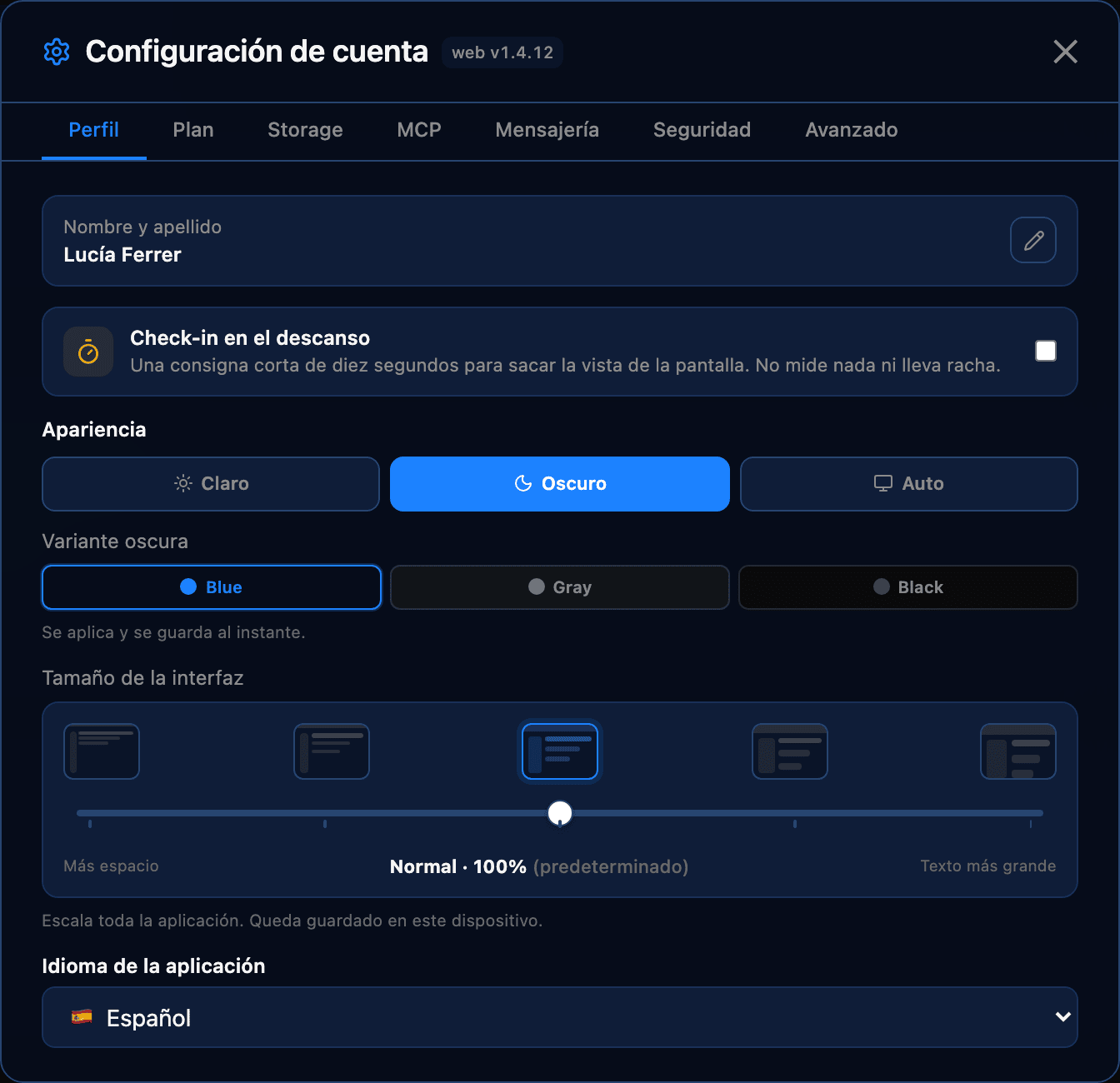
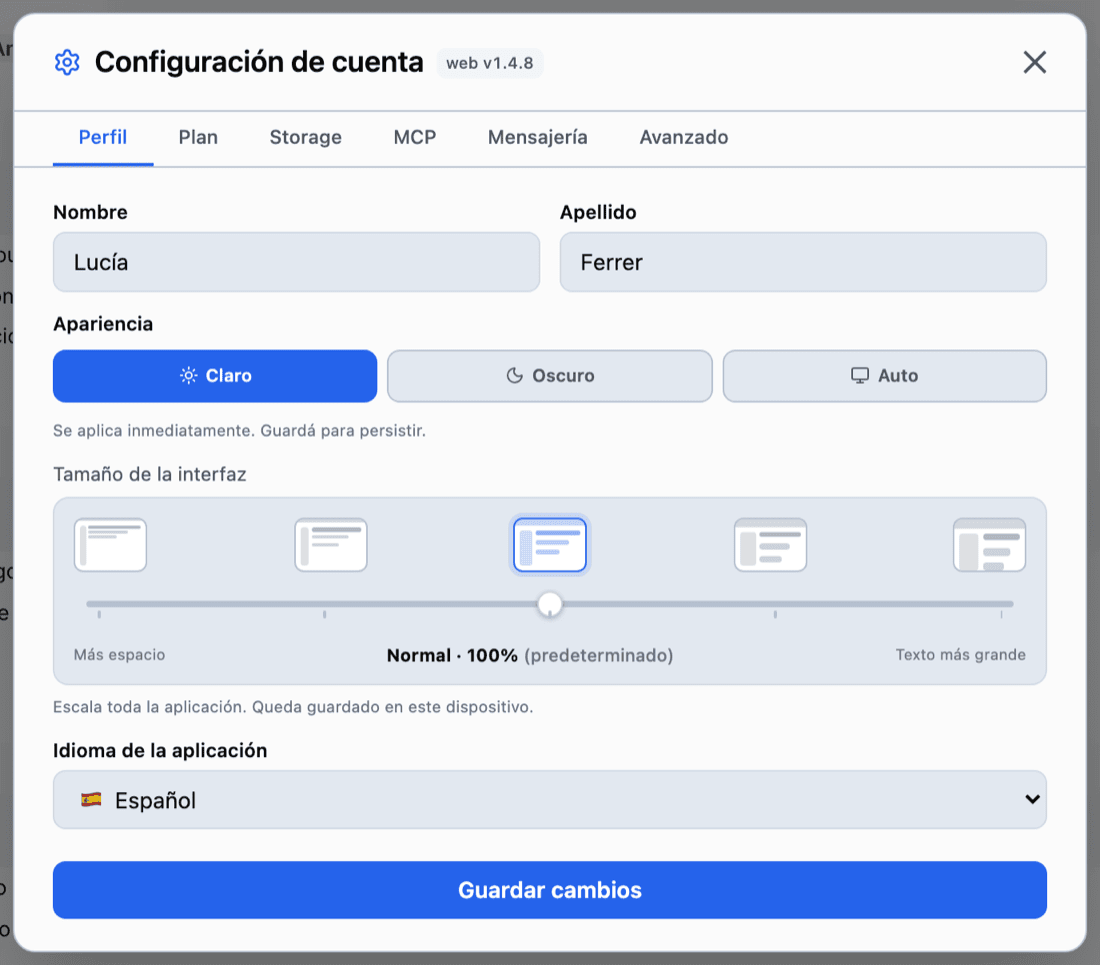
All of this lives in Account settings → Profile, applies instantly, and there is nothing to save. The theme can also be switched in one tap from the circle's menu, under Theme.
Light, Dark or Auto
Auto follows the system: it goes dark when your computer goes dark. It is stored on this device: the phone has its own.
Three different darks
With Dark or Auto on, Dark variant appears: Blue — deep blue, the default —, Gray — neutral grey — and Black — near-pure black, the one that draws least on OLED screens. It changes the whole background of the app, not an accent.
Interface size
A five-step slider that scales the whole app, not just the text: margins, rows and icons grow with it. It is also stored on this device.
Language
Spanish or English. It goes to your account, not to the device: changing it on the phone changes the web too. The app reloads itself when you apply it.
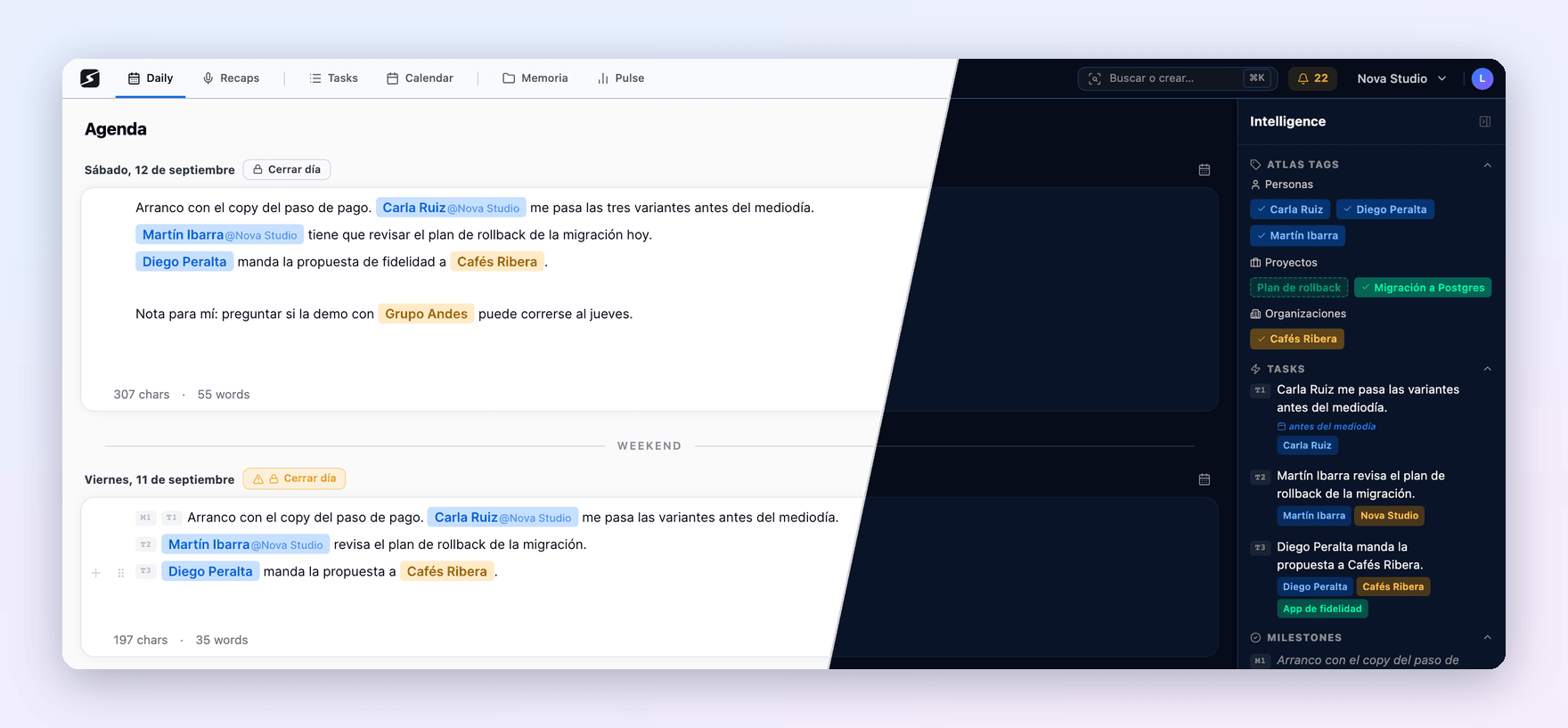
On the phone, and the colour background
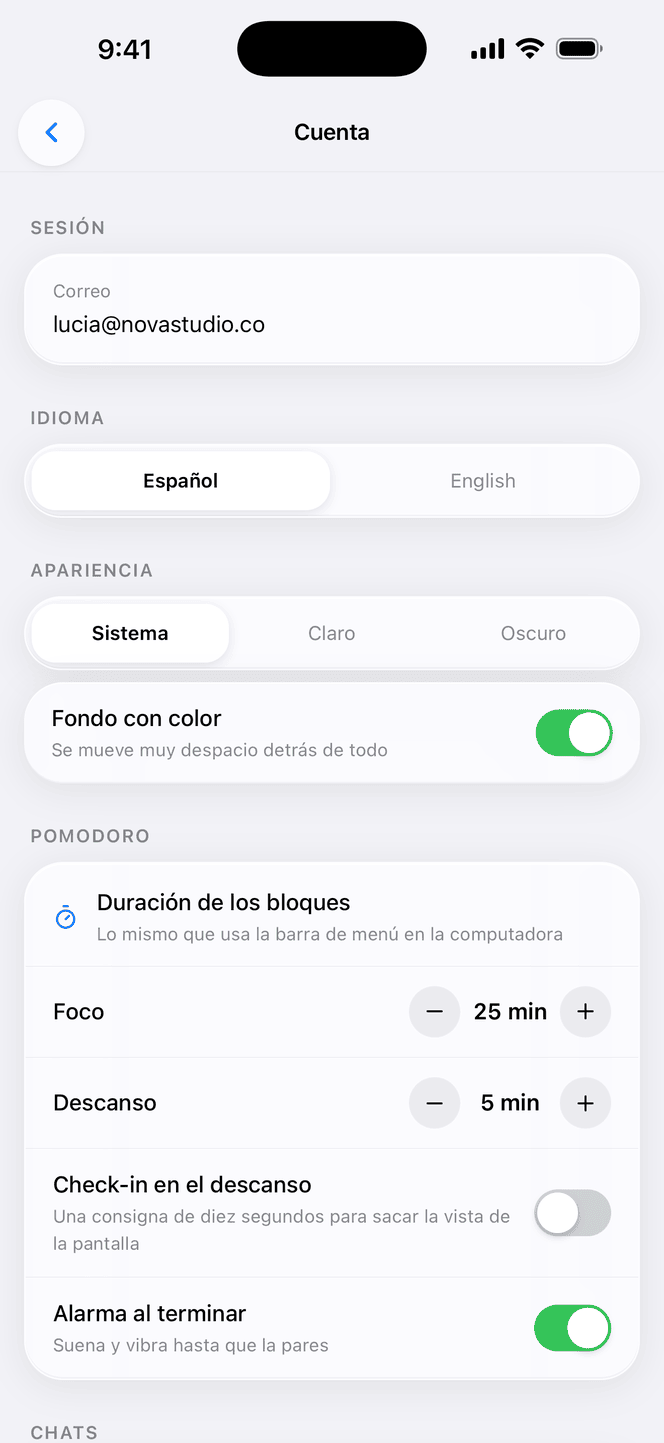
The phone app has its own settings under More → Settings, and they are not a subset of the desktop ones: the language is your account's, the appearance belongs to each phone, and they add the ones that only make sense on a phone.
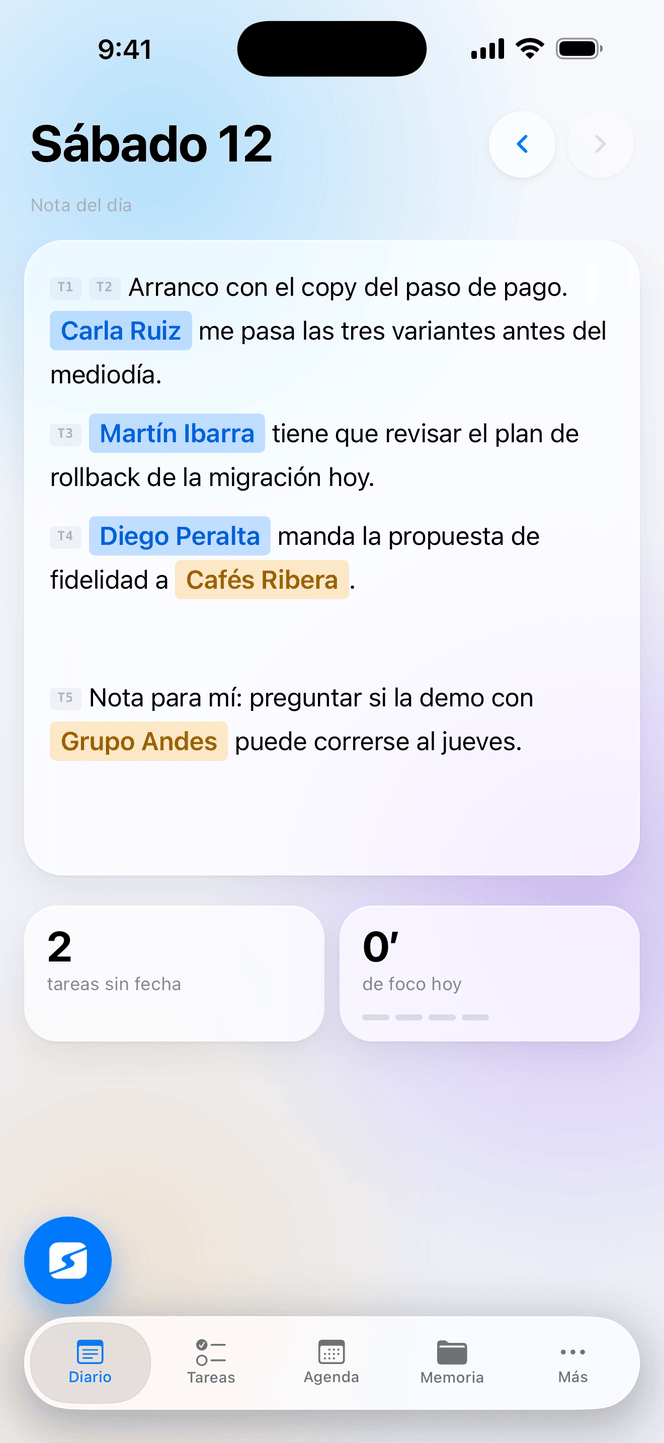
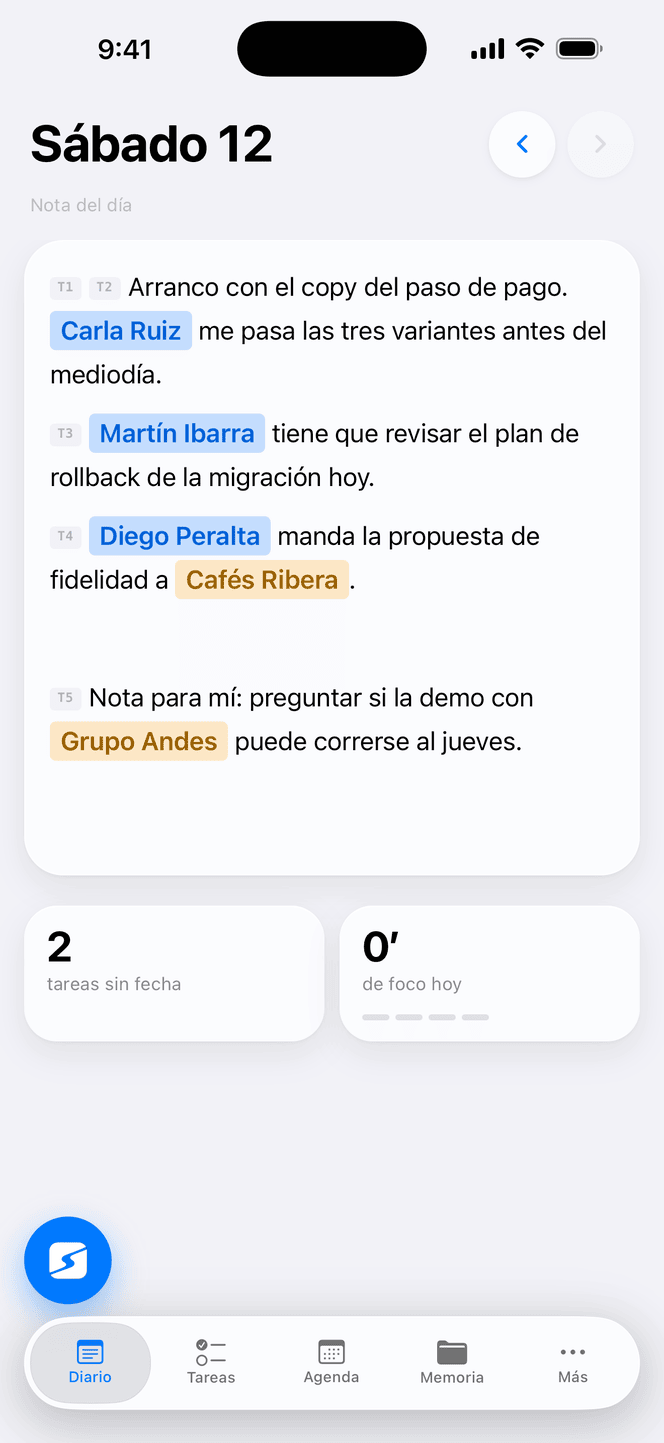
Colour background
A soft gradient with colour blooms drifting very slowly behind everything. It ships on and a switch turns it off, leaving the background flat. It sits behind the five tabs; detail screens are always flat.
Language and appearance
The language is your account's. Appearance is System / Light / Dark, with no dark variants and no interface size, and it stays on this phone.
Pomodoro
The focus and break lengths and the break check-in are the same as on the computer. Alarm when it ends — ringing and vibrating until you stop it — belongs to each phone.
Face ID on open
Shows up only if the phone has biometrics set up, and it belongs to the user who turned it on: on the same phone, another account sees it off.
Further down come Your voice, Your energy, Chats — linking WhatsApp and Telegram —, Alerts and Delete account, the same as on the computer. Workspace settings — the name, weekends and the digest by email — have their own button at the very top of More, next to the one for switching workspace; the rest is set up on the computer.
Notifications
You choose them by type, not by channel: you say what you want to hear about and the notice goes out whichever way can reach you — the app notification if you have it installed, chat if not, and email last. Picking the channel by hand is not a decision worth making anyone take; wanting a reminder to ring while not hearing about every shared document is.
| Notification | When it arrives |
|---|---|
| Reminders | The time came for something you asked to be reminded of. |
| Recaps ready | An audio you forwarded finished being summarized. |
| New tasks | Someone assigned you a task. |
| Shared | Someone shared a document, a recap or a person with you. |
| Calendar events | Ten minutes before every timed event, or whatever you pick; each event can ask for something else from its own card. |
| What needs your attention | Once a day, at the time you choose — and on Saturday and Sunday too, if you want —: overdue or stalled tasks, promises that have not moved and recaps you took nothing from. Tapping it opens the full detail. |
| … before a meeting | What is stalled for that organization or project travels inside the event notice, not in a separate one. |
| «You» report by email · Hobby | Every 7, 15 or 30 days: what you are like, what you improved and what to work on, drawn from your meetings. It needs your voice registered. See Secondbrain Me. |
They all ship on except the «You» report, and the preference belongs to your account: turning one off on the phone turns it off everywhere.
Where they are — which is not the same place on both
On the phone, under More → Settings → Alerts. On the computer, under Account settings → Notifications; in the desktop app that tab adds Notify me when a call starts, which applies to that computer only.
And there is one thing no switch here can do: if you said no to the system notification permission, nothing on this screen brings it back. That gets turned on in the phone, computer or browser settings.
Tab by tab
Your account
| Tab | What is inside |
|---|---|
| Profile | First and last name, appearance, interface size and language — above, in How the app looks —, the Pomodoro's check-in during the break and, in the desktop app, the focus and break lengths. Also Your voice: the fingerprint your recaps use to mark what you say — see My voice — and below it Your energy: when you perform best and what your day looks like, the same workday the planner uses. Both feed Secondbrain Me. |
| Plan | Which plan you are on and what it costs, your usage this month against each cap — AI actions, digests, messages, reminders, transcription hours, storage and workspaces —, the feature-by-feature detail and the button to change it. If you bought it on the iPhone, it is managed from there. |
| Storage | How much you use against your plan limit, broken down by workspace and by file type — images, documents, video, audio —, and the largest files, so you can delete them right there. It is the total across all your workspaces, not the one you are looking at. |
| MCP | You pick the tool — Claude, ChatGPT, Gemini, Claude Code, Cursor, n8n or another — and it tells you how to connect it: by signing in, or with a token generated right there. Below, Your connections: what you connected and your tokens, to disconnect, regenerate or revoke. See MCP and AI clients. |
| Messaging | Link WhatsApp and Telegram with the link — or the eight-character code — the bot replies with, choose which workspace each one writes to and which ones it can look into, and the list of commands. See WhatsApp and Telegram. |
| Notifications | The notifications, one by one. On the iPad it replaces Messaging: chats are linked from the web. |
| Security | Analytics cookies, two-step verification, exporting all your data as a ZIP and deleting the account. See Account security. |
| Advanced | Clear the browser cache and empty the screenshot cache from screen comprehension — it clears itself after 7 days or past 500 MB. |

The workspace
These options apply to everything you do inside that workspace, and they do not travel to the others.
| Tab | What is inside |
|---|---|
| General | The name, what you use it for (Work, Personal or Study — which decides the summary styles offered when generating a recap), hide weekends from the list of days and close the day automatically, which ships on: past days left open close by themselves once midnight passes with the app open, or the next time you open it. This is also where the workspace is deleted. |
| Recaps & Docs | The recap types — the setup assistant proposes them based on what you do, and you edit, add and delete them here —, your summary templates — the structure each recap is written in — and your document generation templates, each with its own preloaded instruction. |
| Calendar | Connect Google, Microsoft or iCloud to read and write events — and tick which calendars of each account belong to this workspace —, or add one by iCal URL, which comes in read-only. Below, the iCal subscription: the address for seeing your dated tasks from another calendar. See Calendar and planning. |
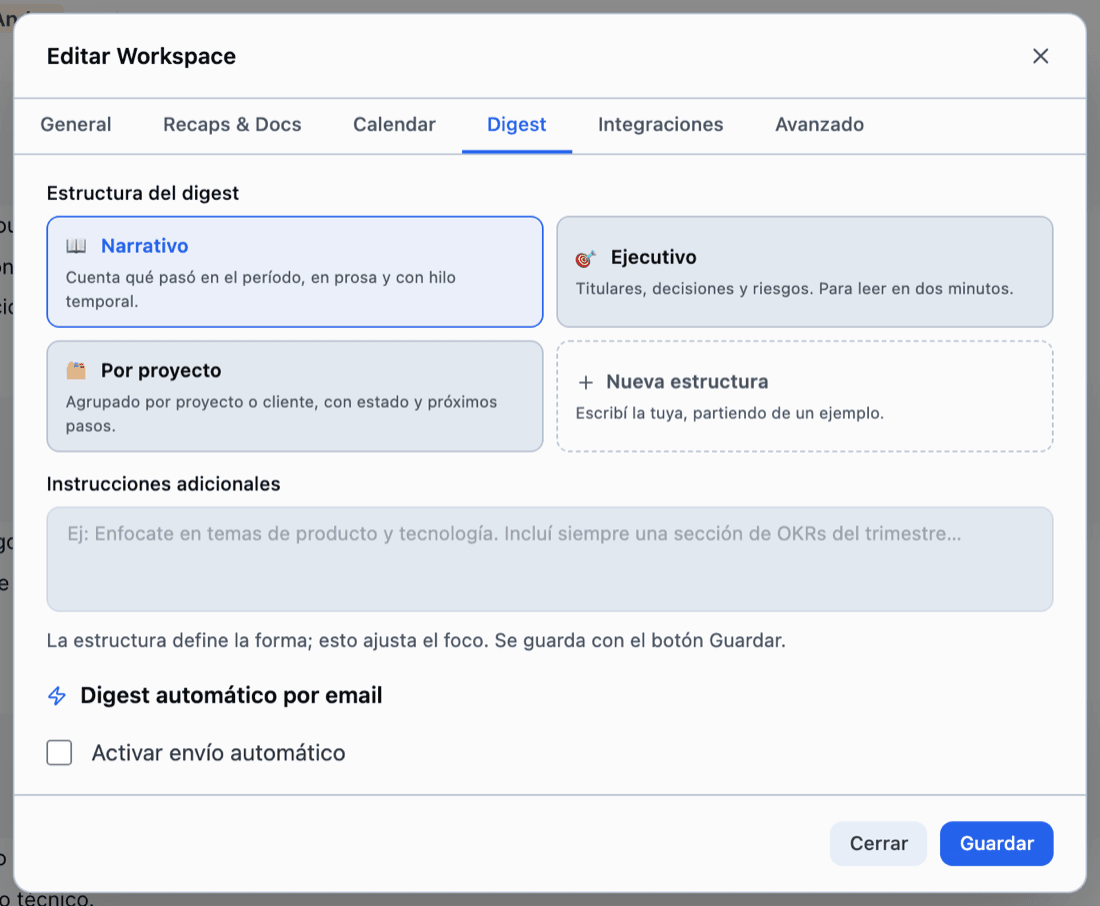
| Digest | The digest structure — Narrative, Executive, By project, or up to two of your own —, the extra instructions that shift its focus and, on Pro, automatic delivery by email with its hour and its type per day. See The digest. |
| Integrations | ClickUp and Jira, with two-way task sync, and the way in to the Web Clipper. |
| Advanced | Clear the cache, purge unused tags — the Atlas ones that appear in no daily note; it cannot be undone — and Auto-merge duplicates, which joins tags with the same name or matching another one's alias, keeping the one with more occurrences. |
Your workspaces
A workspace is an independent working space: its own content, its own Atlas, its own digest. You switch between them and create them from the workspace name at the top right — My Workspaces and New workspace —; on the phone, from More.
- How many you get is set by your plan: one on the free plan, two on Hobby, ten on Pro and twenty-five on Unlimited.
- A new one is set up with an assistant that proposes the initial configuration based on how you work.
- A workspace is never shared whole: what you share you pick piece by piece — a document, a recap, a board —, with one person or with a team. See Secondbrain Teams.
One personal, one for work
Having two workspaces is how personal life and work stop sharing an Atlas and a digest: each one has its own.
Integrations
All of them are connected from one of the two screens, all optional, and disconnectable whenever you want. The full list — calendars, ClickUp, Jira, WhatsApp and Telegram, AI clients, browsers — lives on its own page.
Shall we try it?
Create your free account and use all of this today.